Who is choosing equipment?

Laptop-based hybrid workers with a fixed home desk

If you work at a laptop for sustained periods, compare the need for a separately positioned screen with the need for better input-device placement. In Great Britain, the Health and Safety Executive says an employer assessment may apply to workers who use display screen equipment daily for continuous periods of an hour or more.

Home workers with limited desk space

On a compact or shared work surface, check the space available for a monitor and its stand as well as the space needed for a keyboard and mouse. Which? identifies smaller monitors as an option for limited spaces; a laptop stand is another route when repositioning the existing screen is the main aim.

Mobile workers needing a second screen

If you move between work locations, a portable display offers a second-screen route without a fixed desktop monitor. Check how it will connect, receive power and be positioned wherever you use it.

What should you check first?

Separate desktop monitor

Consider it when: A fixed desk has room for a separate display and the laptop screen leaves too little space for your work.

Trade-off: A larger screen takes desk space, and its inputs must work with the laptop’s video output.

Laptop stand and separate input devices

Consider it when: Screen height, rather than screen area, is the issue and the laptop can remain your main display.

Trade-off: Raising the laptop adds no screen area and can make its built-in keyboard and trackpad impractical to use.

Portable second monitor

Consider it when: You regularly move between work locations but still need another display.

Trade-off: A compact portable screen offers less viewing area than a larger desktop monitor; confirm its video and power arrangement with your laptop.

Priority What to check Your needs
Screen position Identify whether screen height, reflections or input-device placement is the issue. Check stand adjustment; for an arm, confirm the monitor mount and desk can accept it. I need to place the screen and input devices comfortably within the space I use, not simply add another display.
Screen area and desk fit Measure the usable desk area, then compare display size, resolution and stand footprint. Which? treats screen size, ports and adjustment as separate monitor choices. Documents and calls may make extra screen area useful, but the display still has to fit my desk or travel between locations.
Connections Match the laptop’s video output to the display input. For USB-C video, charging or a dock, confirm the exact port capabilities, required power delivery and cable. I want the screen to work with my actual laptop; a USB-C-shaped port alone does not settle whether my planned setup will work.
Employer assessment In Great Britain, ask whether you meet the Health and Safety Executive’s DSE-user criteria and whether an employer assessment covers your home setup. Check what action that assessment identifies. Before I buy work equipment personally, I want to know whether my employer’s assessment should determine what is provided.

What can go wrong?

  • Buying before checking the employer’s DSE process

    In Great Britain, the Health and Safety Executive says employers must assess qualifying display-screen users’ workstations. Where an assessment identifies action such as providing DSE equipment, the worker cannot be charged for it.

    Ask whether an assessment applies to your home workstation and what equipment it identifies before making a personal purchase for work.

  • Assuming USB-C guarantees one-cable video and charging

    A monitor’s USB-C features do not establish that the laptop supports the necessary display output or accepts the available charging power.

    Check the exact laptop port, monitor specification, power-delivery requirement and cable before choosing a USB-C monitor or dock.

  • Choosing by screen diagonal alone

    A display still needs to fit the work surface, connect to the laptop and offer positioning that works in the intended setup. A portable screen and a desktop monitor serve different space and carrying needs.

    Measure the desk and compare resolution, inputs and adjustment alongside screen size.

  • Treating one accessory as a universal fix

    A stand changes laptop-screen position but not screen area; an input device or monitor feature addresses a different part of the workstation. The Health and Safety Executive’s guidance considers the whole arrangement, including desk space and reflections.

    Pinpoint the limiting issue before choosing a stand, monitor, arm or input device.

Relevant brand references

Dell

Dell has adjustable desktop monitors and USB-C hub monitor models relevant to a fixed home desk.

  • Dell UK specifies a 27-inch QHD screen and height, pivot, swivel and tilt adjustment for the UltraSharp U2724D.
  • Check the exact model’s ports and the laptop’s video and charging capabilities; features of one Dell monitor do not apply to every model.

BenQ

BenQ’s home-office monitor range includes models with different resolutions and connection arrangements.

  • BenQ UK specifies USB-C with 65W power delivery and height, tilt, pivot and swivel adjustment for the 27-inch QHD GW2790QT.
  • Confirm the full model number before expecting USB-C charging or a particular stand adjustment.

Lenovo ThinkVision

The ThinkVision M15 is a portable second-screen reference for work across locations.

  • Lenovo describes the M15 as a 15.6-inch FHD monitor weighing 860 g, with two USB-C ports and power pass-through.
  • Check the laptop’s USB-C video and power compatibility; its screen is smaller than a larger desktop display.

Logitech

Logitech offers keyboards and mice to consider when a raised laptop changes where the input devices need to sit.

  • Its range includes ergonomic keyboards, vertical mice and trackballs.
  • Logitech’s comfort and posture descriptions are brand claims, not proof that a particular device is needed for every workstation.

HP

Specific HP desktop and portable monitors appear in PCMag UK’s September 2026 category selections.

  • PCMag UK names the Series 7 Pro 734pm for productivity and the Series 5 Pro 514pn for portable-monitor use.
  • Those are editorial selections of individual models, not a conclusion about every HP display or its fit for a particular desk.

Joybuy display options

These external displays cover fixed-desk and movable second-screen setups. Check the space, screen position and laptop connection each option would require; a monitor is not a substitute for assessing whether a stand or separate input devices address your main issue.

ASUS ZenScreen MB249C IPS USB-C monitor

ASUS ZenScreen MB249C IPS USB-C monitor

Consider this external display if you need a screen you can position in different workspaces. Check its positioning arrangement and carrying weight for your setup, and confirm that your laptop supports the USB-C video and charging arrangement you intend to use.

View on Joybuy

AOC Q32V4 31.5-inch IPS monitor

AOC Q32V4 31.5-inch IPS monitor

The 31.5-inch format is a fixed-desk option when you want a separate screen. Check that it fits the usable desk area, that your laptop has a compatible display output and that the supplied stand or a suitable mount can place the screen where you need it.

View on Joybuy
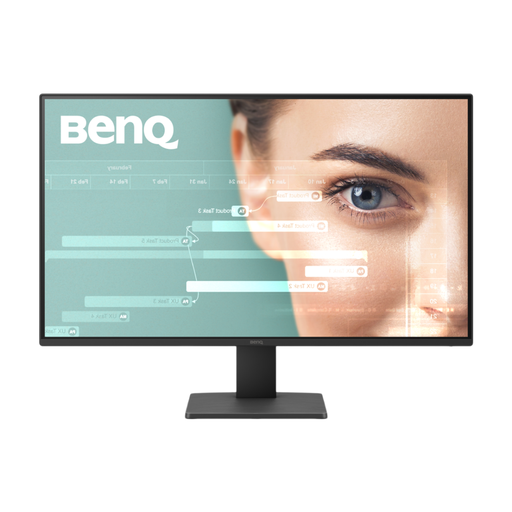
BenQ GW2791 27-inch Full HD IPS monitor

BenQ GW2791 27-inch Full HD IPS monitor

This is a 27-inch second-screen option for a fixed desk. Confirm that its stand provides the positioning your workstation needs and that its display input matches your laptop; check the exact variant before relying on additional connections or speakers.

View on Joybuy

Dell P2425 24-inch monitor

Dell P2425 24-inch monitor

The 24-inch format is worth considering for a fixed desk where screen placement matters. Check the exact P2425 variant’s inputs and stand adjustment against your setup; confirm its refresh rate and any USB-C capability before depending on either.

View on Joybuy

ASUS ZenScreen MB166CR FHD portable monitor

ASUS ZenScreen MB166CR FHD portable monitor

This is a portable second-screen route for work across locations. Before choosing it, confirm how the screen can be positioned and whether your laptop’s USB-C port supports the video connection it requires.

View on Joybuy

Common questions

Do home workers always need to buy their own monitor or stand?

No. In Great Britain, the Health and Safety Executive says display-screen rules can apply to permanent and hybrid home workers who use the equipment daily for continuous periods of an hour or more. Where an employer assessment identifies action such as providing DSE equipment, the worker cannot be charged for it; the assessment does not mean everyone needs a monitor or stand.

Should a workstation assessment cover both home and office?

Yes, where the display-screen rules apply and you use the equipment in both places. The Health and Safety Executive says the employer’s assessments should cover both situations, so discuss the equipment and arrangement you use at each location rather than assuming one setup answers for the other.

Should I connect a laptop monitor by HDMI or USB-C?

Choose a connection that the exact laptop and monitor both support. Which? describes HDMI as a common digital video and audio connection; for USB-C video, confirm the laptop’s display-output capability and, if you expect charging through the same cable, the monitor’s power delivery and the laptop’s charging requirements.

Can an eye-care monitor feature replace a workstation assessment?

No. The Health and Safety Executive’s display-screen guidance covers the overall arrangement, including screen adjustment, lighting and reflections, desk space and breaks. A manufacturer’s eye-care feature does not establish what equipment an individual workstation needs or replace an applicable employer assessment.