What to check before you buy
Work through employer arrangements and the existing workstation first, then match any equipment to the laptop ports, desk space and daily tasks it needs to support.
| Priority |
What to check |
Your needs |
| Assessment and provision |
Check whether display screen equipment rules apply to your work pattern; ask what the assessment covers at home and in the office; confirm who provides, repairs and supports equipment. |
I need to know whether a workstation change should be agreed with my employer before I buy equipment personally. The Health and Safety Executive says required equipment identified through a relevant assessment cannot be charged to the worker. |
| Screen height and inputs |
Check whether the laptop screen needs raising for prolonged use; allow desk depth for a separate keyboard and mouse; consider an external display if more screen area is the main issue. |
I want to raise the screen without continuing to type and point on the raised laptop. Health and Safety Executive guidance identifies separate keyboard and mouse use when elevating a laptop screen. |
| USB-C and display compatibility |
Confirm the exact laptop port function; check supported display output, display count and resolution; compare charging needs with the monitor or dock power-delivery arrangement. |
I need the desk connection to work with my existing work laptop, not simply fit its USB-C-shaped port. DisplayPort Alt Mode and Power Delivery must be supported by the relevant equipment for those functions. |
| Employer IT policy |
Check approved devices, security requirements and technical support; confirm whether a dock, webcam, wireless accessory or headset is permitted; agree responsibility for repairs. |
I want equipment that can be used and supported for work, especially when it connects to a company laptop or network. Acas advises agreeing provision, repairs, support and information-security rules for home working. |
Joybuy product options
Joybuy product options for regular hybrid work, covering desk connections, an external monitor and collaboration accessories.
 No image available
Targus USB-C Universal Dual HDMI 4K Docking Station with 100W Power Delivery Pass-Thru
For a fixed desk that repeatedly connects two displays, Ethernet and peripherals.
- Two HDMI 2.0 outputs, Gigabit Ethernet, SD/microSD readers and USB 3.2 ports are stated.
- Up to 100W USB-C Power Delivery pass-through is stated.
- An external 100W or higher adapter is required for the stated charging route.
- Check the laptop’s USB-C video, dual-display and Power Delivery support before purchase.
Joybuy
 No image available
ASUS ProArt PA278CV IPS WQHD Monitor
For sustained desk work that needs more screen space and an adjustable viewing position.
- 27-inch 2560 × 1440 display with height, tilt, swivel and pivot adjustment stated.
- HDMI, DisplayPort, USB-C with power delivery and a two-port USB hub are stated.
- Check USB-C video support and the laptop’s charging requirement before relying on a one-cable setup.
- Allow for desk depth, cables and employer equipment policy.
Joybuy
 No image available
Baseus Metal Gleam Series II 10-in-1 USB-C Hub
For a portable desk connection that needs displays, wired network access and peripherals.
- Two HDMI ports, RJ45 Ethernet, USB ports, SD/TF readers and 100W USB-C PD input are stated.
- Listed display outputs include one HDMI 4K120Hz and one HDMI 4K60Hz port.
- Video output requires a USB-C host port supporting DisplayPort Alt Mode.
- Check the laptop’s supported display modes and charging arrangement before purchase.
Joybuy
 No image available
Targus 2K Webcam with Auto Focus
For recurring calls that need an external camera and microphone rather than a main workstation change.
- Autofocus, dual stereo microphone, privacy slider and monitor or laptop clip are stated.
- USB-C connectivity with included cables or adapters and a 67° field of view are stated.
- The title and technical specification give different resolution information; confirm the required resolution before purchase.
- Check employer platform, security policy and available USB ports.
Joybuy
 No image available
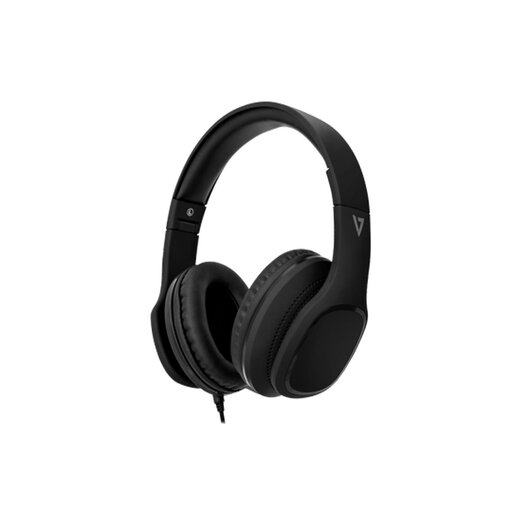
V7 HA701-3EP Over-Ear Headphones with Inline MEMS Mic
For workers who prefer a wired microphone and call controls for regular calls.
- Over-ear design, memory-foam ear pads, foldable earcups and detachable braided cable are stated.
- An inline MEMS microphone, call controls and a 1.8 m detachable 3.5 mm cable are stated.
- Requires a compatible 3.5 mm headphone connection.
- Check conferencing-platform, device-security and call-quality requirements with the employer.
Joybuy
Frequently asked questions
When should an employer provide home-office display screen equipment rather than asking a worker to buy it?
Where display screen equipment rules apply, the employer should assess the individual home arrangement and, where relevant, the office arrangement. If that assessment indicates action is needed, including providing equipment, the Health and Safety Executive says the worker cannot be charged; this does not mean every home worker automatically needs a monitor, chair or dock.
Do display screen equipment rules apply to all occasional work from home?
No. The Health and Safety Executive says the rules can apply to permanent or long-term home workers and people who routinely split time between workplace and home, including those using display screen equipment daily for continuous periods of an hour or more. It says they do not apply to occasional or short periods of home use.
What should I check before buying a USB-C monitor or dock for a work laptop?
Check the laptop manufacturer’s documentation or IT support for the exact port function, external-display output, supported display count and resolution, and charging requirements. A USB-C-shaped port alone is not confirmation: DisplayPort Alt Mode is relevant for USB-C video, and the laptop plus monitor or dock must support the required Power Delivery arrangement for one-cable charging.
Should I use a laptop stand with the laptop keyboard and trackpad for a full workday?
For prolonged laptop use, the Health and Safety Executive advises using a separate keyboard and mouse so the laptop screen can be elevated on a riser or similar. A stand-plus-input-device setup may be suitable where the existing laptop screen needs raising, but individual workstation requirements still matter.
What if standard equipment is not suitable because of a disability or health condition?
Employers must make reasonable adjustments so workers with disabilities or physical or mental health conditions are not substantially disadvantaged at work, according to GOV.UK. Access to Work may support individual needs beyond reasonable adjustments, but it does not pay for adjustments that an employer is legally required to make, so discuss the situation with the employer before making a personal purchase.


