What matters when choosing?
Identify the workstation problem before choosing a desk setup. A portable hub may suit occasional extra connections between locations; meeting peripherals deserve separate attention when calls, rather than screen space or desk connectivity, are the issue.
Laptop with stand and separate input devices
Consider it when: you move regularly between work locations and need to adjust a laptop-based setup.
Trade-off: a stand does not add screen space or consolidate desk connections; consider the whole workstation, not screen height alone.
External monitor and separate input devices
Consider it when: more room for documents and applications is the main need at a fixed desk.
Trade-off: the setup occupies desk space and depends on a supported video connection and suitable cable or adapter.
Docked desk setup
Consider it when: you repeatedly connect displays and several peripherals to the same laptop.
Trade-off: one-cable use depends on the exact laptop, dock, display configuration and charging requirements; some docks also require software.
| Concern | What to check | Who this matters to |
|---|
| Workstation fit |
If a Display Screen Equipment assessment applies, establish its outcome before choosing a display, stand or separate input devices. |
I need my regular workstation to address the issue identified in my assessment, rather than add equipment indiscriminately; around 29% of consumers put this assessment-led need first. |
| Connection compatibility |
Match the exact laptop and dock for video output, charging, display limits and operating-system support; check software requirements for DisplayLink equipment. |
I reconnect several devices and need the intended displays and charging to work with my laptop; compatibility is the primary concern for around 29% of consumers. |
| Screen space |
Check the computer’s supported display connection and configuration, plus the cable or adapter needed for the monitor. |
At my fixed desk, I need more room to keep work visible across documents and applications; around 24% of consumers place extra screen space first. |
| Remote meetings |
Check the exact peripheral’s connector, operating-system support and compatibility with the meeting platform you use. |
Regular calls make camera, microphone or privacy features more pressing for me than a larger desktop; this meeting-related need comes first for around 18% of consumers. |
Joybuy product choices
These monitors suit consideration when a fixed desk needs more screen space; the webcams address regular meeting needs, while the dock is for a desk with repeated peripheral connections. Choose the type of equipment after identifying your own workstation issue and checking compatibility.
 No image available
Samsung S40GD LS22D400GAUXXU 22-inch Full HD monitor
Consider this external display when screen space is the issue at a fixed desk. Check that your computer supports the intended display connection and that you have a suitable cable or adapter.
Joybuy
 No image available
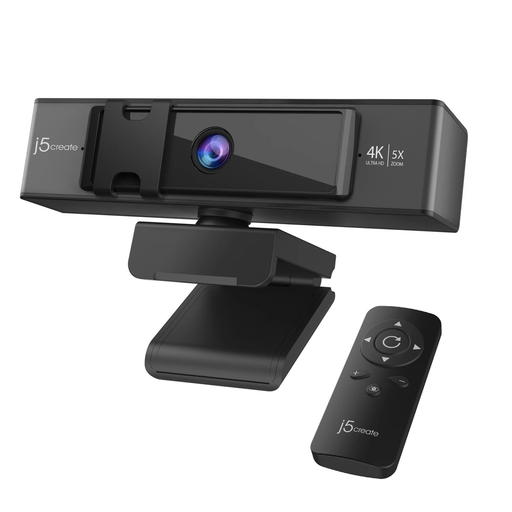
j5create JVCU435 USB 4K webcam with 5x digital zoom remote control, black and silver
Consider this webcam if camera framing during regular calls is your main concern. Check its connection, operating-system support and compatibility with your meeting setup.
Joybuy
 No image available
KOORUI E2412F 24-inch FHD business monitor
This is another external-display option for a fixed desk where more screen space is the priority. Confirm your computer’s video output and the cable or adapter required for the intended setup.
Joybuy
 No image available
Targus USB-C Universal Dual HDMI 4K Docking Station with 100W Power Delivery Pass-Thru, retail packaging
Consider this dock if you repeatedly connect desk displays and peripherals. Its named 100W Power Delivery Pass-Thru does not establish what your laptop will accept: check host video and charging support, the intended display configuration and whether a suitable external 100W+ adapter is included.
Joybuy
 No image available
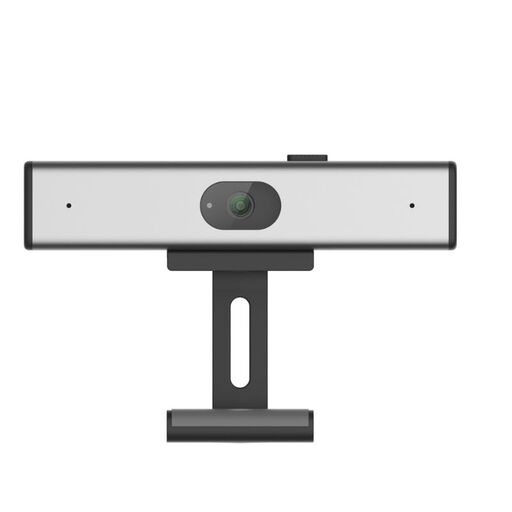
Philips SPL6308S/00 2K QHD webcam with noise-reduction microphone, EU Version, silver
Consider this clip-on webcam when regular video calls make a separate camera and microphone relevant. Check its connector, operating-system support and compatibility with your meeting platform before choosing it.
Joybuy
Common questions
Do employees working from home have to buy their own monitor or dock?
Not automatically. The Health and Safety Executive says the UK Display Screen Equipment rules can apply to permanent, long-term and hybrid home workers; for workers using display screen equipment daily for continuous periods of an hour or more, the employer must assess the workstation. Use that individual assessment to establish what changes are needed rather than assuming a monitor or dock is required.
Can any USB-C port run a monitor and charge a laptop through a dock?
No: USB-C describes the connector, not every function it supports. Dell documents data-only ports as well as ports with video and power capabilities, and advises checking the laptop specification; its universal USB-C dock guidance calls for DisplayPort Alt Mode support for video.
Should I choose a portable hub or a desk dock?
Choose according to how often and where you connect devices: a portable adapter suits occasional connections between locations, while a dock is worth considering for a desk where you repeatedly attach displays and peripherals. Check the precise laptop and dock features before assuming that one host cable will also provide video and charging.
Will a dock let any Mac use two external displays?
No dock can establish that capability on its own. Apple advises checking the exact Mac model’s supported number of external displays, video ports and required cables before choosing the display arrangement.
Will a USB-A DisplayLink dock charge my laptop?
A USB Standard A-B DisplayLink dock is not designed to charge the computer, according to DisplayLink, so plan to use the laptop’s power supply. For a different DisplayLink dock, check the exact dock and host charging specifications rather than assuming charging from its display capability.


