Fixed-desk laptop workers
A larger second screen can give documents, email and calls more room at a regular workstation. Which? notes that a laptop can be connected to a monitor to mirror or extend its display.


For a regular home desk, start with a desktop monitor that fits your space and connects to a video output your laptop supports. Choose a USB-C monitor if you also want a simpler cable setup, but check video support and charging power separately; an adapter or dock is useful when the available ports or peripherals call for one. A portable display makes more sense when the screen needs to move between workspaces than when it will stay on one desk.
A larger second screen can give documents, email and calls more room at a regular workstation. Which? notes that a laptop can be connected to a monitor to mirror or extend its display.
These consumers want to connect the laptop for video and potentially charging and desk peripherals with less daily plugging and unplugging. That arrangement depends on the laptop port, the monitor connection and sufficient charging power.
A compact screen is worth considering when the workspace changes between rooms or temporary desks. ASUS describes its ZenScreen range as portable; the trade-off is checking its power, connection and positioning requirements rather than assuming it will work like a fixed desk monitor.
Check the exact laptop model and its supported external-display connections before choosing a screen. Then decide whether desk fit, one-cable convenience or the ability to move the display matters most.
| Concern | What to check | Who this matters to |
|---|---|---|
| Laptop connection | Check the laptop maker's supported external displays and video-capable ports, then match the monitor input and cable or adapter. | If I cannot get video from the port I plan to use, the extra screen will not serve its purpose. Around 36% of consumers would put connection certainty first. |
| Charging and desk devices | For USB-C or a dock, check the video mode, stated charging output and the ports needed for peripherals. | I want one regular laptop connection to handle the display and the desk devices I use, without assuming it will also charge my laptop. Roughly 29% of consumers would prioritise that one-cable need. |
| Desk fit and viewing | Measure desk width and depth; compare screen and stand dimensions, adjustment options and the intended display arrangement. | My second screen needs to give everyday work more room while still fitting where I can position it. Around 21% of consumers would make desk fit and viewing their primary concern. |
| Moving the screen | Check portable-screen size, stand arrangement, inputs and whether it needs separate power. | I need to take the second display between work surfaces rather than leave it on one desk. For approximately 14% of consumers, portability would come first. |
The connector shape alone does not establish that a laptop sends video through that port. Charging output also varies by monitor: LG lists 15W for its 27U631A-B and 90W for its 27U730A-B.
Check the exact laptop port's display capability and charging requirement against the monitor's upstream USB-C video and power specifications.
If the connection does not cover both functions, you may still need the laptop charger or a different cable or adapter.
A screen can be an awkward fit even when its diagonal size sounds suitable. Stand depth and available adjustment affect where it can sit on a shallow desk.
Measure the usable desk area and compare the monitor's dimensions with its stand attached. Check adjustment or VESA mounting options if its position needs to change.
A different stand or mount may be needed if the supplied stand cannot provide the intended position.
The laptop's supported external-display count still matters. Microsoft Support explains that a display splitter duplicates the same signal rather than creating independent extended desktops.
Check the laptop maker's display limits before selecting a dock, and compare the dock's documented output arrangement with the screens you intend to connect.
A portable model addresses the need to move a display, but its stand and screen size may not suit the position wanted for daily fixed-desk work.
If the screen will usually stay at home, compare its positioning and connections with those of a conventional monitor before choosing portability.
Dell's Pro P-series includes office-oriented USB-C hub monitors; the connection features depend on the exact model.
BenQ has business and home-office USB-C monitors with model-specific stand and hub features.
LG's monitor range includes USB-C screens with substantially different stated charging outputs and desk features.
ASUS ZenScreen models are relevant when a second display needs to move between workspaces.
These desktop monitors are choices for a regular laptop-based workstation. Before ordering, match the chosen model's inputs to your laptop and measure the space available for its screen and stand; use an adapter or dock only if your connection or desk devices require one.
 No image available
Consider this 24-inch FHD screen for routine work at a fixed desk if its stand fits your available space.
Confirm the inputs on this model and the video output on your laptop before selecting a cable; check its stand adjustment if screen height matters to you.
 No image available
The 31.5-inch screen is a choice to assess if you want a larger display for side-by-side work and have room for it on the desk.
Measure its actual footprint with the stand, and confirm that the intended input, cable and display mode match your laptop.
 No image available
This IPS WQHD model is worth considering for a regular desk when screen positioning is an important part of the setup.
Check its dimensions and adjustment options for your desk. If you intend to connect or charge through USB-C, confirm the video mode and stated power output against your laptop.
 No image available
Consider this IPS WQHD model if a larger fixed-desk screen suits the windows you keep open during work.
Check the screen and stand dimensions against your desk, then confirm the intended video connection and display mode with your laptop.
 No image available
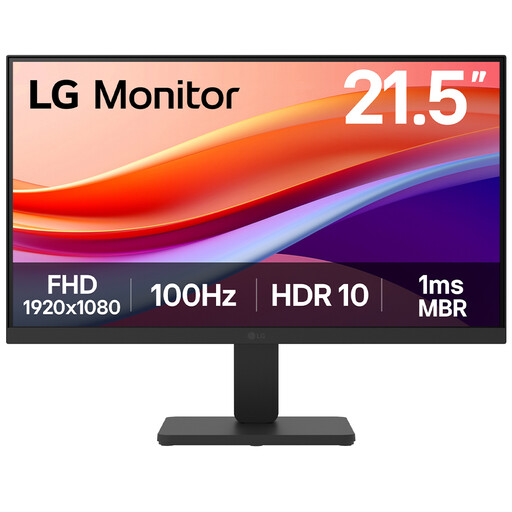
This 22-inch Full HD screen is an option to compare when a compact additional display is the priority.
Its title specifies an HDMI connection and 100Hz refresh rate. Check the laptop's HDMI output and supported display mode, as well as the monitor's footprint on your desk.
Check the exact model's supported external-display count and video-capable ports, then match them to the monitor input and cable or adapter. Apple Support says display support varies by Mac model; Microsoft Support likewise says a Surface connection depends on the device model and the cables or adapters used.
Not on the strength of the connector shape alone. Check that the laptop port and monitor's upstream USB-C connection support a compatible video mode, then compare the monitor's stated charging output with the laptop's requirement if you want one cable to provide power too.
A dock is not automatically needed when one compatible video connection meets your requirements. Consider one if you also want to consolidate charging, USB devices or Ethernet, and check both the dock's configuration and the laptop's supported displays.
A splitter does not create two independent display signals: Microsoft Support says it duplicates the same signal. For separate extended screens, check how many external displays the laptop supports and choose a connection arrangement documented for that setup.
Set the connected display to extend rather than mirror the laptop screen. For Windows, Microsoft Support advises selecting Extend with the Windows logo key + P if the screen is connected but showing duplicated content; the available arrangement still depends on the laptop and connection.