Laptop-first document workers
If you regularly move between documents, spreadsheets and browser windows, an external display may address the lack of visible workspace more directly than extra ports.


Choose an external monitor if your main problem is keeping documents and applications visible; choose a dock if you also reconnect several desk devices, an adapter if only a connection is missing, or a dedicated peripheral if calls or input are the issue. Before buying, check what your laptop supports for video output, external displays and charging: a USB-C connector alone does not establish those capabilities.
If you regularly move between documents, spreadsheets and browser windows, an external display may address the lack of visible workspace more directly than extra ports.
If you repeatedly connect a laptop to a display and several wired devices, a compatible dock or hub may reduce the number of separate connections you make at your desk.
If meetings are the main difficulty and screen space is already adequate, assess the camera, microphone and input devices before adding another display.
Start with the task that is difficult at your desk, then check whether your existing laptop can support the connection needed to fix it.
Choose when: You need documents or applications visible together for sustained work.
Trade-off: More screen area takes desk space and does not automatically provide charging or additional connections.
Choose when: You reconnect a laptop to several desk devices and want to consolidate their connections.
Trade-off: Display and charging capabilities depend on the particular dock and laptop; some display arrangements also need compatible software.
Choose when: You already have a suitable display and need to connect ports that do not match directly.
Trade-off: An adapter cannot create video output or extra display support that the laptop does not have.
Choose when: Calls or desk input are the main concern rather than display space.
Trade-off: A webcam or other peripheral does not expand the display workspace, and some features depend on compatible software.
| Concern | Buying checks | Who this matters to |
|---|---|---|
| Visible workspace | Check the laptop’s supported external-display count and resolution, then match its output to the monitor’s input. | I need to keep a document and reference material in view rather than repeatedly switch windows; around 33% of consumers would put screen space first. |
| One-cable desk connection | Check the laptop’s video protocol, the dock’s supported display modes and its host charging output. | Connecting several devices each time I sit down interrupts my work; roughly 27% of consumers would prioritise consolidating those connections. |
| A missing display connection | Match the computer’s output to the display’s input and check the intended resolution and refresh rate. | I already have a display and only need a way to connect it; about 20% of consumers would make that connection their primary concern. |
| Calls and desk input | Check the peripheral’s connection type and whether any software-dependent features work with your computer. | Regular calls or laptop-based input are harder for me than managing windows; around 20% of consumers would focus on meeting and input peripherals first. |
A USB-C connector does not, by itself, confirm compatible video output, laptop charging or support for the number of displays you want. DisplayPort and USB Power Delivery describe capabilities that the connected devices must support.
Look up your exact laptop model’s ports, external-display limits and charging requirements before choosing a monitor, dock or adapter.
Available resolutions and simultaneous displays can depend on the host computer. StarTech.com specifies particular DisplayPort Alt Mode and DSC host conditions for the higher-resolution modes of its DK31C2DHSPDUE dock.
Match your intended display count, resolution and refresh rate against both the dock’s compatibility information and the laptop specification.
A monitor or dock’s Power Delivery rating needs to be considered alongside the laptop’s charging requirement and the equipment used to supply power.
Compare the stated host charging output with your laptop’s requirements, and check which power supply and cable the setup needs.
More ports will not provide more screen area or address a meeting-camera concern. Conversely, a simple display adapter will not consolidate several wired desk devices.
List what you connect during a typical desk session and choose the equipment that addresses the main difficulty.
Dell offers monitors for laptop desks, including models that combine a display with USB-C hub connections.
Belkin’s dock range includes options for connecting displays and peripherals at a laptop desk.
StarTech.com offers docks and adapters with model-specific port and host-compatibility information.
Logitech offers dedicated webcams for desks where video calls are the main upgrade concern.
These choices address different parts of a laptop-based home desk: connecting several devices, adding a screen, providing more port types or adding a webcam. Choose by the task you need to address, then check compatibility with your computer.
 No image available
Consider this dock if you need display connections and laptop charging at a desk you use repeatedly.
The product name specifies dual HDMI 4K connections and 100W Power Delivery pass-through. Confirm your laptop’s supported display arrangement and whether a suitable external power adapter is included.
 No image available
Consider this monitor if your main aim is more visible space for document work.
Its product name specifies a 29-inch display, 100Hz refresh rate, and DisplayPort and HDMI connections. Check your computer’s supported display mode; if you need charging or peripheral connections through the monitor, confirm those capabilities separately.
 No image available
Consider this 22-inch screen if you want an additional display for a laptop desk.
The product name specifies Full HD resolution. Check that your computer has a compatible display output and supports the arrangement you intend to use.
 No image available
Consider this adapter if you need several connection types from a laptop’s USB-C port.
The product name lists two HDMI connections, DisplayPort, two USB 3.0 and two USB 2.0 connections, RJ45, PD, SD/TF and audio. Check the supported simultaneous display modes and charging wattage against your laptop before relying on either capability.
 No image available
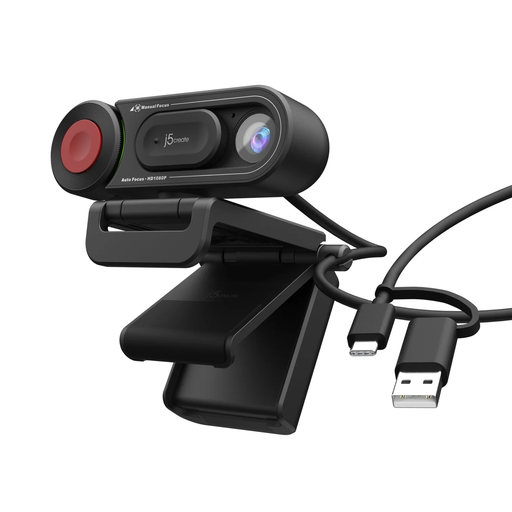
Consider a dedicated webcam if recurring video calls, rather than screen space, are your main reason to change the setup.
The product name identifies an auto and manual focus switch. Check the camera’s video specification and that your computer has the connection it requires.
No. Add a monitor if you need more visible workspace, or a dock if repeatedly connecting several devices is the problem. If only one display connection is missing, a compatible cable or adapter may address that need.
No. The laptop, dock and operating system must support the intended display arrangement, and the dock’s charging output must suit the laptop. Check your exact laptop model’s display limits and the dock’s host and software requirements; Apple likewise advises checking the ports and supported display count of the particular Mac.
Compare its stated host Power Delivery output with your laptop’s charging requirement. Then check the power supply and cable needed for that output, rather than assuming that a USB-C connection or the stated wattage guarantees the charging arrangement you want.