Start with what makes your current laptop desk difficult to use. For prolonged document work, raising the screen and using a separate keyboard and mouse may matter more than a dock; add an external monitor for more screen space, or a dock for repeated peripheral connections, only after checking the laptop’s display output, supported display count and charging needs. If calls are the main difficulty, check camera placement and audio accessories instead.
Who this setup suits
Laptop-only document workers
If reading and writing take up long stretches of the day, screen height and the position of the keyboard and mouse are useful starting points. The Health and Safety Executive advises using separate input devices when elevating a laptop screen for prolonged use.
Multi-tasking desk workers
An external display can provide space for documents and other windows, while a dock can bring desk peripherals together. Check the exact laptop’s supported displays and connection requirements before choosing either arrangement.
Call-heavy hybrid workers
If video meetings shape the working day, camera position, a suitable microphone or headset, and available connections may be more pressing choices than adding another screen.
What to check before buying
For a home or hybrid-work laptop desk, identify the primary problem before choosing accessories: working position, screen space, connections or calls. A dock’s advertised outputs do not establish what a particular laptop can run.
| Concern | What to check | Who this matters to |
|---|
| Screen and input position |
Check that a stand can hold the laptop securely and that a separate keyboard and mouse will fit the desk. The Health and Safety Executive pairs elevated laptop screens with separate input devices for prolonged use. |
If I spend hours working on the laptop, I want to position its screen without having to type on a raised keyboard. Around 33% of consumers put screen and input positioning first. |
| More screen space |
Check the exact laptop’s supported external-display count, video ports and desired resolution, then match them to the monitor inputs. Apple Support notes that Mac display support depends on the particular Mac. |
When I work across documents and calls, I want room for separate windows rather than constantly switching views. Around 27% of consumers make additional screen space their primary need. |
| Displays, power and peripherals |
Compare the laptop’s video protocol and charging requirement with the dock or monitor’s host connection, power output and required cable. USB-C connector shape alone does not establish these functions. |
At a fixed desk, I want to reconnect my display and other devices without rebuilding the setup each time. For around 20% of consumers, reliable connections and charging come first. |
| Video calls |
Check camera mounting and position, microphone or headset connection, and compatibility with the operating system and meeting platform. |
If calls fill my working week, I need a camera and audio arrangement that fits my desk and meetings. Around 20% of consumers prioritise their call setup. |
Common setup mistakes
-
Assuming every USB-C port can run a dock’s displays
A matching connector does not establish video output or the number of extended displays. Apple Support advises checking a Mac’s ports and display support; Lenovo and Anker specify host-protocol conditions for their docks and hubs.
Look up the exact laptop model, its supported display count and video protocol, then compare those details with the dock, monitor and cable requirements.
An incompatible connection can leave the intended display arrangement unusable.
-
Reading a dock’s headline wattage as a laptop guarantee
Dell lists different power-delivery figures for Dell and non-Dell systems on specific docks. A maximum output is not a promise that every laptop will receive or use that level of power.
Compare the laptop maker’s charging requirement with the dock’s stated output for your system, including any power-supply requirements.
If the available output does not meet the laptop’s needs, you may still need its original charger.
-
Raising a laptop but continuing to type on it
Moving the screen also moves the attached keyboard. The Health and Safety Executive’s guidance for prolonged laptop use pairs an elevated screen with a separate keyboard and mouse, or suggests a separate display.
Plan where the stand, keyboard and mouse will sit together, and check how the input devices connect.
-
Assuming two HDMI sockets mean two extended screens
For its A210B hub, Anker says Windows supports different content on each external monitor in Extended Mode, while macOS mirrors the same content across the monitors.
Check the display-mode notes for the specific hub and operating system if independent screens are essential.
Otherwise, you may have to accept mirrored displays or choose a different connection arrangement.
Brands to consider
Dell
Dell offers USB-C and Thunderbolt docks for desks with several connected devices.
- Dell lists up to 96W for non-Dell systems on its Pro Thunderbolt 4 Smart Dock SD25TB4 and up to 240W on its Pro Thunderbolt 5 Dock WD25TB5.
- Those are different models with system-dependent power figures; check the chosen dock against your laptop.
Lenovo
Lenovo’s range includes ThinkPad-oriented USB-C and Thunderbolt docks.
- Its ThinkPad Thunderbolt 4 Workstation Dock is an option to examine for a desk with external displays and peripherals.
- Lenovo says dock functions depend on laptop support for the relevant USB-C Alt Mode, DisplayLink or Thunderbolt protocol.
Anker
Anker offers compact hubs and larger docking stations for adding laptop connections.
- Anker lists full-function USB-C, USB4 and Thunderbolt connections for its Nano A210B hub.
- For that model, Anker distinguishes Windows extended dual displays from macOS mirrored displays.
LG
LG’s USB-C monitors offer a display-led option for a desk where one monitor connection is the priority.
- LG lists display and data connectivity plus charging up to 65W for its 24BA650-B monitor.
- Check the laptop’s USB-C display support and power requirement before relying on the monitor for charging.
Logitech
Logitech’s business range includes keyboards, mice, webcams and headsets for desk setups.
- Its range lets consumers look at input and call accessories without first choosing a dock.
- Check the chosen device’s connection method, operating-system support and physical fit for the desk.
Joybuy product choices
These choices cover different additions to a laptop desk: a dock, portable and fixed displays, a conference webcam and a separate mouse. Choose the addition that addresses your main need, then check compatibility with your own laptop and workspace.
 No image available
Targus USB-C Universal Dual HDMI 4K Docking Station, 100W Power Delivery Pass-Thru
Consider this for a fixed desk where a compatible laptop needs two HDMI display connections. The title specifies dual HDMI 4K output and 100W power-delivery pass-through; the listing calls for an external 100W or higher adapter to power the dock. Confirm the laptop’s USB-C video support, independent-display capability and charging needs before choosing it.
View on Joybuy
 No image available
ASUS ZENSCREEN MB166CR FHD
This is a portable-screen option for someone who wants another display alongside a laptop. Check that the exact laptop can output video through its intended USB-C connection, and confirm how the screen can be positioned at your desk.
View on Joybuy
 No image available
Dahua 32-inch 4K 165Hz Curved OLED Monitor, USB-C 65W
This larger fixed-desk display is worth considering when screen space is the priority. Its title lists 3840 × 2160 resolution, a USB hub and USB-C 65W charging. Check that its curved form fits the desk, that the laptop supports the intended display connection and that 65W meets its charging needs.
View on Joybuy
 No image available
EMEET All-in-One 4K USB Webcam with Sony Sensor
For a desk centred on video meetings, this model combines a camera and audio components. Its title specifies fixed focus, a four-microphone array, dual speakers and a 98° adjustable field of view. Check its mounting method and compatibility with your meeting platform.
View on Joybuy
 No image available
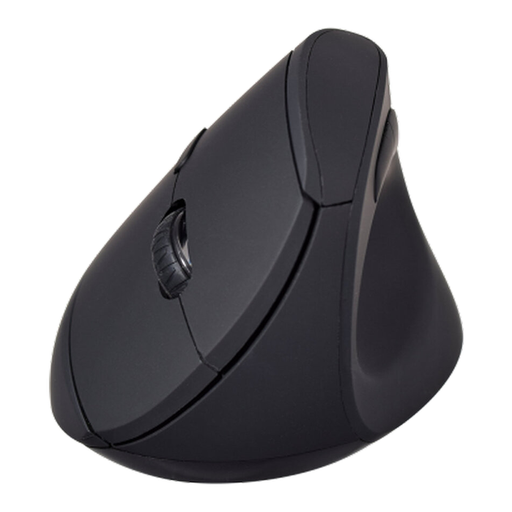
V7 MW500BT Bluetooth Vertical Mouse, 2.4GHz Dual-Mode
This separate mouse suits a laptop desk where you want to choose the position of your input devices independently of the screen. Its title lists six buttons and an adjustable sensor up to 1600 DPI. Check which wireless connection suits your laptop and whether an AA battery is supplied; the listing says one is required.
View on Joybuy
Questions about laptop desk setups
What does HSE advise for prolonged laptop use at home?
The Health and Safety Executive advises using a separate keyboard and mouse so the laptop screen can be elevated on a riser or similar, or using a separate display. Choose an arrangement that also leaves room to position the input devices comfortably.
Will any USB-C dock charge my laptop and run two external monitors?
No: those functions depend on the exact laptop, dock and connection. Check the laptop’s video protocol, supported display count and charging requirement against the dock’s power, display-mode and operating-system specifications. Apple Support notes that external-display support varies by Mac model.
Can a USB-C monitor take the place of a dock?
It can serve as the main desk connection if the monitor provides the display, charging and ports you need and the laptop supports them. LG, for example, lists display and data connectivity with charging up to 65W for its 24BA650-B; check that output against your laptop rather than assuming the monitor provides every function of a separate dock.
Which marking applies to powered desk equipment sold in Great Britain?
For electrical equipment placed on the Great Britain market, Department for Business and Trade guidance dated 31 March 2026 lists UKCA or CE marking. A marking does not establish that the supplied power equipment suits your laptop or desk setup, so check the product’s instructions and connection requirements as well.


