Start with the part of your laptop setup that interrupts your work most: an external monitor for limited screen space, a compatible hub or dock for repeated connections, or camera and audio equipment for meetings. If you share a desk or pack everything away, a portable screen or separate input devices may matter more. Before buying, check your laptop’s display support, port capabilities and charging needs; the shape of a USB-C connector alone does not establish what it can do.
Who is this setup for?
Multi-window desk workers
If documents, spreadsheets and meeting content compete for space on your laptop screen, start by checking which external displays your laptop can support. Apple Support notes that Mac display support depends on the specific model.
Call-heavy hybrid workers
If video meetings take up much of your working time, identify whether camera placement, lighting, microphone pickup or nearby noise is causing the difficulty before choosing equipment.
Shared-space and portable workers
If you use a shared table or pack away your workspace between workdays, consider how quickly you can reconnect and whether the screen and input devices remain practical for the time you spend working.
What should you choose first?
Choose the main problem before choosing accessories: screen space, desk connections, meeting equipment or a setup that can be put away. Then check the laptop and room conditions that determine whether your chosen route will work.
| Concern | Buying checks | Who this matters to |
|---|
| Screen space |
Check the laptop model’s supported external-display count and match its video output to the monitor input and cable. Apple Support advises checking both ports and model-specific display support. |
If I keep switching between a document and meeting content, I want another usable work area without assuming my laptop supports the layout I have in mind. Around 27% of consumers would put screen space first. |
| Desk connections and charging |
Check the laptop port’s video and power capabilities, the dock’s charging output and the required host cable. Microsoft Support notes that USB-C hardware and software combinations can affect functionality. |
When I reconnect peripherals each workday, I want fewer cable changes, but the connection still needs to handle my laptop and display. Roughly 33% of consumers would make connection and charging their primary concern. |
| Meeting quality |
For a webcam, check USB and operating-system compatibility and mounting position; for audio, check microphone suitability, connection method and comfort during calls. |
If frequent calls are difficult because of camera placement or nearby noise, I would address the part other participants can see or hear. About 20% of consumers would prioritise meeting quality. |
| Pack-away workspace |
Check stand fit and stability, keyboard and mouse connections, and how much equipment you need to store. The Health and Safety Executive advises assessing individual display-screen equipment needs for home working. |
When the table has other uses after work, I need equipment I can put away while keeping the laptop comfortable to use during my working hours. Around 20% of consumers would put that portable input setup first. |
Buying pitfalls
-
Treating every USB-C port as identical
A matching connector does not establish that the laptop, cable and hub support the video output or charging function you intend to use.
Check the exact laptop model, port capabilities, charging requirement and host cable against the device you plan to connect.
A different cable, adapter or charger may be needed to make the intended connection.
-
Assuming two outputs mean two independent displays
Anker states that its Nano 8-in-1 hub can show different content on two external monitors with Windows, while macOS mirrors content across those outputs. Apple Support says a Mac’s supported display count depends on its model.
Check both your laptop’s display limit and the particular hub’s operating-system notes before planning a dual-monitor desk.
-
Buying a webcam for an audio problem
A separate camera addresses framing or image options, but it does not by itself resolve household noise or make calls more private.
Identify what goes wrong in calls: consider a webcam for camera position or lighting needs, and assess a headset when audio or privacy is the main issue.
-
Raising a laptop without considering its keyboard
A stand changes the screen position, but the built-in keyboard and trackpad may then be awkward to use for sustained work. The Health and Safety Executive advises assessing individual home-working display-screen equipment needs.
Try the intended desk position and work duration; if the raised laptop is difficult to type on, assess a separate keyboard and mouse alongside the stand.
Separate input devices add equipment to connect, carry or store.
Relevant brands to consider
Anker
Anker’s USB-C hubs are relevant when a laptop desk needs additional ports, display outputs and pass-through charging.
- Anker lists two HDMI outputs, up to 85W laptop charging output and 10Gbps USB ports for its Nano 8-in-1 hub.
- For that hub, Anker specifies a compatible full-function USB-C, USB4 or Thunderbolt connection with DisplayPort Alt Mode and Power Delivery; it also describes different dual-output behaviour for Windows and macOS.
Dell
Dell’s WD25 is an example of a dock to assess for a desk with several peripherals or displays.
- Dell lists up to 100W power delivery for Dell systems and 96W for non-Dell systems on the WD25, alongside specified multi-display modes.
- Those figures are WD25 specifications, not promises for every Dell dock or laptop; check the desired display arrangement and your laptop’s charging requirement.
Logitech
Logitech has webcams, headsets and input devices relevant to the meeting and desk-use decisions.
- Logitech lists several video modes, a built-in microphone and stated operating-system compatibility for its Brio 4K webcam.
- Logitech positions its Zone 900 headset for noisy spaces, but that positioning does not establish how well it will handle the noise in a particular room or call setup.
Joybuy product choices
These choices cover desk connections, a portable or larger external screen, a webcam and headphones for a laptop-centred workspace. Choose the category that addresses your main difficulty, then check compatibility with your own laptop and meeting setup.
 No image available
Targus USB-C Universal Dual HDMI 4K Docking Station, 100W Power Delivery Pass-Thru
Consider this dock if you want to reconnect a laptop to desk displays through one accessory. Its title specifies dual HDMI 4K outputs and 100W Power Delivery pass-through; check your laptop’s video and charging capabilities, display behaviour and the power adapter required for your setup.
View on Joybuy
 No image available
ASUS ZenScreen MB166C 15.6-inch Full HD USB Type-C Portable Monitor
Consider a portable second screen if you need more display space at a desk that must later be cleared. This model’s title specifies a 15.6-inch Full HD IPS display and USB Type-C connection; confirm the laptop’s compatible video output and the cable and power arrangement before buying.
View on Joybuy
 No image available
AOC Q32V4 31.5-inch IPS Monitor with Built-in Speakers
Consider this 31.5-inch monitor when a larger display will remain on your desk. Check that your laptop supports your intended display resolution and that its output matches the monitor connection and cable you plan to use.
View on Joybuy
 No image available
EMEET All-in-One 4K USB Webcam with Sony Sensor, 4-Mic Array and Dual Speakers
Consider this camera-and-audio unit if laptop-camera placement is your main meeting difficulty. Its title specifies fixed focus, an adjustable 98° field of view, a four-microphone array and dual speakers; check the USB and operating-system requirements and whether its placement suits your room.
View on Joybuy
 No image available
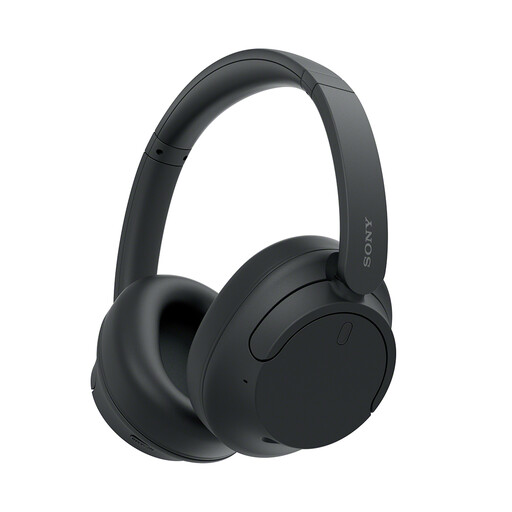
Sony WH-CH720N Noise-Cancelling Over-Ear Headphones, Black
Consider these over-ear headphones if listening amid nearby noise is your main concern. Noise cancelling does not establish call-microphone quality; check microphone performance, connection options and battery life if you also need them for meetings.
View on Joybuy
Frequently asked questions
Will any USB-C hub give my laptop two independent external displays?
No. Check both the laptop model’s display support and the hub’s operating-system notes. Anker says its Nano 8-in-1 hub supports different content on two external monitors with Windows but mirrors content across those outputs with macOS; Apple Support also says Mac display support depends on the model.
How can I tell whether a dock will charge my laptop?
Compare your laptop’s required charging power with the dock’s stated output for your type of laptop, then check the required charger and cable. A USB-C connection alone does not establish the available charging power; Dell, for example, gives different WD25 power-delivery figures for Dell and non-Dell systems.
When is a separate webcam worth considering for hybrid meetings?
Consider one when camera position, framing or image options are the main issue with your laptop setup. Check its connection, operating-system support and mounting position; choose an audio route separately if nearby noise or call privacy is the problem.
Does hybrid working mean I need to buy my own monitor or stand?
Not automatically. The Health and Safety Executive says display-screen equipment regulations can apply to workers who routinely divide their time between home and a workplace, and equipment needs should follow an individual assessment. Discuss your home workstation with your employer rather than assuming every worker needs the same accessory.


