Choose the laptop around the guest operating systems and hypervisor you intend to use, then allow memory and SSD capacity for the host and every virtual machine you expect to run at once. For local Hyper-V, Microsoft lists Windows 11 Pro or Enterprise among the supported editions and requires suitable processor and firmware virtualisation features. An Apple-silicon Mac is a different route: check Arm guest images and essential application compatibility before treating it as a replacement for an x64 VM setup.
Who needs which setup?
People running several VMs at once
If development, testing or server guests run alongside your normal work, plan RAM for both the host and the active guests. Microsoft Learn also identifies processor, memory and storage I/O demand as considerations for virtualisation workloads.
Home-office Hyper-V users
If Hyper-V is your intended platform, check the installed Windows edition, processor support for second-level address translation (SLAT) and firmware virtualisation settings. Microsoft Learn and Microsoft Support describe these as part of the Hyper-V setup.
Mac users planning Arm-based VMs
If you prefer macOS, establish whether your guest operating systems and essential applications work in an Arm-based VM. Parallels specifies an Arm-based installation image for its Apple-silicon Mac setup; an existing x64 VM plan should not be assumed to transfer unchanged.
What matters when choosing?
Settle the hypervisor and guest architecture before comparing capacity: ample RAM or storage will not resolve an incompatible VM workflow.
| Concern | What to check | Who this matters to |
|---|
| Memory for concurrent VMs |
Allow RAM for the host, normal applications and all guests running together; check installed capacity and upgrade options for the exact model. |
If several guests stay open while I work, I need enough memory left for the host rather than sizing the laptop for just one VM. Around 33% of consumers put concurrent-VM memory capacity first. |
| Platform compatibility |
Identify the hypervisor and guest architecture. For Hyper-V, check the Windows edition, SLAT and firmware virtualisation; for Apple silicon, check Arm guest and application support. |
When existing guest images or a particular hypervisor are essential, I need a laptop that fits that workflow before considering other features. For around 27% of consumers, compatibility is the primary concern. |
| SSD space and I/O |
Account for guest disks, snapshots and host files; check the exact SSD capacity and any expansion options. |
If I keep several guest images and snapshots locally, I need room for them without continually clearing the drive. Storage is the first consideration for around 20% of consumers. |
| Desk space and portability |
Compare screen size and the exact configuration's physical details with where you will work and how often you will move the laptop. |
If I move between a desk and other workspaces, I want a screen and laptop size that fit both uses, provided my VM requirements are met. Around 20% of consumers prioritise that balance. |
Mistakes to avoid
-
Assuming Windows Home includes Hyper-V
Microsoft Learn lists Windows 11 Pro and Enterprise, not Home, among the Windows 11 editions on which Hyper-V can be enabled.
Check the installed edition on the exact laptop configuration before choosing it for local Hyper-V.
Otherwise, using Hyper-V may require a different Windows edition or a change to your intended hypervisor workflow.
-
Sizing RAM for only one guest
The host and every active VM need resources at the same time. Microsoft Learn notes the additional memory and I/O demands of virtualisation workloads.
List the applications and guests you will run concurrently, then assess the laptop's installed RAM against that combined workload.
-
Treating Arm and x64 guest plans as interchangeable
Parallels specifies an Arm-based installation image for its Apple-silicon Mac setup. Guest architecture and required applications therefore need checking before you move an existing VM workflow.
Identify each required guest OS and test essential applications against the intended virtualisation platform before committing to it.
An incompatible guest or application can also mean time spent adapting or rebuilding a VM setup.
-
Assuming desktop hypervisors will always coexist
Microsoft Learn warns that VMware Workstation or VirtualBox VMs might fail to start or run unreliably while the Hyper-V hypervisor is running.
Choose your primary hypervisor and test the required guest images before depending on the laptop for work-critical VMs.
Relevant brands to consider
Dell
The Precision 5690 is a configuration reference if your VM plan calls for substantial memory or local storage.
- Dell UK lists 16 GB, 32 GB and 64 GB memory choices and SSD options up to 4 TB for this model.
- The cited Precision 5690 page marked the model unavailable. Check the exact configuration and current availability rather than assuming those options can be ordered together.
Lenovo
The ThinkPad P14s Gen 7 provides a compact workstation configuration to compare with larger desk-oriented laptops.
- Lenovo UK lists a cited configuration with 32 GB LPDDR5X memory and a 1 TB PCIe Gen5 SSD.
- The cited configuration was marked out of stock. Confirm its current specifications and memory-upgrade options for the exact model you select.
HP
The ZBook Power 16 G11 A is a 16-inch workstation configuration relevant to a primarily desk-based VM setup.
- HP Store UK listed a configuration with Windows 11 Pro, 32 GB RAM and a 1 TB SSD.
- That listing was marked out of stock. Verify the configuration and availability of any model you consider.
Apple
MacBook Pro is worth considering when your required guest operating systems and applications fit an Apple-silicon, Arm-based VM workflow.
- Apple UK lists MacBook Pro configuration options reaching 128 GB unified memory and 8 TB storage, depending on configuration.
- Check guest architecture and application compatibility first. Parallels specifies an Arm-based installation image for its Apple-silicon Mac VM setup.
Joybuy laptop choices
These laptops offer different memory, storage and screen configurations for home-office VM plans. Check each model against your hypervisor and guest requirements; a Windows Home configuration should not be chosen on the assumption that it includes Hyper-V.
 No image available
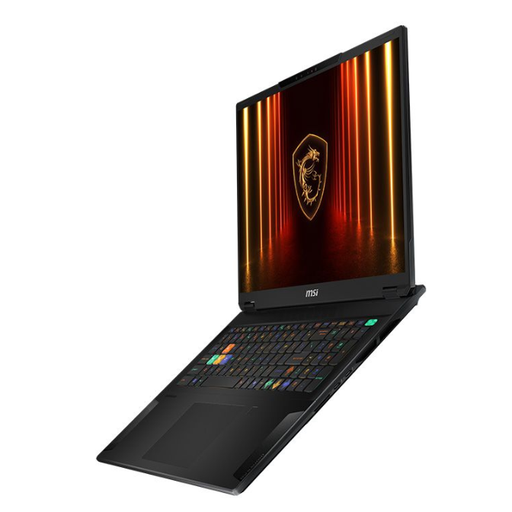
MSI Stealth 18 AI Studio A1VGG-001UK, 18-inch
Consider its memory and storage configuration if you plan to keep multiple VMs and guest files locally.
Intel Core Ultra 9; 32 GB RAM; 2 TB SSD; NVIDIA GeForce RTX 4070.
If Hyper-V is essential, confirm the installed Windows edition, SLAT support and firmware virtualisation settings for this configuration.
Joybuy
 No image available
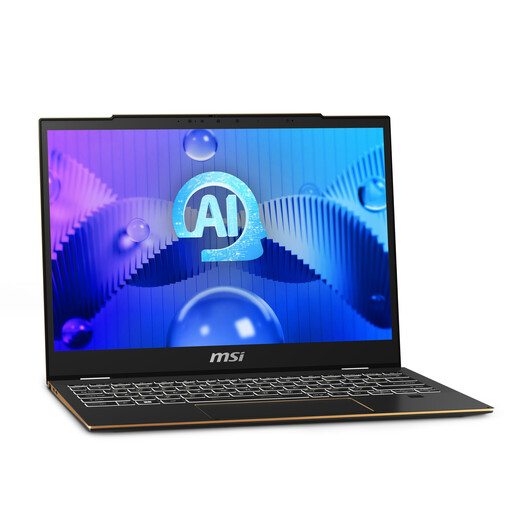
MSI Summit E13 AI Evo, Core Ultra 7 155H
Its compact screen may suit a VM setup that also needs to move around the home office; consider whether it gives you enough workspace.
13-inch FHD+ 60 Hz touch display; 32 GB LPDDR5 RAM; 1 TB SSD.
Check the installed Windows edition, memory-upgrade options and Hyper-V hardware requirements if those affect your plan.
Joybuy
 No image available
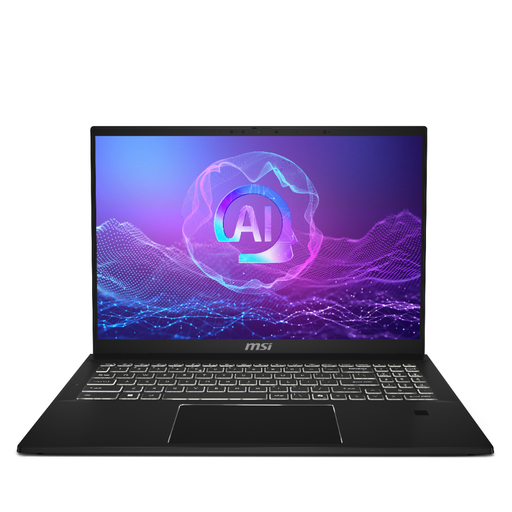
MSI Summit 16 AI Evo, Core Ultra 7 255H
Consider the larger display if you work with a VM and host applications side by side, while checking that its operating system fits your hypervisor.
16-inch QHD+ 165 Hz display; 32 GB LPDDR5 RAM; 1 TB SSD.
Confirm the installed Windows edition and required virtualisation features before choosing it for Hyper-V.
Joybuy
 No image available
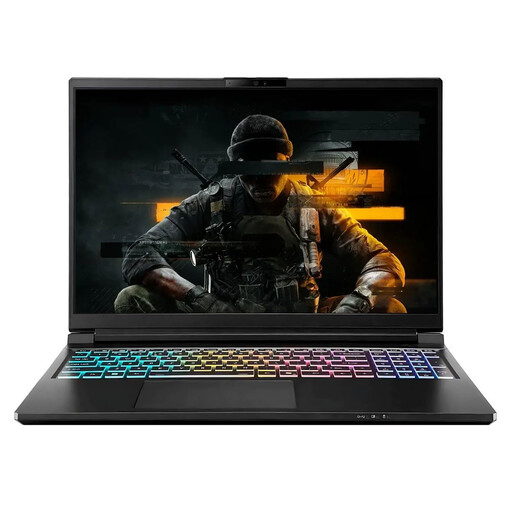
Stormforce Exobook 16-inch QHD+, Ultra 9, 5080
The stated storage capacity may suit a plan involving several local guest images; check the host operating system before settling on a hypervisor.
32 GB RAM; 4 TB storage; QHD+ display.
For Hyper-V, confirm the installed Windows edition, SLAT support and firmware virtualisation settings.
Joybuy
 No image available
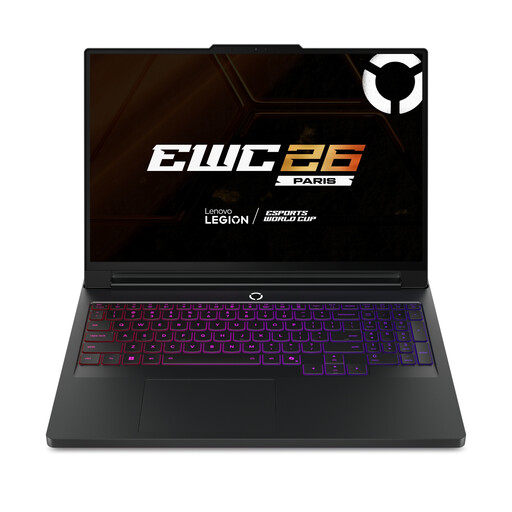
Lenovo Legion Pro 7 16IAX10H, 83F5000UUK
Its stated RAM and SSD capacity may suit several concurrent guests, but the listed Windows edition changes the Hyper-V decision.
16-inch display; Intel Core Ultra 9; 64 GB RAM; 2 TB SSD; NVIDIA GeForce RTX 5090; Windows 11 Home.
Microsoft does not list Windows 11 Home as a Hyper-V-capable edition. Decide whether another hypervisor or a different Windows edition fits your intended workflow, and check the remaining hardware requirements.
Joybuy
Frequently asked questions
Do I need Windows 11 Pro to use Hyper-V?
You need a supported Windows edition for the local Hyper-V route: Microsoft Learn lists Windows 11 Pro and Enterprise, as well as Windows 10 Professional and Enterprise. Check the installed edition on the exact laptop; Windows Home does not meet that stated requirement.
What should I check in BIOS or UEFI for Hyper-V?
Check that the processor supports SLAT and that hardware-assisted virtualisation can be enabled in the laptop's firmware. Microsoft Support provides guidance on enabling virtualisation; follow the instructions for the specific device rather than changing unrelated settings.
Can Hyper-V run alongside VMware Workstation or VirtualBox?
Installation alongside those applications is possible, but reliable VM operation should not be assumed while the Hyper-V hypervisor is running. Microsoft Learn warns that their VMs might fail to start or run unreliably, so test the workflow and guest images you need.
Will my x64 VM images work unchanged on an Apple-silicon Mac?
Do not assume they will. Parallels specifies an Arm-based installation image for its Apple-silicon Mac setup; check each guest OS, image and essential application against your intended Mac virtualisation platform before switching.


