Choose accessories around the task your laptop-only setup handles least well: a monitor and separate input devices for regular desk work, a compatible dock for repeated peripheral connections, or a stand and input devices for a desk that needs clearing. Before buying, check your laptop’s video-capable ports, external-display limit and charging needs; if your work falls within the Health and Safety Executive’s display screen equipment guidance, check your employer’s assessment and equipment process too.
Who is this setup for?
Fixed-desk laptop workers
If you spend long stretches at one home desk, screen space, separate input devices and a workable cable arrangement may matter more than portability. The Health and Safety Executive says its display screen equipment guidance can apply to permanent home workers and people who routinely split their time between home and a workplace.
Workers connecting several devices
If you regularly attach displays and other peripherals, check what your laptop’s ports can actually do before choosing a dock. CalDigit and Kensington specify different host-connection and display conditions for their docks; a USB-C-shaped socket alone does not settle compatibility.
Hybrid workers with limited desk space
If you move your laptop between locations or share a desk at home, consider how easily a stand, keyboard and mouse can be put away and reconnected. The Health and Safety Executive also includes routine home-and-workplace arrangements within the scope of its home-working guidance where the relevant conditions apply.
What should you choose first?
Start with the part of your workday that the laptop alone makes difficult, then check connections and workplace requirements before choosing accessories. The priorities below distinguish consumers by the need they would put first when making that choice.
| Concern |
What to check |
Who this matters to |
| Screen space |
Check the laptop’s supported video connection and external-display limit, then the monitor’s size, resolution and input. |
If I work with several documents at one desk, I need room to see them without relying solely on the laptop screen. Roughly 29% of consumers would put extra screen space first. |
| Peripheral connections |
Match the dock to the laptop’s port technology and operating system; compare its display configuration and power delivery with the laptop’s requirements. |
Connecting several desk devices each workday makes repeated plugging and unplugging my main frustration. Around 36% of consumers would prioritise bringing those connections together. |
| Compact setup |
Check desk space, keyboard layout and how the stand and input devices connect and pack away. |
When I share a desk or move between workplaces, I need to clear and rebuild my setup without a fixed collection of cables. Approximately 21% of consumers would make a compact arrangement their first priority. |
| Work calls |
Check the conferencing platform, device connection and any employer rules for communication equipment. |
If calls are central to my work, I need audio or camera placement that suits those conversations. Roughly 14% of consumers would put call equipment first. |
Buying pitfalls
-
Assuming every USB-C port supports a dock and display
The connector’s shape does not establish video output, charging capability or support for multiple displays. Apple notes that external-display support depends on the Mac model and the displays used; dock makers also specify host and operating-system conditions.
Find your exact laptop model and port specification, then compare them with the dock or monitor’s supported hosts, display conditions and cable requirements.
An incompatible dock, adapter or cable may need replacing.
-
Choosing by a power-delivery figure alone
A stated output is not proof that a dock or monitor can replace your laptop charger. For example, LG lists up to 65 W for the 24BA650-B monitor, while CalDigit lists up to 98 W for its TS4 dock; suitability still depends on the laptop.
Compare the accessory’s host power delivery with your laptop charger and the laptop maker’s charging guidance.
You may still need to use the laptop’s existing charger, limiting the benefit of a one-cable desk setup.
-
Assuming a workstation assessment specifies what to buy
The Health and Safety Executive’s guidance is assessment-led: where display screen equipment duties apply, the employer assesses the workstation and addresses identified problems. That does not automatically make a particular monitor or dock necessary or establish a personal reimbursement arrangement.
Check your employer’s assessment, approved-equipment and purchasing processes before buying work equipment yourself.
-
Buying a multi-monitor dock for a desk that needs clearing
A dock addresses repeated connections at a fixed desk, but those ports may have little use if you mainly need to position a laptop and put the workspace away afterwards.
List the devices you connect on a typical workday. If you do not regularly need several desk connections, compare a portable stand and separate input devices instead.
A dock’s power supply and cabling also need space when the desk is in use or being cleared.
Brands to consider
These brands illustrate different workstation accessories; the specifications and limitations below concern the named products, not every product each brand makes.
CalDigit
A dock option for a fixed desk when the laptop has suitable Thunderbolt or USB4 connectivity.
- CalDigit specifies up to 98 W host power delivery for the TS4 and describes display support separately for different host systems.
- CalDigit says original M1 Macs do not support dual displays in its stated TS4 configuration; check your exact host and display requirements.
Kensington
A docking option when host connection technology and operating-system support are central to the choice.
- Kensington specifies the SD4843P EQ for compatible Thunderbolt, USB4 and USB-C Alt Mode Windows laptops, with up to 100 W dynamic power delivery.
- Its advertised configuration of up to three 4K displays is stated for compatible Windows laptops, not as a general macOS capability.
Logitech
An input-device option when a laptop workstation calls for a separate mouse.
- Logitech lists Bluetooth Low Energy and a USB-A Logi Bolt receiver for the MX Master 3S Business, along with stated Windows and macOS compatibility.
- Logitech says optional Logi Options+ customisation requires internet access; check software requirements if those controls matter to you.
LG
A monitor option for a desk-centred laptop setup where display inputs, charging and stand adjustment need to be considered together.
- LG specifies a 23.8-inch, 1920 × 1080 IPS display, adjustable stand and USB-C power delivery up to 65 W for the 24BA650-B.
- Compare that model’s 65 W output with your laptop’s charging requirement before relying on a single cable.
Joybuy product choices
These products address different parts of a laptop-centred desk setup: an external screen, a dock, separate input devices and call audio. Choose the part that matches your priority, then check its fit with your laptop and workplace requirements.
 No image available
BenQ MA320UP Nano Glossy IPS 32-inch 4K monitor
Consider this for a fixed desk where a larger external screen is the priority. Its product name specifies USB-C and a height-adjustable stand; check your laptop’s video output and charging needs, as well as the cable supplied, before planning a one-cable setup.
View on Joybuy
 No image available
Targus USB-C Universal Dual HDMI 4K Docking Station, 100 W PD Pass-Thru (Retail Packaging)
Consider this when connecting desk peripherals through a dock is your main need. The product name specifies dual HDMI 4K outputs and 100 W power-delivery pass-through; confirm your laptop’s video support and charging requirements, and check whether the power adapter your setup needs is supplied.
View on Joybuy
 No image available
Philips 3000 Series SPT6318B/05 wireless keyboard and mouse, UK English version, black
Consider a separate keyboard and mouse if you use a laptop stand or work at a desk for long periods. Check the physical key layout, operating-system compatibility and connection needed by this UK English version before buying.
View on Joybuy
 No image available
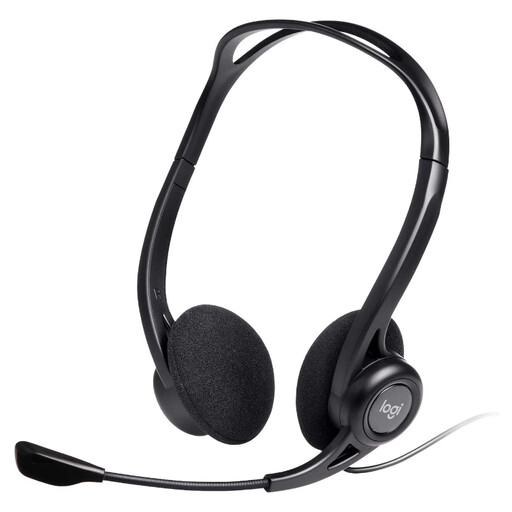
Logitech 960 wired USB headset with inline controls and noise-cancelling microphone
Consider a dedicated headset if frequent work calls make call audio a priority. Check that your work device has a suitable USB connection or adapter, and confirm any employer rules for communication equipment before purchasing personally.
View on Joybuy
Common questions
When can display screen equipment rules apply to home or hybrid work?
The Health and Safety Executive says the rules can apply to permanent or long-term home workers and to people who routinely split work between home and a workplace. For workers using display screen equipment daily for continuous periods of an hour or more, its guidance says employers must assess the workstation; it does not automatically require the worker to buy a particular accessory.
Should I ask my employer before buying workstation equipment?
Check your employer’s assessment and approved-equipment process first if your work may fall within the Health and Safety Executive’s display screen equipment guidance. An assessment can identify changes to the workstation, but any personal purchasing or reimbursement arrangement needs to be confirmed with your employer.
Can any USB-C laptop run an external display through a USB-C dock or monitor?
No: the laptop must support the required video connection, and the dock or monitor and cable must suit it. Apple says external-display support depends on the Mac model and display conditions; Microsoft likewise says a Surface device’s external-display capability depends on its model and the cable or adapter used.
Will a multi-monitor dock let my laptop run more displays?
A dock’s display specification does not by itself increase what the laptop supports. Check the laptop model, operating system and intended resolution and refresh rate against the dock’s conditions: CalDigit excludes original M1 Macs from the dual-display TS4 configuration it describes, while Kensington states its SD4843P EQ three-display configuration for compatible Windows laptops.


