Who this suits

Document and spreadsheet multitaskers

Home workers comparing documents, spreadsheets, email and browser tabs who need practical screen space rather than gaming-focused refresh-rate features. A second display or wider workspace can help, but desk fit and screen position still matter. Health and Safety Executive guidance covers positioning display screen equipment at home.

Laptop-first hybrid workers

People connecting a work laptop at a home desk who may value a USB-C monitor for video, peripherals, network connectivity and charging. Check that the laptop supports the required display mode and that the monitor provides enough power for it.

Video-call-heavy home workers

People combining document work with frequent calls who may value an integrated webcam, speakers, USB hub and one-cable docking alongside usable document space.

Buying priorities

Priority What to check Your needs
Screen position and glare Check height, tilt, swivel or pivot adjustment, plus VESA-mount compatibility where needed. Plan for the top of the screen to sit around eye level and the display about an arm’s length away. I need a screen that can fit a sustainable workstation, not simply a larger diagonal size. The Health and Safety Executive recommends positioning the top of the screen at eye level and keeping it about an arm’s length away.
Laptop connection Confirm whether the laptop USB-C port supports video output, such as DisplayPort Alt Mode or Thunderbolt. Compare the monitor’s power-delivery rating and cable capability with the laptop’s charging needs; keep HDMI or DisplayPort as an alternative. I want fewer desk cables without assuming that every USB-C port can carry video and charge my laptop at the same time.
Usable workspace Compare 27-inch 4K, 27-inch QHD, 34-inch WQHD ultrawide and two-screen layouts against the windows you keep open. Measure desk width and check available display outputs before moving to an ultrawide or dual-monitor arrangement. I need enough room for the way I work: a dense single-screen document view, several side-by-side windows, or separate reference and writing screens.
Task-relevant features Prioritise text clarity at your preferred scaling, adjustable positioning and the inputs you need. Treat HDR, high refresh rates and wide colour gamut as task-specific features rather than automatic requirements for document work. I want to spend on readability, desk fit and connectivity before paying for creative or gaming features that may not change my daily document workflow.

Common buying pitfalls

  • Assuming every USB-C laptop port supports monitor video and charging

    USB-C can carry video, USB data and power, but the connector shape does not confirm that every laptop, cable and monitor combination supports all of those functions.

    Check the laptop manufacturer’s port specification, the monitor’s USB-C video mode and power-delivery rating, and the cable capability before purchase. Use HDMI or DisplayPort where available if USB-C video is not supported.

    You may need an adapter, dock, different cable or separate laptop charger if the port lacks video output or the monitor cannot provide enough power.

  • Buying an ultrawide or second screen before measuring the work surface

    A 34-inch ultrawide needs more horizontal room than a 27-inch monitor, while two displays need separate positions and connection paths. The Health and Safety Executive also highlights the importance of suitable screen placement.

    Measure usable desk width and depth, include the monitor stand, and plan where the keyboard, mouse and laptop will sit before choosing an ultrawide or dual-monitor configuration.

    A larger desk, monitor arm, extra cable or dock may be needed for the final setup.

  • Treating high refresh rate, HDR or wide colour gamut as the main document-work requirement

    These features can be relevant for gaming or colour-critical creative work, but they do not replace suitable resolution, usable ports, ergonomic adjustment and careful screen placement for document-heavy tasks.

    Prioritise text clarity at your preferred scaling, screen position, required inputs and laptop compatibility. Add specialist colour or motion features only when your work genuinely needs them.

  • Assuming a monitor alone resolves all workstation comfort issues

    Screen setup is only one part of a home workstation. Health and Safety Executive guidance also covers posture, desk arrangement, glare, breaks and changes of activity.

    After delivery, adjust monitor height and angle, manage reflections, and use a separate keyboard and mouse with an elevated laptop for prolonged laptop work.

    A separate keyboard, mouse, riser, lighting adjustment or ergonomic assessment may still be needed.

Relevant brand references

Dell

Relevant for buyers seeking a 27-inch 4K USB-C hub monitor that combines conventional document-work dimensions with laptop charging and wired-network connectivity.

  • Dell’s UK P2725QE specifications list a 27-inch 3840 x 2160 IPS panel, up to 90W USB-C power delivery, HDMI, DisplayPort, USB and 1GbE RJ45.
  • Dell states that single-cable daisy chaining of multiple displays requires Thunderbolt connectivity, so confirm laptop and cable compatibility for an individual setup.

Lenovo ThinkVision

Relevant for laptop-first home workers looking for a 27-inch QHD docking monitor with USB-C charging, USB ports, RJ45 and optional integrated conferencing hardware.

  • Lenovo’s UK T27QD-4v listing specifies 2560 x 1440 resolution, up to 100W USB-C, HDMI, DisplayPort, USB-A, RJ45, a webcam and speakers.
  • Do not assume every laptop can use every docking, charging or daisy-chain function; check the host computer’s capabilities first.

HP

Relevant for workers who prefer a 34-inch WQHD ultrawide workspace and may value integrated conferencing and USB-C docking.

  • HP’s UK 534pm specifications describe a 34-inch 3440 x 1440 WQHD docking monitor with USB-C, up to 100W power delivery, a webcam and adjustable setup.
  • The larger format needs more desk width and is not automatically a better fit than a 27-inch screen for primarily single-document reading.

Joybuy monitor options

Joybuy monitor options for document-heavy home-office work, covering conventional 27-inch and larger single-screen setups with USB-C, HDMI or DisplayPort connections.

BenQ MA270UP 27-inch 4K USB-C monitor

BenQ MA270UP 27-inch 4K USB-C Monitor

A conventional 27-inch option for MacBook desk setups needing dense document space, charging and adjustable placement.

3840 x 2160 display, USB-C video and data with stated 90W power delivery, HDMI, USB-A, and height, pivot, swivel and tilt adjustment.

Mac-specific integration is stated; confirm that a non-Mac laptop supports USB-C video output before relying on one cable. Check reflection control in your desk lighting for the Nano Glossy finish.

Joybuy

MSI MD272UPSW 27-inch 4K monitor

MSI MD272UPSW 27-inch 4K Monitor

A single-screen option for document and spreadsheet work where a laptop connection and adjustable stand are important.

27-inch 3840 x 2160 IPS panel, USB-C with stated 65W power delivery, HDMI, integrated speakers, and height, tilt, swivel and pivot adjustment.

Check that the laptop USB-C port supports display output and that 65W meets its charging requirement. Confirm required peripheral ports before buying.

Joybuy
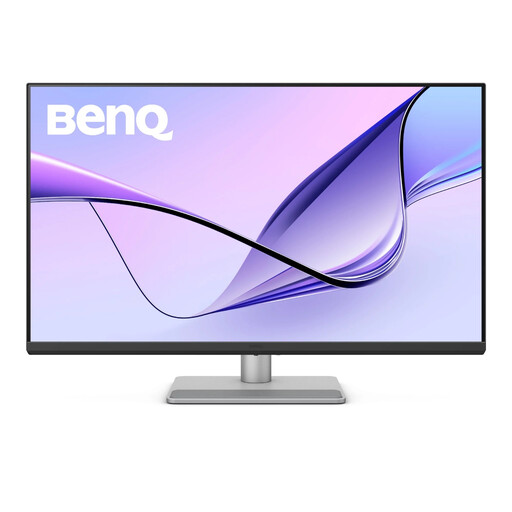
BenQ MA320UP 31.5-inch 4K USB-C monitor

BenQ MA320UP 31.5-inch 4K USB-C Monitor

A larger single-monitor option for people keeping several documents and applications open while retaining a 4K workspace.

31.5-inch 3840 x 2160 IPS panel, USB-C video and data with stated 90W power delivery, HDMI, downstream USB ports, and height, pivot, swivel and tilt adjustment.

Measure desk width, depth and viewing distance before choosing this larger format. Confirm that the laptop supports USB-C display output and that 90W suits its charging needs.

Joybuy

ASUS ProArt PA278CV 27-inch WQHD monitor

ASUS ProArt PA278CV 27-inch WQHD Monitor

A conventional 27-inch choice for a limited-width home desk where adjustable positioning and multiple connection options matter.

2560 x 1440 IPS panel, USB-C with power delivery, HDMI, DisplayPort, USB hub, VESA support, anti-glare coating and full stand adjustment.

Confirm whether its USB-C power delivery can charge your specific laptop adequately, and check preferred text scaling for document work.

Joybuy

LG 27UP650K 27-inch 4K IPS monitor

LG 27UP650K 27-inch 4K IPS Monitor

A 27-inch 4K option for desktop or HDMI and DisplayPort laptop setups where one-cable charging is not the main requirement.

3840 x 2160 IPS panel with height, tilt and pivot adjustment, plus HDMI and DisplayPort inputs.

Use HDMI or DisplayPort unless USB-C video and laptop charging are confirmed for your setup. Check the required HDMI port count before purchase.

Joybuy

Frequently asked questions

Does a UK home worker legally have to buy an external monitor?

No blanket personal requirement applies to buying an external monitor. The Health and Safety Executive says the Display Screen Equipment Regulations can apply when workers use display screen equipment at home daily for continuous periods of an hour or more; where they apply, the employer should assess the workstation and reduce identified risks. If an assessment shows equipment is needed, workers cannot be charged for it.

What should I check before relying on one USB-C cable?

Check the laptop documentation for USB-C video output, such as DisplayPort Alt Mode or Thunderbolt or USB4 display support, then compare the monitor’s stated power delivery with the laptop’s charging requirement. USB-C can combine video, USB data and power, but the connected laptop, monitor and cable must each support the required capability.

When is an ultrawide monitor more suitable than two monitors for document work?

Choose an ultrawide when you prefer one continuous horizontal canvas for several side-by-side windows and have enough desk width. Choose two monitors when separate full-height screens better suit reference-and-writing work; confirm that the laptop or dock can drive both displays, as daisy-chaining requirements vary by monitor and host connection.

How should I position a home-office monitor?

The Health and Safety Executive recommends placing the top of the screen at eye level, about an arm’s length away, with the display directly in front of you. For prolonged laptop use, use a separate keyboard and mouse so the laptop screen can be elevated, or use a separate display.