What should you check before buying?
For a home-office laptop setup, establish a working video connection first, then assess screen placement and workspace. Treat fewer cables as a further requirement rather than assuming every monitor connection can also charge the laptop.
| Concern |
What to check |
Who this matters to |
| Laptop compatibility |
Match the monitor input to a video output on the exact laptop model. For USB-C or multiple screens, check supported video modes and external-display limits. |
I need the extra screen to work with my laptop, rather than discovering that its USB-C port carries no video or that a dock cannot extend another display. Around 33% of consumers put connection and display compatibility first. |
| Desk fit and positioning |
Measure usable desk width and depth; check stand adjustment or an arm’s mounting and desk-clamp requirements. |
At a confined desk, I need to position the screen comfortably while leaving room for my laptop and keyboard. Roughly 20% of consumers make workable screen placement their main concern. |
| Usable workspace |
Compare physical dimensions and native resolution, then check that the laptop supports the intended display mode. |
When documents and calls compete for space on my laptop screen, I want an external display that gives me a useful arrangement for those windows. About 20% of consumers prioritise more visible working space. |
| Cables and peripherals |
For a USB-C monitor or dock, confirm video support, charging suitability and the particular peripheral ports you need. |
If I reconnect my laptop at the same desk each day, I want fewer separate display, charging and peripheral connections. Around 27% of consumers put a simpler cable setup first. |
Joybuy monitors for laptop workspaces
These external monitors cover fixed-desk and portable ways to add screen space to a laptop. Compare each screen’s size and stated features with your desk, then confirm the connection your laptop can actually use.
 No image available
BenQ MA320UP Nano Glossy 32-inch 4K USB-C monitor
Consider this larger desktop screen if your desk has room for a 32-inch monitor and you want an adjustable viewing position. Its name specifies an IPS 4K UHD screen, USB-C and a height-adjustable stand; check the exact laptop and monitor specifications before relying on USB-C for video or charging.
View on Joybuy
 No image available
ASUS ProArt PA278CV IPS WQHD monitor
This desktop monitor is an option when you want a separate workspace for documents and other work windows. Its name specifies an IPS WQHD display. Check its inputs against your laptop, and confirm the stand’s adjustment range and any USB-C functions you plan to use.
View on Joybuy
 No image available
ASUS ZenScreen MB166CR FHD monitor
This portable-screen option may suit a laptop workspace that moves between locations. Its name specifies an FHD display; check the required video connection and how the screen is supported on a desk before choosing it for daily use.
View on Joybuy
 No image available
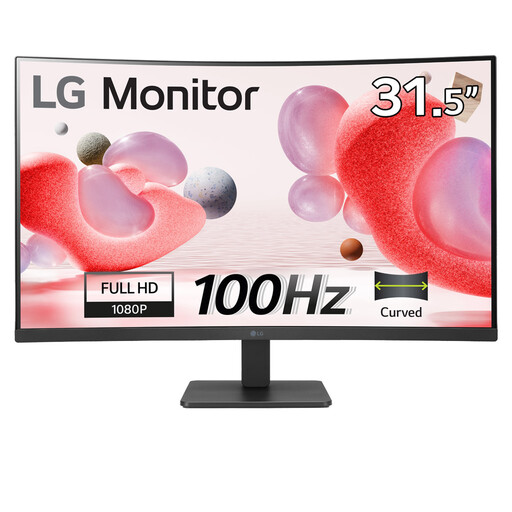
LG Electronics 32MR50C-B 32-inch curved Full HD monitor
Consider the 32-inch curved format if its physical dimensions fit your desk and viewing position. The product name specifies a Full HD VA panel, anti-glare finish, 100Hz refresh rate and HDMI; confirm the complete input list if you need a connection other than HDMI.
View on Joybuy
 No image available
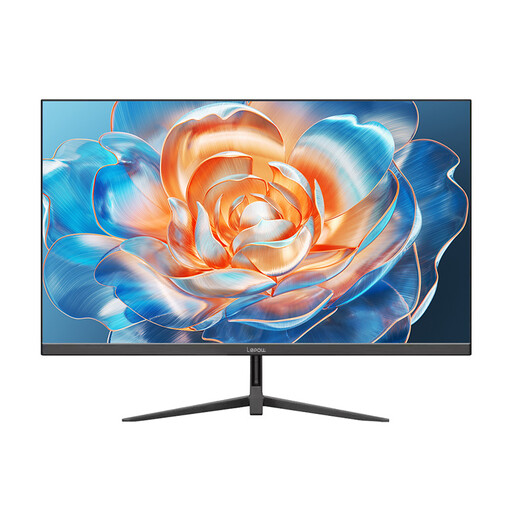
Lepow HC-27Z2 27-inch 100Hz monitor
This 27-inch desktop monitor is an option for adding a separate screen at a fixed laptop desk. Its name states a 100Hz refresh rate; check the available video inputs against your laptop and confirm the stand’s positioning options if adjustability matters to you.
View on Joybuy
Frequently asked questions
Will any USB-C port on my laptop connect to a monitor?
No: USB-C identifies the connector, not a guaranteed video function. Check the exact laptop model for supported display output, then check the cable and monitor; VESA explains that DisplayPort video over USB-C uses Alternate Mode.
Can a dock make my laptop run two separate external monitors?
Only if the laptop and the proposed connection arrangement support two independent external displays. Check the model-specific display limit and the dock’s output support; Microsoft Support notes that a basic splitter duplicates a signal rather than creating separate extended desktops.
How do I extend my desktop instead of duplicating the laptop screen?
Select an extended-display arrangement after the computer detects the monitor. Microsoft Support directs Windows users to display settings to arrange their screens; on a Mac, use Displays settings, with available options dependent on the computer and connected display.
Does an adjustable monitor cover my home-workstation needs?
Not on its own: screen position is one part of a workable desk arrangement. The Health and Safety Executive advises a comfortable, sustainable posture for home display-screen work; if your employer’s display-screen-equipment process applies, follow its workstation assessment guidance as well.


