An external monitor is worth considering when you need a screen that is easier to position or want separate windows visible together; if screen height is the main issue, raising your existing laptop with a separate keyboard and mouse may be enough. Before choosing, check your desk space, computer video output and whether you need extended rather than mirrored displays. For a USB-C setup, confirm video and charging support separately.
Who this setup may suit
Laptop users short on screen space
If you want documents, calls or reference windows visible together, an external screen set to extend your laptop display can add workspace. Check your laptop’s video output and any charging requirements; Trinity Laban Creative Technology Services explains the difference between extending and mirroring, and the University of Lincoln notes that some USB-C ports do not carry video.
People fitting out a small desk
Screen size and stand footprint matter when desk space is limited. Health and Safety Executive guidance also describes raising a laptop and using a separate keyboard and mouse as an arrangement to consider when screen position is the main concern.
Desktop users improving document viewing
A monitor can give you a separate screen for regular desk work. Match its video input to your computer, and consider whether adjustable positioning or laptop-docking features are useful for your setup; Samsung UK’s monitor guide discusses screen size in relation to desk space and viewing needs.
What to check before buying
Decide whether you need more room for windows, a screen that fits and sits comfortably on your desk, a compatible connection, or simply a less complicated arrangement.
| Concern |
What to check when buying |
Who this matters to |
| Space for documents and windows |
Compare screen size and resolution; check whether you want to extend or mirror your display. |
If I need separate documents or windows visible together, I want extra viewing space rather than a duplicate laptop image; around 33% of consumers put simultaneous viewing space first. |
| Desk fit and screen position |
Measure usable desk space and check the stand’s footprint and adjustments. |
On a small desk, I need a screen and stand that fit while letting me position the display for my workstation; around 25% of consumers prioritise desk fit or screen position. |
| Computer connection and charging |
Check the computer’s video-capable output and the monitor’s matching input; confirm charging support separately if needed. |
For my laptop or desktop, I need a working video connection, with charging matched separately if relevant; around 25% of consumers put connection or laptop docking first. |
| A simple, sufficient setup |
Identify whether the issue is screen height, crowded windows or both; check which stand and connection features you will use. |
If screen position or clutter is the problem, I want an arrangement that addresses it without unnecessary display features; around 17% of consumers prioritise keeping the setup simple. |
Common buying pitfalls
-
Assuming every USB-C port carries video
A USB-C connector’s shape alone does not confirm that a laptop can send a video signal to a monitor. Charging through the monitor is a separate capability and must also suit the laptop.
Check the exact laptop’s video support, the monitor input and cable, and the charging requirements before choosing a one-cable setup.
Depending on the devices, a different video cable, adapter, dock or separate laptop charger may be needed.
-
Choosing a large screen before measuring the desk
A larger diagonal uses more physical space, while the stand’s footprint and adjustment options affect where the display can sit.
Measure the usable desk area and check the stand’s footprint and adjustments, including where your keyboard and laptop will go.
A different stand or desk arrangement may be needed to fit the screen and other equipment.
-
Buying another display before identifying the problem
Mirroring repeats the same image; extending the display creates space for separate windows. If screen height is the difficulty, a raised laptop and separate keyboard and mouse address a different need.
Decide whether you need separate windows, a better screen position or both before selecting another display.
Monitor brands to consider
These model examples illustrate different screen resolutions, connections and desk setups; specifications and suitability apply to the cited models, not every product from each brand.
Dell
The UltraSharp U2723QE illustrates a 27-inch 4K monitor with an adjustable stand, video inputs and a USB-C hub for a compatible laptop.
- Dell specifies USB-C DisplayPort Alt Mode and up to 90 W power delivery for this model.
- Dell’s own UK listing labels the U2723QE unavailable there; this applies to that listing and does not establish availability elsewhere.
BenQ
The GW2790 is a 27-inch Full HD example with conventional video inputs for everyday desk use.
- BenQ specifies 1920 × 1080 resolution and a 100 Hz refresh rate for the GW2790.
- Its Full HD resolution is distinct from the QHD and 4K specifications of other cited models; compare the resolution and screen size that suit your use.
Lenovo
ThinkVision T27h-30 illustrates a 27-inch QHD USB-C docking monitor for a compatible laptop and a desk with peripherals.
- Lenovo lists USB-C, Ethernet, a USB hub and an adjustable stand for this model.
- Check the exact laptop’s video and charging support before relying on the monitor’s USB-C connection.
LG
The 27UP850K-W illustrates a 27-inch 4K screen with stand adjustment and USB-C video and charging.
- LG states that this model supports USB-C charging up to 90 W.
- LG says the included USB-C cable is required for proper operation; confirm that the exact laptop supports the intended connection.
Samsung
Samsung’s UK monitor guide discusses compact displays for smaller spaces and larger screens when more content needs to be in view.
- The guide suggests considering 24–27-inch options for compact spaces and everyday documents.
- These are Samsung’s selection suggestions, not measured productivity gains or specifications for every Samsung model.
Joybuy monitor choices
These listings cover desktop monitors and portable or laptop-oriented external screens. Check your desk space, the computer’s video output and any laptop-size or charging requirements before choosing.
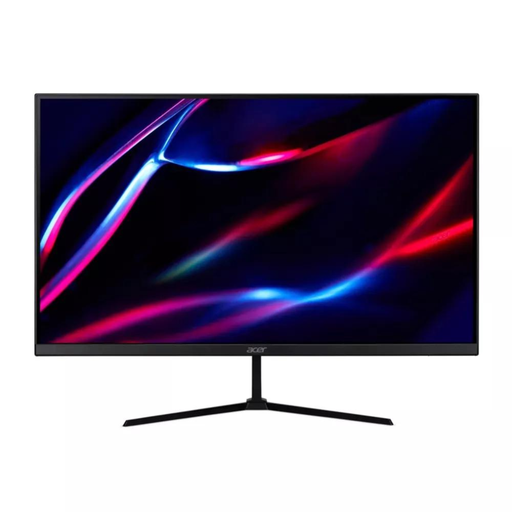 No image available
27-inch QHD IPS Monitor, 180Hz
Consider it for a desktop setup when you want a 27-inch external screen and your computer has a matching video output.
QHD IPS; 180Hz; HDMI and DisplayPort inputs; supplied HDMI and DisplayPort cables. The stand tilts but does not adjust in height.
View on Joybuy
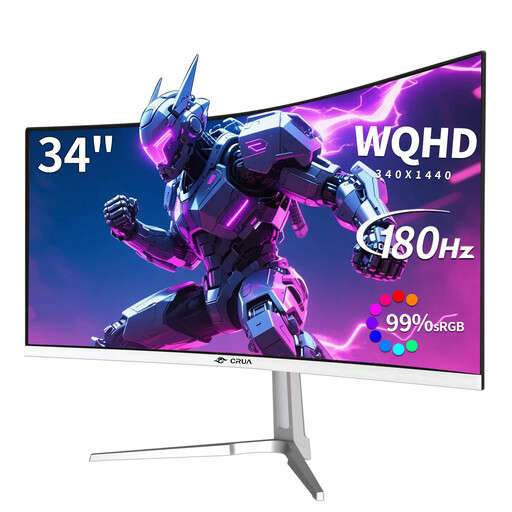 No image available
CRUA CR340QA-B 34-inch UWQHD Curved Monitor
Consider this wide-format desktop monitor if its size suits your desk and your computer has a compatible video output.
34-inch 21:9 UWQHD display; Picture-by-Picture; two HDMI and two DisplayPort inputs; VESA 75 × 75 mm mounting.
View on Joybuy
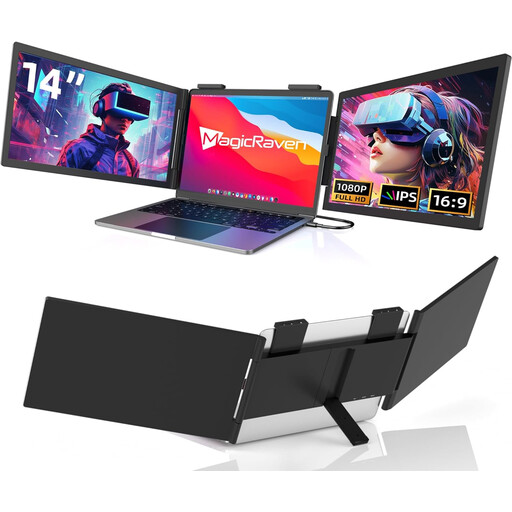 No image available
14-inch Dual-Screen Portable Monitor for 14–16-inch Laptops
Consider this laptop-oriented option if you want an additional screen; check that your laptop falls within the stated size range and supports the required connection.
FHD 1080p; 60Hz; USB-C connectivity; stated compatibility with 14–16-inch laptops.
View on Joybuy
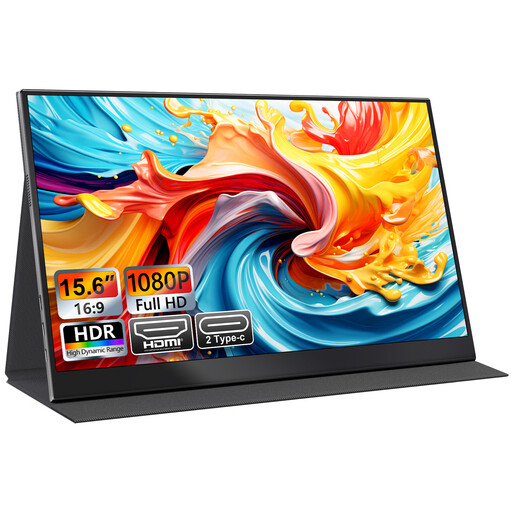 No image available
UFYQL M156F04 15.6-inch Portable Monitor
Consider this portable external screen for a laptop setup; check which of its listed connections your computer supports.
15.6-inch FHD 1080p IPS; USB-C and HDMI; smart-cover stand; VESA mountable.
View on Joybuy
 No image available
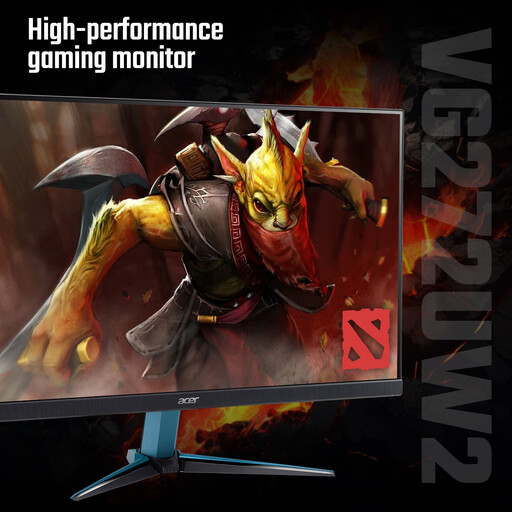
Acer Nitro VG272UW2bmiipx 27-inch QHD Monitor
Consider it for a desktop setup if you want a 27-inch external screen and your computer has a matching video output.
QHD IPS; 240Hz; HDMI and DisplayPort connections; tilt adjustment.
View on Joybuy
Frequently asked questions
If I already own a laptop, do I need a separate monitor?
Not necessarily. If screen height is the main difficulty, Health and Safety Executive guidance describes raising the laptop and using a separate keyboard and mouse as an arrangement to consider. If you need different windows visible at the same time, an external monitor set to extend rather than mirror the laptop display provides additional desktop space.
Will any USB-C laptop work with a USB-C monitor?
No; check the exact laptop’s USB-C video capability, the monitor input and the cable. If you also want the monitor to charge the laptop, confirm that its power delivery meets the laptop’s requirements.
How should I position a screen used regularly at home?
Health and Safety Executive workstation guidance describes placing the screen in front of you, with its top around eye level and about an arm’s length away, then adjusting the wider workstation and lighting to suit. Review the arrangement if the workstation changes; buying a monitor does not replace assessing the setup.
Who pays for equipment if a home-working assessment identifies a need?
Where display screen equipment rules apply and a workstation assessment identifies equipment that needs to be provided, the Health and Safety Executive says the worker cannot be charged for that equipment. The assessment determines what is needed; this does not mean every home worker is automatically entitled to a monitor.


