Laptop-based hybrid workers
For people who need a larger area for documents, calls and browser work while keeping laptop connections, charging and desk cables manageable.


Choose a conventional external monitor when your computer has a suitable HDMI or DisplayPort output and you mainly need more workspace at a fixed desk. A USB-C hub monitor can reduce cable clutter when your laptop supports USB-C video and its charging needs match the monitor; use a dock or multi-monitor arrangement only after checking the computer’s display support, and prioritise adjustable positioning where the desk setup requires it.
For people who need a larger area for documents, calls and browser work while keeping laptop connections, charging and desk cables manageable.
For people comparing a conventional 16:9 display, a higher-resolution screen or an ultrawide workspace for several documents, spreadsheet columns and meeting windows.
For people whose current desk makes screen placement difficult and who need to consider height, tilt, swivel, pivot or VESA mounting alongside screen size. HSE guidance highlights the need for a comfortable, sustainable posture.
Start with the connection your computer can actually support, then choose the screen format and positioning options that fit the desk and your daily work.
| Priority | What to check | Your needs |
|---|---|---|
| Usable workspace | Compare screen size, aspect ratio and exact resolution; consider interface scaling at the chosen resolution; check multi-computer features only if two source computers will share the display. | I want room for documents, spreadsheet columns and several open applications without choosing gaming-led features that do not help office work. |
| Connections and charging | Confirm HDMI or DisplayPort output for a direct connection; for USB-C, check documented DisplayPort Alt Mode or equivalent video support and compare power delivery with the laptop charger requirement; check hub and Ethernet ports only if needed. | I want my monitor to work with my actual laptop or desktop without relying on an unsuitable adapter, charger or separate dock. Which? identifies ports as a practical selection factor for avoiding unnecessary accessories. |
| Screen placement | Check the exact height, tilt, swivel and pivot movements; verify the model’s VESA mount pattern and an arm’s supported size and weight; consider lighting and reflections as part of the desk setup. | I need the screen position to suit my desk and working posture, rather than assuming a larger panel alone will make the workstation more comfortable. |
| Multi-monitor expansion | Check the computer maker’s stated maximum display count and supported resolution configuration; confirm Thunderbolt or other required capability for daisy-chaining; use dedicated outputs or a compatible dock for independent screens. | I need separate extended desktops, not a duplicated image, when adding another screen. Microsoft notes that a basic display splitter duplicates the same signal. |
A monitor’s USB-C specification does not establish that a particular computer can send video, accept the intended charging arrangement or run the planned number of displays.
Check the exact computer model, supported external-display count, documented USB-C or Thunderbolt video capability and supplied charger rating before relying on one cable.
You may need an additional cable, adapter, dock or charger when the laptop lacks the required capability.
Microsoft states that a display splitter duplicates the same signal rather than creating two independently extended desktops, and the graphics adapter may not support multiple external monitors.
Check the manufacturer’s external-display specification first, then use supported outputs or a compatible dock for separate extended screens.
A supported second output, adapter or dock may be needed for the intended arrangement.
Screen size does not show whether the supplied stand can place the panel appropriately or whether the desk layout and lighting will work. HSE guidance focuses on achieving a comfortable, sustainable posture.
Confirm stand movements and VESA compatibility, then plan the monitor position with the chair, desk and room lighting rather than treating the panel as a standalone item.
A monitor arm, riser or replacement stand may be needed if the supplied stand cannot provide suitable positioning.
A 34-inch 21:9 display has different desk-space and connection demands from compact 23.8-inch or 27-inch office monitors.
Measure usable desk width and depth, decide whether a wide single screen fits your window layout, and confirm that the computer can drive the selected resolution through the intended connection.
The setup may require more desk space, a monitor arm or a different cable or dock arrangement.
Relevant for business-oriented USB-C hub monitors with integrated Ethernet, peripheral ports and adjustable stands, including compact Full HD and 27-inch 4K options.
Relevant for a 27-inch QHD USB-C home-office route where laptop charging, a USB hub and broad stand adjustment are priorities.
Relevant for buyers considering a larger ultrawide display for side-by-side documents and spreadsheets, with USB-C charging, Ethernet and adjustable positioning.
Joybuy monitor options for home-office document work, multitasking, laptop connections and adjustable desk setups.
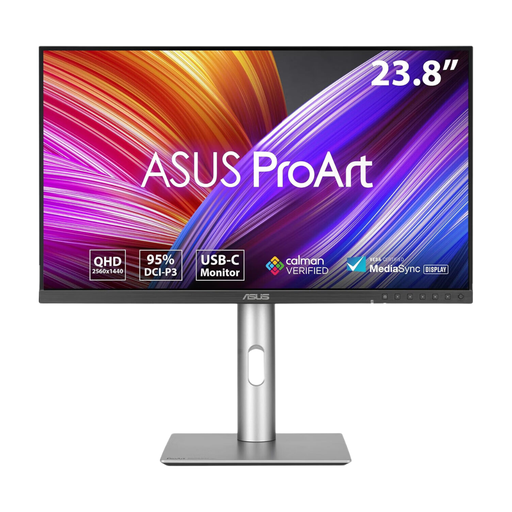 No image available
A compact QHD option for laptop desk work and document multitasking; confirm that the laptop supports USB-C DisplayPort Alt Mode before planning one-cable use.
USB hub availability can vary by region, so check the UK configuration and required peripheral ports.
 No image available
A 27-inch WQHD option for spreadsheets and multi-window work, with HDMI, DisplayPort and USB-C connection options stated.
Check the USB-C power-delivery rating against the laptop’s supplied charger and confirm USB-C video support before purchase.
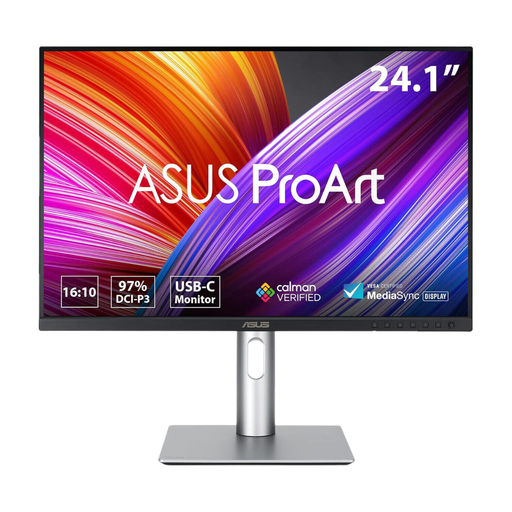 No image available
A 24.1-inch WUXGA option for documents, browser work and meetings, with HDMI, DisplayPort and USB-C stated for connection flexibility.
Verify the laptop’s USB-C video and charging capabilities, and confirm VESA compatibility if a monitor arm is required.
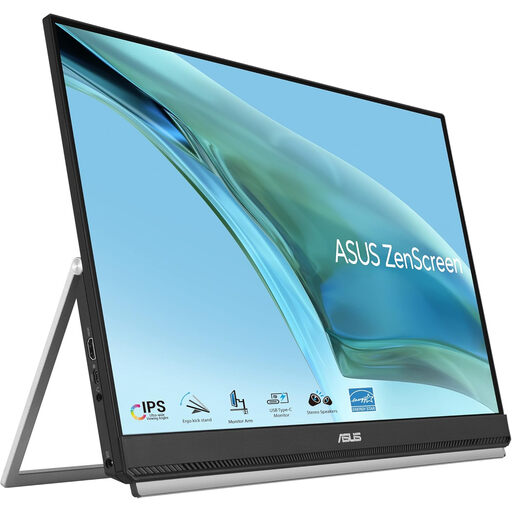 No image available
A 23.8-inch Full HD option for hybrid or small-desk setups where kickstand, C-clamp arm or partition-hook mounting may suit the workspace.
Compare the stated 60W USB-C power delivery with the laptop charger requirement and check available desk-edge or partition space for the chosen mounting route.
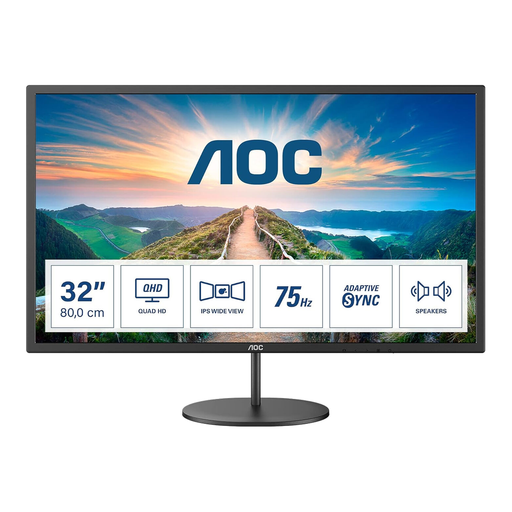 No image available
A larger 31.5-inch QHD option for wide spreadsheets and multi-window desk work when the computer has confirmed HDMI or DisplayPort output.
Check usable desk width and depth; the supplied stand’s adjustment range is not stated, so plan for a VESA arm or riser if needed for positioning.
No. An HDMI or DisplayPort monitor can be the simpler choice when the computer already has a compatible video output. Choose USB-C when the exact laptop supports compatible video output and you want display, data and potentially charging through one cable; compare the monitor’s power-delivery rating with the laptop’s charging requirement.
No. The reviewed USB-C monitors offer up to 65W or 90W power delivery, but charging suitability depends on the individual laptop and its compatibility requirements. Check the laptop manufacturer’s specifications before relying on the monitor as the sole charger.
Not normally. Microsoft states that a display splitter duplicates the same signal rather than creating two independent screens. For independently extended displays, check the computer’s graphics capability and use supported outputs or a compatible dock.
HSE states that the Display Screen Equipment Regulations can apply where someone works at home permanently or long term, or routinely divides time between home and workplace, and uses display screen equipment daily for continuous periods of an hour or more. Where the regulations apply, the employer should carry out an individual assessment covering the relevant work locations.
No. An adjustable stand can make screen placement easier, but HSE guidance says that equipment and workstation suitability should be assessed for the individual situation so the worker can achieve a comfortable, sustainable posture.