What to prioritise when choosing a replacement monitor
Check compatibility first, then consider the document layout, screen position and the extras needed for a complete setup.
| Concern |
What to check when buying |
Who this matters to |
| Connection compatibility |
Match the computer’s video output and supported resolution and refresh rate to the monitor’s input. For USB-C video, confirm the computer supports the required video mode. |
If my existing PC has particular output ports or display limits, I need a monitor that matches them. Consumers who put connection compatibility first account for around 36%. |
| Document layout |
Compare screen size, aspect ratio and resolution with your desk space, typical documents and preferred display settings. |
If I work with several documents, I need a screen layout that suits both the work and the space available. Consumers prioritising their document workspace account for around 29%. |
| Screen position |
Check the stand’s adjustment, footprint and any mounting provision against your desk and the position you need. |
If my desk makes screen placement difficult, I need to know whether the stand gives enough adjustment or whether a compatible mount is needed. Consumers who prioritise positioning account for around 21%. |
| Complete setup |
Check the exact box contents, port functions and whether you need separate cables, a charger or audio equipment. |
If I need the replacement to work as a complete setup, I want to account for necessary extras as well as the screen. Consumers focused on the full setup account for around 14%. |
Related Joybuy monitors
These Joybuy options are standard desktop monitors for general home-office use. Compare their stated inputs and screen specifications with your computer and desk before choosing.
 No image available
AOC Q32V4 31.5-inch QHD IPS Monitor
Consider it if you have desk space for a 31.5-inch screen and your computer has a matching HDMI or DisplayPort output.
2560 × 1440 resolution, IPS panel, matte surface, integrated speakers and a removable stand. VESA mounting is listed.
View on Joybuy
 No image available
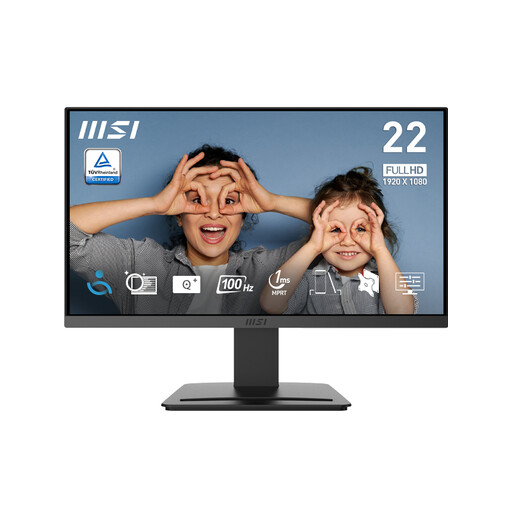
MSI PRO MP223 E2 21.45-inch Full HD Monitor
Consider it if a compact Full HD office screen suits your desk and your computer has a matching HDMI or DisplayPort output.
1920 × 1080 resolution, 100 Hz refresh rate, tilt-adjustable stand and anti-glare surface. A 75 mm VESA mount is listed.
View on Joybuy
 No image available
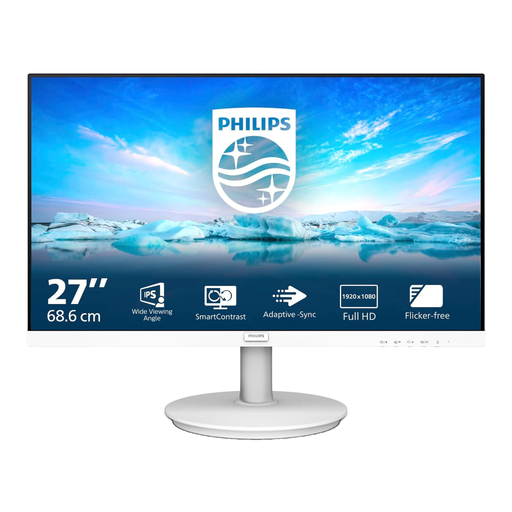
Philips 271V8AW 27-inch Full HD White Monitor
Consider it if a 27-inch desktop screen suits your space and your computer has a matching HDMI or VGA output.
Full HD resolution, tilt adjustment and integrated speakers are listed.
View on Joybuy
 No image available
Samsung Essential S3 S31D LS24D310EAUXXU Monitor
Consider it if a 24-inch Full HD screen suits your home-office space and your computer has a matching HDMI or VGA output.
1920 × 1080 resolution, anti-glare surface and tilt adjustment are listed.
View on Joybuy
 No image available
KOORUI E2412F 24-inch Full HD Business Monitor
Consider it if you need a 24-inch Full HD office screen and your computer has a matching HDMI or DisplayPort output.
1920 × 1080 resolution, IPS panel, tilt adjustment and anti-glare surface are listed.
View on Joybuy
Frequently asked questions
How can I check that a monitor will display my computer’s chosen resolution and refresh rate?
Check the exact computer model’s documented graphics output, the monitor’s specification for the input you plan to use and the cable. A monitor’s maximum specification does not establish what a particular computer-and-connection combination will deliver.
Does a USB-C port mean a monitor will provide video and laptop charging?
No. Confirm video support in the computer documentation, then check the function and charging rating of the exact monitor port against the laptop and cable. Dell specifies a data-only USB-C downstream port on the P2425, but video and up to 90 W power delivery on the different P2425E.
Does a UK employer have to pay for a home-working monitor?
Not automatically for every home worker. The Health and Safety Executive says display screen equipment rules can apply to permanent or long-term home and routine hybrid workers who use display screen equipment daily for continuous periods of an hour or more. Where an applicable workstation assessment identifies equipment the employer needs to provide, the worker cannot be charged for it; occasional or short home use is treated differently.
What rights apply if an online-bought monitor is unsuitable or faulty?
GOV.UK says distance-buying customers generally have 14 days after receiving an item to notify the seller that they want to cancel, followed by another 14 days to return it. Faulty or misdescribed goods have separate statutory remedies, so check which circumstances apply rather than treating a manufacturer warranty as the full extent of your rights.
What can I do with my old monitor?
Ask the seller about its electrical-waste take-back arrangements. GOV.UK says retailers must offer take-back of the same type of electrical item when a customer buys a new one, including for online purchases. In-store take-back is free; home collection can involve transport costs.


