For preparing lesson handouts, choose resolution and stand adjustment around the way you arrange documents and position your screen. A 23.8-inch QHD monitor provides more pixels than a 23.8-inch Full HD model for side-by-side work, while Full HD may suit editing one document at a time. Consider USB-C charging only after checking your laptop’s video and charging compatibility; a larger Full HD screen does not, by itself, add pixels.
Who these choices suit
Side-by-side document editors
If you keep a lesson plan, reference material and a handout open together, the extra pixels of a QHD display may matter more than meeting features. Dell lists its 23.8-inch P2425DE with QHD resolution and an adjustable stand.
Laptop-first home-office teachers
If your laptop moves between desks, a USB-C connection may simplify your setup. Check that the laptop can send video and accept the charging arrangement offered by the monitor.
Single-document editors
If you mostly write and review one handout at a time, a compact Full HD screen may meet your workspace needs. BenQ lists the 23.8-inch GW2490 as a Full HD IPS model with a matte display and tilt adjustment.
What matters when choosing
Decide how much document space and stand adjustment you need before considering laptop docking or built-in meeting equipment.
| Concern |
What to check |
Who this matters to |
| Document workspace |
Compare native resolution and screen size, then check your preferred text scaling and laptop output. |
If I keep source material beside a handout, I want room for both windows without relying on screen size alone. Around 40% of consumers put document workspace first. |
| Screen positioning |
Check the exact stand adjustments and whether the screen can sit comfortably on your desk. |
When I spend long periods editing layouts, I need to position the screen to suit my workstation rather than work around a fixed stand. Comfortable positioning comes first for around 40% of consumers. |
| Laptop connections |
Confirm USB-C video support, charging requirements and the cable needed for your laptop. |
If I connect a laptop each time I prepare materials, fewer desk cables would make setup simpler. Around 20% of consumers prioritise that connection need. |
Buying pitfalls
-
Assuming a larger screen adds document space
LG lists the 27-inch 27BA850-B at 1920 × 1080, while Dell lists the smaller 23.8-inch P2425DE at 2560 × 1440. Physical size and pixel count answer different questions.
Compare native resolution as well as diagonal size, and consider the text scaling you would use when placing documents side by side.
-
Treating eye-care features as a complete workstation solution
The Health and Safety Executive says overuse or improper use of display screen equipment can be associated with fatigue, eye strain and physical discomfort. A monitor mode cannot address every part of a workstation setup.
Consider screen position, posture and breaks or changes of activity alongside any display features. Employees who regularly use display screen equipment at home may also need an individual workstation assessment.
-
Assuming every USB-C laptop supports a one-cable setup
A monitor’s USB-C power-delivery specification does not establish that a particular laptop can send video and accept the required charge through that connection.
Check the laptop’s port specification, charging input and the cable required by the monitor before ordering.
If the intended connection is incompatible, using the monitor may require a separate cable, charger or dock.
-
Overlooking the stand
Dell lists height, pivot, swivel and tilt adjustments for the P2425DE and P2425HE. BenQ lists tilt adjustment for the GW2490, so the same placement options should not be assumed across these models.
Check the chosen model’s stand against your desk height and viewing position; if you plan to use an arm, check its mounting requirements too.
Brands to consider
Dell
Dell’s P2425 models offer examples of compact, adjustable business monitors with different resolutions and USB-C features.
- Dell lists the 23.8-inch P2425DE with a 2560 × 1440 IPS display and height, pivot, swivel and tilt adjustment.
- The P2425HE is a Full HD model; check which resolution and laptop connections you need rather than assuming the two models offer the same workspace.
BenQ
BenQ’s GW2490 is a straightforward 23.8-inch Full HD option for document work without making a hub central to the choice.
- BenQ lists an IPS panel, matte display, HDMI and DisplayPort inputs, and flicker-free and low-blue-light features for the GW2490.
- Its listed stand adjustment is tilt; check your positioning needs if height, swivel or pivot adjustment matters.
LG
LG’s 27BA850-B brings meeting and laptop-connection features into a 27-inch business monitor.
- LG lists a webcam, microphone, speakers, wired network connection and USB-C power delivery of up to 90W for the 27BA850-B.
- This model is Full HD at 1920 × 1080: its larger panel does not provide the extra pixels of Dell’s 23.8-inch QHD P2425DE.
Joybuy product choices
These choices include monitors for QHD document work, USB-C laptop connections and wider or curved desk setups. Match the screen and connections to the handouts you prepare and the space available on your desk.
 No image available
ASUS ProArt PA278CV IPS WQHD monitor
Consider this WQHD model if arranging reference material beside a handout is a priority. Check that its stand and screen size suit your desk; if you intend to charge a laptop through USB-C, confirm the required charging wattage and connection compatibility.
View on Joybuy
 No image available
ASUS ProArt PA24ACRV IPS QHD monitor
This QHD model is worth considering if you regularly view a handout and source material together. For laptop use, check USB-C video and charging compatibility and which cables come with the offered variant.
View on Joybuy
 No image available
ASUS ZenScreen MB249C IPS USB-C monitor
If you mainly edit one handout at a time, compare this model’s available workspace and mounting arrangement with your desk setup. Check laptop compatibility before relying on USB-C video or charging, and confirm the actual weight if you expect to move it regularly.
View on Joybuy
 No image available
CRUA 49-inch curved ultrawide DQHD VA monitor
Consider this unusually wide screen only if you want to arrange several documents across one display and have space for it. The product title specifies 5120 × 1440 resolution and a 32:9 format. Confirm the stand’s height adjustment before relying on it, and ensure the desk or mount can accommodate the monitor; the product information advises having two people move it.
View on Joybuy
 No image available
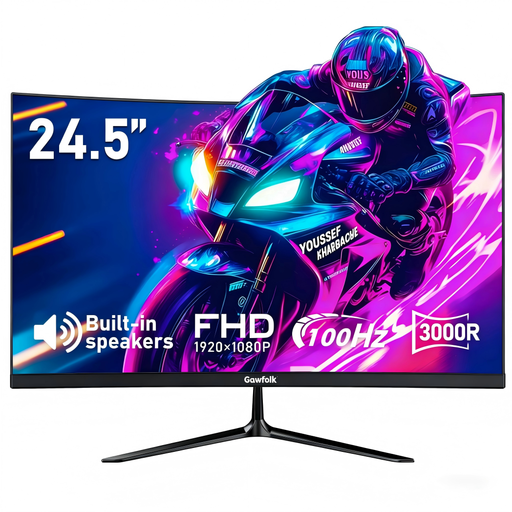
Gawfolk 24.5-inch curved Full HD monitor
This is an option to assess for simpler handout writing when a curved Full HD screen suits your desk. The product title lists HDMI and 75 × 75 mm VESA mounting. Compare its resolution with QHD if you keep several documents visible, and check the stand’s adjustments if positioning is important.
View on Joybuy
Common questions
Should I choose QHD or Full HD for lesson handouts?
Choose QHD if you regularly place source material and a handout side by side and want more pixels for those windows. Dell lists the 23.8-inch P2425DE at 2560 × 1440, while its P2425HE and BenQ’s GW2490 are 23.8-inch Full HD options at 1920 × 1080 that may suit work focused on one document.
Will a USB-C monitor connect and charge my laptop with one cable?
It can if the laptop supports the required USB-C video output and charging arrangement. Dell lists up to 90W power delivery for the P2425HE, and LG lists display, data and charging of up to 90W for the 27BA850-B; check your laptop’s requirements and the cable needed for the particular monitor.
Do display screen equipment rules matter when I work from home?
They can apply if you are an employee working at home permanently or on a long-term basis. The Health and Safety Executive advises considering the home workstation as a whole, so a monitor purchase should not be treated as a substitute for assessing how the screen and other equipment are used.


