Start with the task your existing computer makes difficult: an external monitor can give you more screen space, separate input devices can make a laptop desk easier to arrange, and a webcam or headset can address a specific call problem. Consider a dock when you need several connections in one place, but check your computer’s video output, display limits and charging requirements before choosing any USB-C monitor, hub or dock.
Who this setup is for
Hybrid workers reconnecting a laptop at home
If you move between workplaces, consider which display, input devices and call equipment you need to reconnect each time. The Office for National Statistics reported that 28% of working adults in Great Britain hybrid worked between January and March 2025; that figure describes working arrangements, not peripheral purchases.
Home workers with limited desk space
At a kitchen table or compact desk, choose the improvement that addresses your immediate task, whether that is another screen, separate input devices or call equipment. Check where each device and its cables will go before combining several accessories.
People on frequent video calls
If camera placement or microphone position is the problem, a separate webcam or headset may address it without replacing a display. Logitech’s UK collection includes examples of a mountable webcam and a USB-A headset with a noise-reducing microphone.
What to check before buying
Identify the job the accessory needs to do, then check its connection requirements against the exact computer and the space available.
| Priority | What to check | Your needs |
|---|
| Screen space |
Compare screen size and resolution with your desk and the work you want to show. Check the computer’s supported external-display count, resolution and refresh rate for the intended connection; Apple and Microsoft document model- and connection-dependent limits. |
I want documents, spreadsheets or meeting windows visible together, rather than repeatedly switching views on one laptop screen. |
| Calls |
Check where a webcam can be mounted, how a headset connects and which ports remain free. A USB-A headset needs a suitable port or connection path. |
The camera needs a more useful position for calls, or I want a microphone closer to my voice and accessible call controls. |
| Connections |
Check the exact computer port’s video capability, the intended display arrangement and any charging requirement separately. The USB Implementers Forum and Video Electronics Standards Association describe display functions that depend on supported USB-C capabilities, not connector shape alone. |
Several accessories need connecting to my laptop, and I would prefer fewer connections to make each time I sit down. |
| Input and desk space |
Check whether the keyboard and mouse use a receiver, cable or Bluetooth, and account for the ports, batteries or charging involved. Measure cable runs and the space taken by each device. |
I want to position input devices separately from the laptop, without leaving adapters and cables across a small working area. |
Common buying mistakes
-
Assuming every USB-C port carries video and charging
A matching connector does not establish that the computer, cable and accessory support the same display or power functions.
Check video output, data connections and charging separately in the specifications for the exact computer port, cable and monitor or dock. DisplayPort over USB-C requires the relevant supported capability, as described by the Video Electronics Standards Association.
-
Choosing a dock by its display outputs alone
A dock’s sockets do not establish how many displays the connected computer can run. Apple says supported hubs and daisy-chaining do not increase a MacBook Pro’s maximum display count; Microsoft says Surface resolution and refresh rate also depend on the model, display count and connection method.
Check the computer manufacturer’s display-support information for your exact model and proposed connection before choosing the dock and screens.
-
Reading a dock’s power rating as a charging guarantee
The power a laptop receives depends on the connected equipment and what the host accepts. Microsoft notes that insufficient power can limit functions with its Surface USB4 Dock.
Compare the laptop’s charging requirement with the dock’s supplied power adapter and documented power passed through to the host.
-
Replacing a working display to solve a call problem
A conferencing monitor combines functions in one device, but an existing display may still serve the screen-space task while a separate webcam or headset addresses the call task.
Decide whether you need a new screen as well as camera or audio equipment. If not, check the connections and placement of a separate accessory first.
Relevant brand references
Dell
A reference for comparing a separate display with a monitor that also handles calls.
- Dell describes its P2726DEB as a 27-inch QHD monitor with a built-in webcam, speakers and microphone.
- Those integrated call features are specific to the cited model; check the exact monitor’s connections and functions.
Logitech
A reference for assembling separate input and call accessories.
- Logitech’s UK collection includes a keyboard-and-mouse set, a mountable webcam and a USB-A headset with a noise-reducing microphone.
- Check how each chosen accessory connects, particularly if the computer has no USB-A port.
Microsoft
A reference for Surface owners checking a dock against their particular computer.
- Microsoft publishes device-compatibility and power guidance for its Surface docks.
- Microsoft says a Surface model not listed for Surface Dock 2 is incompatible with that dock; check the applicable dock guidance rather than relying on the connector alone.
Joybuy product options
These options address different parts of an existing computer setup: calls, additional screen space, separate input devices and extra connections. Choose by the problem you need to solve, then check compatibility with your computer.
 No image available
EMEET all-in-one 4K webcam with Sony sensor
Consider this combined camera and audio unit if video calls are the reason for adding a peripheral. Its listed configuration includes a four-microphone array, dual speakers, fixed focus and an adjustable 98° field of view; check its USB connection against your computer.
View on Joybuy
 No image available
DELL P2425H 24-inch Full HD monitor
This external display is an option when a laptop screen leaves too little room for your work. The listed 1920 × 1080 IPS model has a 100Hz refresh rate and USB-C, DisplayPort, HDMI and VGA connections; confirm the intended video connection and any laptop-charging requirement for your exact setup.
View on Joybuy
 No image available
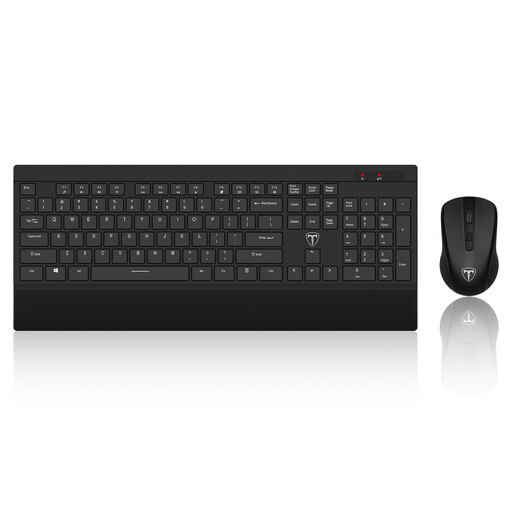
ET Silent 2.4GHz wireless keyboard and mouse, US layout
A separate keyboard and mouse let you arrange input devices independently of a laptop screen. This listed set has a full-size US-layout keyboard; check that its receiver connection and layout suit your computer and typing needs.
View on Joybuy
 No image available
V7 V7UC-U3CRJ45HDVG-BLK USB-C adapter
Consider a multiport adapter when several desk connections need to meet at a laptop. This model lists 4K HDMI, VGA, Gigabit Ethernet, 100W Power Delivery and dual USB 3.0 ports; check your computer’s USB-C video support, intended display arrangement and charging requirements before choosing it.
View on Joybuy
 No image available
ASUS ZenScreen MB166CR FHD portable monitor
A portable second screen may suit a desk that is cleared after work or a laptop used in more than one place. For the listed USB-C video connection, check that your computer supports DisplayPort Alternate Mode and the intended external-display arrangement.
View on Joybuy
Frequently asked questions
Will any USB-C port run a monitor?
No. USB-C describes the connector, while video output depends on the capabilities supported by the computer and connected accessory. The Video Electronics Standards Association describes DisplayPort over USB-C as using Alternate Mode; check your exact computer port and the monitor or dock before buying.
Can a dock increase the number of monitors my laptop supports?
Do not choose a dock on that assumption. Apple says supported hubs or daisy-chaining do not raise a MacBook Pro’s maximum supported display count, while Microsoft says Surface display resolution and refresh rate depend on the model, display count and connection method. Check the display limits for your exact computer and proposed setup.
How can I tell whether a dock will charge my laptop?
Compare the laptop’s charging requirement with the dock’s supplied adapter and documented power passed through to the host. Microsoft notes for its Surface USB4 Dock that the host must support the wattage it receives and that insufficient power can limit functions.
Should I choose separate call accessories or a conferencing monitor?
Choose separate accessories if your current display meets your screen-space needs and you mainly want different camera placement or a closer microphone. A conferencing monitor is worth considering when you also need a display and its integrated call functions, connections and charging specifications suit your computer; Dell’s P2726DEB is one model with a built-in webcam, speakers and microphone.


