Fixed-desk laptop workers needing more workspace
If the laptop screen limits multi-window work at a regular home desk, an external display is worth considering once there is room for it and the laptop’s display connection is confirmed.


Start with the whole workstation and how often you move between desks, rather than assuming every laptop needs a monitor or dock. A directly connected monitor can add workspace at a fixed desk; a raised laptop calls for separate keyboard and mouse placement; and a dock makes more sense when repeated display, peripheral and charging connections are the problem. Check the exact laptop’s display support and the employer’s equipment arrangements before buying.
If the laptop screen limits multi-window work at a regular home desk, an external display is worth considering once there is room for it and the laptop’s display connection is confirmed.
People alternating between home and the workplace may need equipment they can pack away or reconnect consistently. The useful arrangement can differ between the two desks.
Workers regularly connecting displays, input devices, a wired network or storage can consider a dock, provided its host, display and charging requirements match their laptop.
For sustained home or hybrid desk work, establish what needs changing at the workstation, then choose the screen, input and connection arrangement that addresses it.
| Concern | What to check | Who this matters to |
|---|---|---|
| Whole-workstation fit | Check the desk, furniture and work pattern, and whether an applicable employer assessment identifies equipment to provide. | If my home desk is difficult to use, I want to know whether the layout or equipment needs changing before I buy another device; around 33% of consumers put workstation fit first. |
| Screen and input layout | Measure desk space; compare a separate monitor with a raised laptop and independently placed keyboard and mouse. | When the laptop screen and built-in controls cannot be positioned separately, I need a layout I can use for sustained desk work; roughly 27% of consumers make screen and input placement their primary concern. |
| Connection compatibility | Check the exact laptop’s video-capable ports, supported display count, charging requirement and any dock software requirements. | If I reconnect several devices at one desk, I need the planned displays and charging to work with my particular laptop; around 27% of consumers prioritise connection compatibility. |
| Portability and desk fit | Decide what travels between desks; for an arm, match the monitor mount and weight to the arm and desk attachment. | If I pack equipment away or have little desk space, I need it to fit and move without complicating the setup; approximately 13% of consumers put portability or mounting fit first. |
A USB-C connector alone does not establish video capability, display count or adequate charging. Apple and Microsoft both direct users to check display support for the particular computer and connection route.
Match the laptop model and intended display arrangement against the dock or monitor’s host, operating-system, cable, driver and power requirements before ordering.
The completed setup may also require a suitable adapter, cable or power supply.
For workers in Great Britain who work at home long term or routinely split home and workplace time, and use display screen equipment daily for continuous periods of an hour or more, the Health and Safety Executive says the Display Screen Equipment Regulations can apply. An assessment where required considers the whole workstation, not just the screen.
Check the employer’s assessment process and what it identifies before personally buying work equipment. The Health and Safety Executive says workers cannot be charged for equipment indicated by an applicable DSE assessment.
A stand raises the screen but leaves the built-in controls attached to it. That may not address a need to position the screen and input devices separately during sustained desk work.
Consider a stand together with a separate keyboard and mouse, and check desk depth and cable reach. If more screen area is the main need, compare that arrangement with an external monitor instead.
The Video Electronics Standards Association defines mounting interfaces; the presence of one does not establish that a particular arm supports the monitor’s weight or fits the desk.
Match the exact monitor’s mounting pattern and weight to the arm’s specifications, then check clamp or grommet suitability and cable clearance.
Dell’s UltraSharp USB-C hub-monitor line is relevant to a fixed desk where display, charging and peripheral connections are being considered together.
LG’s Ergo line provides a reference point for checking screen adjustment and desk-clamp arrangements.
CalDigit is relevant when a fixed desk needs a dock for recurring peripheral and display connections.
StarTech.com offers a reference for checking driver-based docks where host types and additional displays are part of the decision.
These choices cover fixed-desk and portable external monitors, plus a dock for repeated display and peripheral connections. Choose the arrangement that addresses your workstation need, then check it against your laptop and desk.
 No image available
Consider this dock if two recurring HDMI display connections are part of your desk setup.
The product name specifies dual HDMI 4K connections and 100 W Power Delivery pass-through. Confirm that your laptop supports the planned displays and charging arrangement, and whether a suitable external adapter is needed and included.
 No image available
Consider this larger monitor for a fixed desk if the screen and its placement fit the available space.
Its title specifies 3840 × 2160 resolution, 165 Hz and Type-C 65 W. Check whether the laptop supports video through the intended connection and whether 65 W meets its charging requirement.
 No image available
Consider this external monitor if a separate screen suits your fixed-desk layout.
The product name identifies an IPS WQHD display. Before relying on a USB-C connection or laptop charging, check the monitor’s connection and power details against the exact laptop.
 No image available
Consider a portable screen if you need extra display space at more than one work location.
This model is identified as FHD. Its intended connection requires a laptop with USB-C DisplayPort Alt Mode; HDMI is listed as unsupported, so check the exact laptop before choosing it.
 No image available
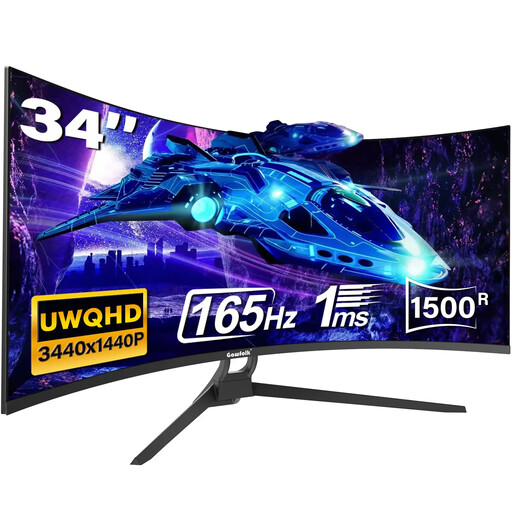
Consider this ultrawide screen for a fixed desk if its width fits your planned layout.
The product name specifies a 21:9 display and HDMI and DisplayPort connections. Confirm the physical inputs before planning a Type-C connection, and check that the laptop supports the display mode you intend to use.
The Health and Safety Executive says the Display Screen Equipment Regulations can apply when someone works at home permanently or long term, or routinely splits time between home and the workplace, and uses display screen equipment daily for continuous periods of an hour or more. Where the regulations apply, the employer should carry out an individual assessment covering the workstations used.
No. The Health and Safety Executive says workers cannot be charged when an applicable workstation assessment indicates action such as providing display screen equipment. An assessment does not automatically call for a monitor, stand or dock; it considers the whole workstation and the individual’s work.
Check the exact laptop model’s video-capable ports and supported number of displays, then match the monitor or dock connection, cable, operating-system requirements and any expected charging. Apple says Mac display support varies by model; Microsoft says Surface display capability depends on the model and cable or adapter used.
No. The Health and Safety Executive for Northern Ireland identifies separate Display Screen Equipment Regulations (Northern Ireland) 1992. Check Northern Ireland guidance for an arrangement there rather than extending a Great Britain assessment conclusion to it.
Match the monitor’s specified mounting pattern and weight to the arm’s supported pattern and load range, then check the intended desk attachment. A VESA mounting interface describes the connection pattern; it does not establish that a particular arm or desk can support the installation.