Start with the part of your laptop setup that makes sustained work difficult: consider a monitor and separate input devices for screen and keyboard placement, a dock or hub for repeated desk connections, or call equipment when meetings are the main constraint. Before buying a USB-C monitor, hub or dock, check the exact laptop’s video, display and charging capabilities; the connector shape alone does not establish what it can do.
Who this setup is for
Laptop-first hybrid workers
If you regularly move between home and office, a repeatable desk arrangement may matter more than buying another laptop. The Health and Safety Executive includes routine hybrid and long-term home work in its guidance on display-screen equipment.
Fixed-desk multitaskers
If laptop screen space, trackpad use or repeated connections limit your home-desk work, assess a separate display and input devices before deciding whether a dock would simplify the connections. Check the display modes supported by your laptop.
Workers who rely on video calls
If meetings are the limiting part of your setup, assess a webcam or headset against your work device and meeting platform separately from your monitor needs. Logitech’s business range includes these categories, but compatibility depends on the device chosen.
What to check before buying
Identify the task your current setup makes difficult, then check the laptop connection and the space or equipment needed to address it. A dock is not a substitute for video capability that the laptop connection does not provide.
| Concern | What to check | Who this matters to |
|---|
| Screen and input placement |
Desk space and monitor positioning; whether separate keyboard and pointing devices allow the screen to sit where you need it. |
If I work at one desk for long periods, I want to position the screen without being tied to the laptop keyboard. Around 29% of consumers put this workstation need first. |
| Connection compatibility |
The exact laptop’s video-capable ports, intended display count and modes, and charging requirements. |
Before connecting a monitor or dock, I need to know whether my work laptop can provide the video and power the arrangement requires; this is the primary concern for around 36% of consumers. |
| Moving between desks |
Which accessories stay at home, which travel, and whether the hub or dock needs its own power supply. |
When I move between home and office, I would rather carry only the connections I need than repeatedly dismantle a fixed desk. Around 21% of consumers prioritise a practical portable arrangement. |
| Work-call equipment |
Whether a headset, webcam or both addresses the call need; device and meeting-platform compatibility. |
If calls are what my current setup makes difficult, I want equipment that works with my approved meeting setup. That call need comes first for around 14% of consumers. |
Buying pitfalls
-
Assuming every USB-C port handles video and charging
USB-C describes the connector, not every function available through it. Microsoft notes that external-display modes depend on the device and connection; Anker’s hub specifications also vary by laptop display capability.
Check the exact laptop model’s video output, supported displays and charging requirements against the monitor, hub or dock and its cable.
An incompatible connection may mean using a different cable, adapter, hub or dock.
-
Counting data ports as monitor outputs
Several physical ports do not necessarily provide several usable display connections. Anker identifies data ports on its 565 hub that are not display outputs.
Read the exact model’s port map and its stated modes for the number of monitors you intend to connect.
-
Treating a monitor as the whole workstation
The Health and Safety Executive’s home-working guidance considers a comfortable, sustainable overall arrangement, not an isolated screen purchase. Screen placement, input devices and the connection path still matter.
Plan where the display, keyboard and pointing device will sit, then check how the laptop will connect before choosing additional components.
-
Buying call accessories before checking work requirements
A webcam or headset may not suit the work device’s connections or the meeting software used for calls.
Confirm the operating system, connection method and approved meeting platform before choosing either accessory.
Brands to consider
Dell
Dell’s business-oriented USB-C and Thunderbolt docks are relevant to a desk with displays and peripherals connected through a compatible laptop.
- Dell describes dock options combining display video, audio and data through one connection.
- Display modes, laptop charging and management features vary by dock model; check the exact laptop and dock pairing.
Anker
Anker’s range includes compact USB-C hubs and larger desk docks for different connection arrangements.
- Its model documentation distinguishes display modes from USB data-port functions.
- Requirements differ by model and laptop: Anker’s 565 hub, for instance, specifies different display modes by laptop capability and does not include a charger or cable.
Logitech
Logitech offers keyboards, mice, webcams and headsets for desk and meeting setups.
- Its range includes wired, wireless, compact and multi-device input options.
- Check the chosen device’s operating-system, receiver or Bluetooth requirements and, for call equipment, meeting-platform support.
Joybuy products for different setup needs
These products address different parts of a hybrid laptop setup: an external display, additional desk connections or wired call audio. Choose the part that meets your primary need, then check it against your work laptop.
 No image available
ASUS ProArt PA278CV IPS WQHD monitor
Consider this external monitor when a fixed home desk needs a separately positioned screen. Check the laptop’s intended display connection and whether its charging arrangement meets your needs.
View on Joybuy
 No image available
ASUS ZenScreen MB166CR FHD monitor
Consider this second-screen option if your setup moves between work locations. Check that the laptop supports the required video connection and that you can position the screen as needed.
View on Joybuy
 No image available
V7 V7UC-U3CRJ45HDVG-BLK USB-C adapter
Consider this adapter if your desk needs display, wired-network and USB connections. Its name specifies 4K HDMI, VGA, Gigabit Ethernet, 100 W power delivery and two USB 3.0 ports; check the laptop’s video and charging compatibility before choosing it.
View on Joybuy
 No image available
Baseus Metal Gleam Series 7-port USB-C hub, grey
Consider a hub when you want to organise several connections at a desk. Check which of this model’s seven ports serve your devices, whether the laptop supports the intended video connection and what power supply charging would require.
View on Joybuy
 No image available
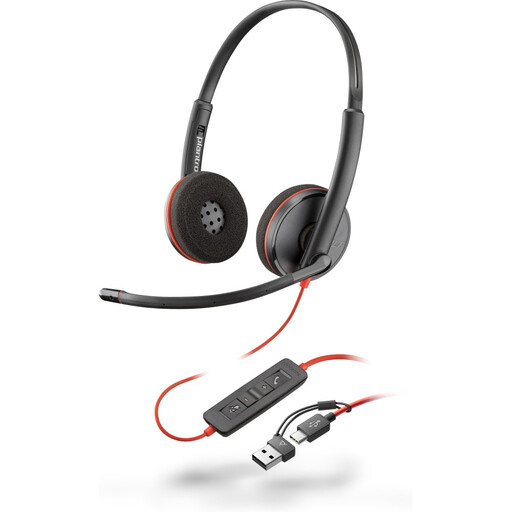
Poly Blackwire 3220 stereo USB-C headset with USB-C-to-USB-A adapter
Consider this headset when dedicated call audio, rather than a different screen or dock, addresses your work need. Check its connection and compatibility with your work device and meeting platform.
View on Joybuy
Frequently asked questions
Will any USB-C laptop port run a monitor through a dock?
No: a USB-C connector does not by itself establish video-output capability. Check the exact laptop’s documentation for a suitable display-capable connection, then compare its supported modes with the dock and monitor you intend to use.
Why might a dual-monitor dock offer different display modes on different laptops?
The laptop and connection can limit the resolution and refresh rate available when more than one screen is connected. Microsoft notes that the device, connection method and number of displays affect supported modes; check the dock’s specifications for your intended arrangement too.
Do I need a monitor, dock and separate peripherals at the same time?
Not necessarily: start with the screen, input, connection or call problem that most affects your work. A dock can simplify compatible connections, but it cannot make an unsupported laptop video connection work.
How should I dispose of an old monitor or peripheral?
Use an appropriate electrical-equipment reuse or recycling route rather than putting an old monitor or peripheral in general waste. UK guidance from the Office for Product Safety and Standards and the Department for Environment, Food & Rural Affairs describes the waste electrical and electronic equipment framework; check current local authority or retailer arrangements for the item.


