Multi-window desk workers
If you regularly keep documents, references or applications visible together, weigh usable screen space against desk fit and connection requirements.


For hybrid desk work, choose a fixed external monitor when you need documents and applications visible together; use a dock when repeated connections are the main problem, reposition an existing screen with a compatible stand or arm when placement is the issue, and choose a portable display when you move between work locations. A dock adds connections, not screen area, and USB-C video, display-count and charging features depend on the exact computer, operating system and accessory. Before buying, check desk fit, video-output support, charging requirements and mounting compatibility.
If you regularly keep documents, references or applications visible together, weigh usable screen space against desk fit and connection requirements.
If you move a work laptop between locations, check how it connects to a display and call peripherals. The laptop and dock determine which functions work together.
If your home workspace is small or temporary, screen position, mounting and a movable second display may matter more than maximum screen size.
Decide whether you need more visible screen area, easier connections, a better position for an existing screen or a movable second display, then check the constraints that apply to your setup.
| Concern | What to check | Who this matters to |
|---|---|---|
| Room for documents and applications | Compare resolution, preferred text scaling, screen dimensions and video inputs; measure the desk rather than choosing by diagonal alone. | If I keep several documents open, I want them readable together without giving up too much desk space. Consumers who prioritise seeing documents and applications side by side make up around 28%. |
| Video-call arrangement | Plan where the call window, camera and notes will sit. Check screen adjustment and whether the exact display has the peripheral connections you need. | When calls and notes need to share my screen, I want a setup that leaves both usable and keeps the display well positioned. Consumers whose main priority is arranging a screen for calls account for around 22%. |
| Laptop connections | Check the computer’s video output, operating system and external-display limit against the dock’s display modes, power input and charging requirements. | If I reconnect my laptop to a desk setup often, I want the display and peripherals to work through the connections my computer actually supports. Consumers who prioritise reliable laptop connections make up around 22%. |
| Fit and positioning on a small desk | Measure usable desk space and check display adjustment. For an arm, confirm the display’s mounting pattern and weight, and the mount’s compatibility with the desk. | With limited room to work, I need a screen that fits and can be positioned appropriately on my surface. Consumers who put desk fit and positioning first account for around 17%. |
| A movable second screen | Confirm the display’s video input, the computer’s matching output and how the screen will be powered at each work location. | If I work in different places, I want a second display I can move and connect using the equipment available there. Consumers who prioritise a portable second screen make up around 11%. |
USB-C ports do not all provide the same video, display-count or charging functions. The host computer, operating system and exact accessory affect which setup will work.
Check the computer’s port specifications, operating system and external-display limit against the dock’s supported modes, cable and power requirements.
Diagonal size alone does not tell you whether the screen, its stand or your preferred viewing position will fit the available desk space.
Measure the working surface and check the stand’s adjustment. If you plan to use an arm, check its compatibility with both the display and the desk.
A portable display’s video and power arrangements depend on the model and connected computer; one cable may not provide both usable video and sufficient power.
Check the display’s instructions alongside your computer’s output and the power connections available where you intend to work.
The 27E1N1600AE/00 illustrates a QHD monitor with USB-C Power Delivery for a stationary laptop workspace.
The GW2490 is a 23.8-inch Full HD option to consider when comparing a smaller desk display with higher-resolution models.
The ProLite XUB3293UHSN-B5 illustrates a larger display with an integrated dock for screen space and peripheral connections.
The A210B illustrates a separate multi-port hub for a workspace that already has, or is being set up with, a display.
The VX1755 illustrates a portable-display option for work at changing locations.
These Joybuy choices cover laptop positioning, desk displays, USB-C connections and a portable second screen for home or hybrid work.
 No image available
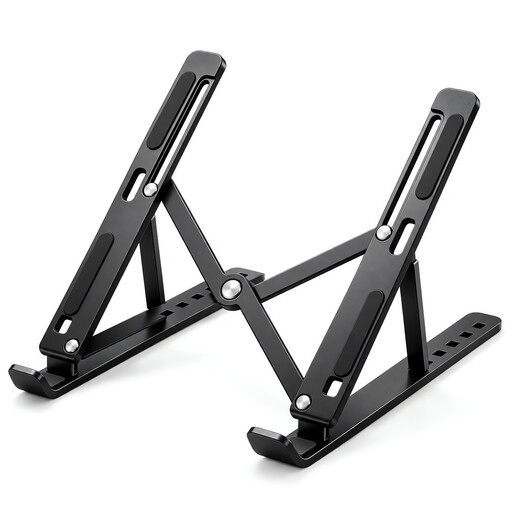
For raising a laptop in a home or study workspace, this foldable stand lists seven height levels and adjustment from 15 to 45 degrees.
Its title specifies a ventilated panel, non-slip silicone pads and fit for 10–17-inch laptops.
 No image available
For a desk setup needing more room for work applications, the Q32V4 is listed with a 31.5-inch 2560 × 1440 IPS screen.
HDMI, DisplayPort, a removable stand and 100 × 100 mm VESA mounting compatibility are specified.
 No image available
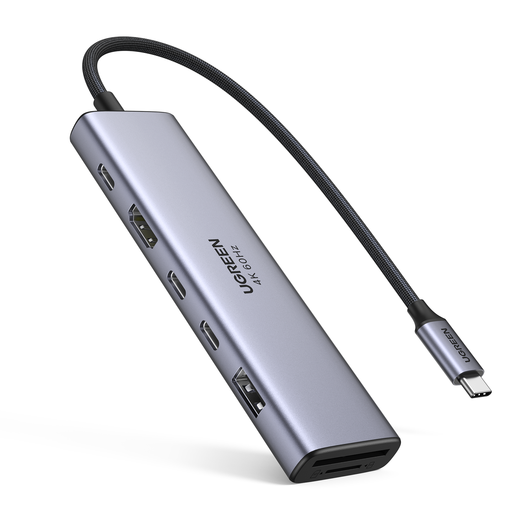
For a laptop workspace that needs added display and peripheral connections, this dock lists HDMI, two USB-C 3.2 ports, USB-A 3.2, SD/TF and PD.
Check your computer’s USB-C video support, operating system and charging requirements against the exact dock before relying on a particular display mode or power output.
 No image available
For a fixed desk display, the MD272UPSW is listed as a 27-inch 4K UHD IPS monitor with USB-C 65 W Power Delivery.
Its description specifies height, swivel, tilt and pivot adjustment. Confirm that your laptop supports the video and charging functions you intend to use over USB-C.
 No image available
For a second display that may need flexible positioning, this portable 23.8-inch Full HD IPS monitor lists a kickstand, C-clamp arm and partition hook kit.
HDMI, USB-C and 60 W Power Delivery are specified. Check the intended computer output and power setup for each work location.
No. Check the computer’s specified video output, external-display limit and charging support against the exact accessory. Anker’s A210B illustrates why: its specified dual-display modes and maximum charging depend on host capability, operating system and a suitable separate power input.
The Health and Safety Executive advises positioning the top of the screen around eye level and the display about an arm’s length away. For prolonged laptop use, also consider how the screen and input devices can be positioned for your setup; this guidance does not guarantee that a particular accessory will prevent discomfort.
The Health and Safety Executive says workers cannot be charged when a display-screen-equipment assessment indicates that the employer needs to take action, such as providing equipment. This is conditional on the assessment and does not mean every preferred personal upgrade must be reimbursed.
For applicable UK online consumer sales, GOV.UK guidance says a customer can notify the seller of cancellation within 14 days of receiving the item without giving a reason, then has another 14 days to return it. Check the seller’s return instructions and distinguish this right from remedies for faulty goods.
Do not assume one marking rule applies uniformly across the UK. GOV.UK guidance describes a UKCA-or-CE framework for Great Britain and says processes differ for Northern Ireland and according to the applicable product regulations. A specific item’s compliance cannot be established from its brand or a generic listing alone.