For regular slide preparation at home, a 27-inch QHD IPS monitor is a useful starting point; choose USB-C charging only if your laptop supports video over USB-C and the monitor can supply enough power. Full HD can suit occasional, straightforward editing, while 4K is worth considering when detailed images or charts are a regular part of your work. Check your laptop connections, preferred text scaling and screen positioning before deciding.
Who each monitor route suits
Frequent slide editors using a USB-C laptop
If you regularly arrange slides alongside notes and reference material, a QHD display offers more native pixels than Full HD. For a simpler desk connection, check that your laptop supports USB-C video and that the monitor supplies adequate charging power. Dell UK and BenQ UK list QHD models with USB-C power delivery.
Presenters reviewing detailed visuals
If high-resolution images, charts or colour-sensitive material feature regularly in your decks, consider a 4K display and check how its text looks at your preferred scaling. LG UK lists a 27-inch 4K IPS option with stated wide-gamut coverage; the eventual presentation screen may still show colours differently.
Occasional home-office slide makers
For straightforward text and layout work, Full HD may be enough if you are comfortable with its available screen space. BenQ UK lists a 27-inch Full HD IPS model; check its connections and how you can position it on your desk before choosing it over QHD.
What matters when choosing
Decide how much room and detail you need on screen, then check whether your laptop connection and workstation can support the display you choose.
| Concern | What to check | Who this matters to |
|---|
| Slide workspace |
Compare native resolution and screen size, then consider how text scaling affects usable space. Dell UK and BenQ UK list 27-inch QHD options; BenQ UK also lists a Full HD model. |
I often keep notes or source material beside a slide and need room to arrange both. Around 33% of consumers would put slide workspace first. |
| Laptop connection |
Confirm USB-C video support and compare the laptop's charging requirement with the monitor's stated power delivery; otherwise, check the available display inputs. |
Connecting my laptop should not mean repeatedly rearranging cables and power leads. For around 27% of consumers, a simpler laptop connection is the main concern. |
| Visual detail |
Check whether your computer can output the chosen native resolution. Treat stated colour-gamut coverage separately from how the finished deck appears on its presentation display. |
Detailed images and charts need close review before I present them, even though another screen may display them differently. Roughly 20% of consumers would prioritise visual detail. |
| Screen positioning |
Check the stand's available adjustments or mounting compatibility, alongside desk depth and sources of glare. |
I work on decks for extended periods and need to place the screen comfortably within my whole workstation. Screen positioning would come first for around 20% of consumers. |
Buying pitfalls to avoid
-
Assuming every USB-C connection does the same job
A USB-C socket alone does not establish that your laptop can send video to a monitor or receive sufficient charging power. BenQ UK specifies 65W power delivery for the GW2790QT; Dell UK specifies up to 90W for the P2725DE.
Check the laptop's USB-C video capability and charging requirement against the exact monitor and cable you intend to use.
-
Choosing resolution without considering reading comfort
Full HD, QHD and 4K have different native pixel counts, but your preferred text size and the space available on the desk also affect the choice.
Check your laptop's supported display resolution and consider how slides, notes and menus will look at a comfortable scaling setting.
-
Treating an adjustable stand as the whole ergonomic setup
Screen adjustment cannot resolve an unsuitable chair, desk position or glare on its own. The Health and Safety Executive's display-screen guidance addresses posture, lighting, breaks and the wider workstation.
Consider screen height and distance alongside your desk, chair, lighting and work routine; follow any workplace assessment arrangements that apply to you.
-
Expecting the finished deck to look identical everywhere
A monitor's stated colour coverage does not establish how a projector or meeting-room display will show the same slides.
If colour consistency matters, review important slides on the intended presentation equipment where practical.
Relevant brands to consider
Dell
Dell UK lists the P2725DE as a 27-inch QHD IPS monitor for a desk that needs display connectivity and peripheral connections.
- The P2725DE specification lists USB-C power delivery up to 90W, USB ports, Ethernet and height, pivot, swivel and tilt adjustment.
- It is QHD rather than 4K; check whether QHD meets your visual-detail needs and whether your laptop supports the intended USB-C setup.
BenQ
BenQ UK lists both the QHD USB-C GW2790QT and the Full HD GW2790, giving slide editors two different resolution and connection routes.
- The GW2790QT specification lists 65W USB-C power delivery and physical screen adjustments.
- The GW2790 is a Full HD alternative, not a QHD or 4K substitute; the GW2790QT's charging output also needs checking against your laptop.
LG
LG UK lists the 27UP850K-W as a 27-inch 4K IPS option for reviewing detailed visual material.
- LG states DCI-P3 95% typical coverage, USB-C power delivery up to 90W and stand adjustment for this model.
- Its stated colour coverage does not ensure that other displays reproduce a deck in the same way. Check laptop output and comfortable text scaling.
Joybuy monitors for slide work
These monitors offer different QHD and 4K approaches to preparing slides at home. Check each model's connections and display settings against your laptop rather than assuming that the same cable arrangement suits them all.
 No image available
BenQ MA270UP 27-inch 4K IPS USB-C monitor
Consider this model if detailed slide visuals and a USB-C desk connection are both priorities.
The product name specifies a 27-inch 4K UHD IPS display, USB-C and a height-adjustable stand. Check your laptop's USB-C video support, charging requirement and compatibility with any Mac-specific features you intend to use.
View on Joybuy
 No image available
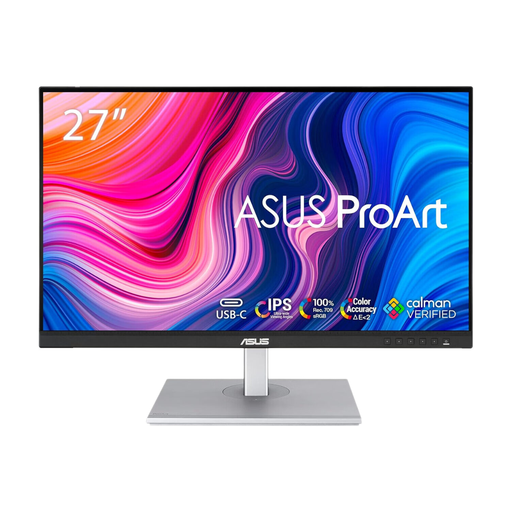
ASUS ProArt PA278CFRV QHD IPS 100Hz monitor
A QHD option to consider when arranging slides and reference material is more important than choosing a 4K display.
The product name specifies an IPS panel and 100Hz refresh rate. If USB-C video, charging or a particular port is essential, confirm the connections on this exact variant before ordering.
View on Joybuy
 No image available
LG 27UP650K 27-inch 4K IPS monitor
Consider this 4K model if reviewing detailed slide material matters more to you than consolidating laptop connections.
The product name specifies HDMI, DisplayPort, 60Hz and DCI-P3 95% coverage. Check that your laptop can output 4K at your intended settings, and confirm the exact connections if you need USB-C charging.
View on Joybuy
 No image available
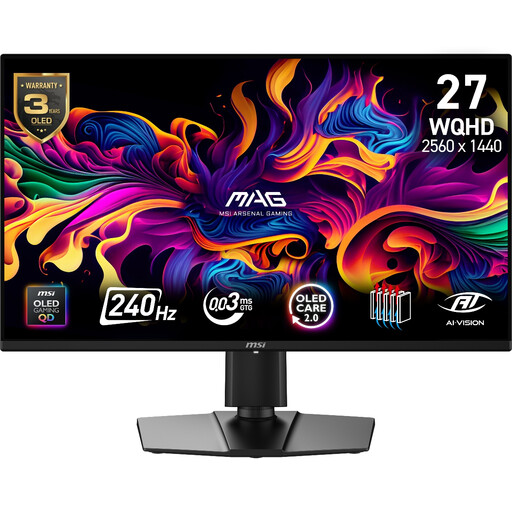
MAG 274QP QD-OLED X24 WQHD monitor
This is a QHD display to consider if you also review visual assets, though its product positioning is gaming-focused.
The product name specifies a 2560 × 1440 QD-OLED display and 240Hz refresh rate. Its title says 27 inches while its technical details give a 26.5-inch panel, so check the diagonal if it matters to your desk setup. Confirm connectivity if you need USB-C laptop charging.
View on Joybuy
 No image available
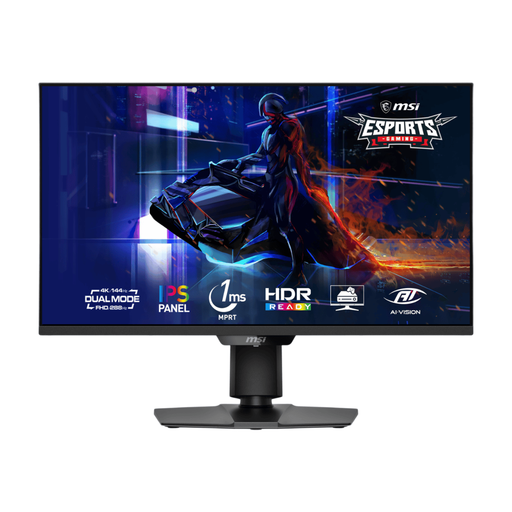
MSI MAG 275UPD E14 27-inch dual-mode monitor
Consider this model for detailed slide review if its UHD mode fits your computer's output and your preferred text size.
The product name specifies UHD 144Hz and Full HD 288Hz modes. Check which mode you will use for slide work and confirm the exact connections if USB-C video or charging is important.
View on Joybuy
Common questions
Do I need 4K to prepare presentation slides at home?
No: 4K is an option for frequent review of detailed visuals, not a requirement for ordinary slide editing. A QHD display provides an intermediate resolution, while Full HD may suit occasional work; choose according to your material, comfortable text size and laptop output.
Will a USB-C monitor show video and charge my laptop through one cable?
Only if your laptop and monitor support compatible USB-C video and the monitor supplies enough power for the laptop. BenQ UK specifies 65W power delivery for the GW2790QT, while Dell UK specifies up to 90W for the P2725DE; compare the exact model with your laptop's requirements.
What should I check beyond the monitor itself?
Check how the screen fits your desk, chair and lighting, not just its stand adjustments. The Health and Safety Executive's home-working display-screen guidance also addresses posture, glare and breaks; follow any display-screen equipment assessment arrangements applicable to your work.


