A 27-inch QHD monitor with an adjustable stand is a sensible starting point for planning slides, schedules and participant materials at a home-office desk. Consider 4K when detailed documents or visual assets are central to your work; prioritise USB-C charging or built-in conferencing features only if your laptop and meeting routine call for them. Check that the screen fits your desk and can be positioned comfortably.
Who is this for?
Desk-based training planners
If you spend long sessions arranging agendas, slides and participant lists at a fixed desk, screen position deserves attention alongside resolution. The Health and Safety Executive advises placing the top of the screen around eye level and the display about an arm’s length away.
Laptop-first organisers
If your laptop moves between the desk and other workspaces, a USB-C monitor may simplify display, charging and peripheral connections. Check the laptop’s video and charging capabilities before relying on one cable.
Remote training hosts
If planning regularly leads into hosted video sessions, an integrated camera may reduce the need for a separate desk peripheral. Its value depends on call frequency, camera placement and compatibility with your meeting setup.
What matters when choosing?
Start with desk position and the materials you need to read, then decide whether laptop connectivity or built-in call equipment would change your daily setup.
| Concern | What to check | Who this matters to |
|---|
| Screen position |
Check stand height adjustment and desk depth. The Health and Safety Executive advises a screen top around eye level and a viewing distance of about an arm’s length. |
I spend long stretches building agendas at one desk and need a screen I can position comfortably. Around 31% of consumers put screen position first. |
| Laptop connections |
Confirm USB-C video support and compare the monitor’s stated charging power with your laptop’s requirements. |
Moving my laptop onto the desk should not mean reconnecting several separate devices each time. Roughly 25% of consumers make simpler laptop connections their primary need. |
| Document detail |
Compare QHD and 4K at the screen size you want; review how your usual documents appear with your computer’s display scaling. |
Dense run sheets or visual training assets need to remain readable while I review them. About 25% of consumers prioritise document detail above the other factors here. |
| Hosted calls |
Check camera position, physical privacy controls and whether your meeting software can use the monitor’s camera and audio devices. |
When I regularly deliver remote sessions, moving from planning to a call without setting up a separate camera matters most. For around 19% of consumers, hosted calls are the primary concern. |
Buying pitfalls
-
Assuming every USB-C port supports one-cable working
A USB-C connector alone does not establish that your laptop can send video through it or accept the monitor’s charging power. BenQ lists 65 W power delivery for the GW2790QT, while HP lists up to 100 W for the 527pu; those figures describe different models, not universal USB-C capabilities.
Check the laptop’s video-output and charging specifications against the exact monitor and cable you intend to use.
A separate charger, dock or compatible cable may still be needed for your setup.
-
Choosing resolution before checking where the screen will sit
More pixels will not correct a screen that sits too low, too close or in reflected light. The Health and Safety Executive advises positioning the screen and adjusting lighting to manage glare.
Measure your desk and check the supplied stand’s adjustment range, or whether a suitable mount would let you position the screen.
A riser or monitor arm may be needed if the supplied stand cannot reach a workable position.
-
Choosing a built-in camera for occasional calls
HP lists a pop-up webcam and call-oriented audio features on the 527pm, but these features do not help with ordinary document and slide planning.
If you rarely host sessions, compare monitors without an integrated camera and use the call equipment you already have where it meets your needs.
-
Treating 4K and wide colour coverage as requirements for every plan
Detailed visuals may justify those features, but routine schedules and slides do not automatically require them. On a 4K display, the readability of small interface elements also depends on your scaling preferences.
Choose resolution for the documents you handle regularly, and assess stand adjustment and connectivity separately.
Relevant brands to consider
Dell
A reference point for an adjustable 27-inch QHD desk monitor.
- Dell lists the UltraSharp U2724D with a 2560 × 1440 display and height, tilt, swivel and pivot adjustment.
- Check the stand and ports on the particular Dell model you are considering; the U2724D specification does not describe the whole range.
LG
A reference point for 27-inch 4K planning work where extra image detail is useful.
- LG lists the 27UP850K-W with a 4K IPS panel, USB-C and height, pivot and tilt adjustment.
- Check your computer connection and display scaling; features of the 27UP850K-W should not be assumed for other LG models.
BenQ
A reference point for a laptop-led QHD desk setup with USB-C connectivity.
- BenQ lists a USB hub and 65 W USB-C power delivery on the 27-inch GW2790QT.
- Check laptop charging and video compatibility. Its listed call-audio features do not establish how calls will sound in your room.
HP
A reference point for distinct QHD routes: an adjustable desk display, USB-C charging or integrated conferencing.
- HP lists stand adjustment on the E27q G5, up to 100 W USB-C power delivery on the 527pu, and a 5 MP pop-up webcam on the 527pm.
- These features belong to different models; choose the configuration that matches your connection and call needs.
ASUS
A reference point when detailed or colour-sensitive training assets are part of the work.
- ASUS lists a 27-inch 4K IPS panel and up to 96 W USB-C power delivery on the ProArt PA279CRV.
- Its listed colour coverage is more relevant to colour-critical assets than to routine text and schedule planning.
Joybuy monitor choices
These QHD and 4K monitors offer different starting points for planning materials at a home-office desk. Check each model’s connections, stand and screen finish against your own setup.
 No image available
ASUS ProArt PA278CV IPS WQHD monitor
Consider this WQHD display for agendas, slides and other planning documents if its stand and connections suit your desk.
If you want laptop charging through the monitor, confirm its USB-C power delivery against your laptop’s requirements.
Joybuy
 No image available
BenQ MA270UP 27-inch 4K Nano Glossy USB-C monitor
Consider this 4K model for detailed training materials if the glossy screen finish suits your desk lighting.
Its name specifies a height-adjustable stand and describes it as a Mac monitor; check USB-C video and charging compatibility with your particular computer.
Joybuy
 No image available
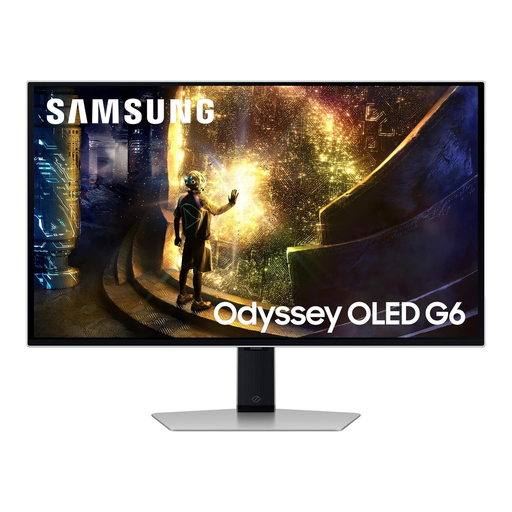
Samsung Odyssey G6 S27DG612 27-inch QHD OLED monitor
Its QHD display can be considered for schedules and slide planning, provided its desk fit and computer connections meet your needs.
The product name lists a 240 Hz refresh rate, a gaming-oriented specification that is not necessary for routine planning work.
Joybuy
 No image available
LG 27UP650K 27-inch 4K IPS monitor
Consider this 4K display if detailed documents or visuals are a regular part of your planning and your preferred display scaling keeps them readable.
The product name lists HDMI and DisplayPort; check that those connections suit your computer.
Joybuy
Frequently asked questions
Is 27-inch QHD enough for planning training sessions?
A 27-inch QHD monitor is a reasonable choice when your work is mainly slides, schedules, browser research and ordinary spreadsheets. Consider 4K instead if dense documents or high-resolution visual assets need close review regularly, and check that your computer’s display scaling remains comfortable to read.
Do I need USB-C on a monitor for my laptop?
USB-C is useful if you want a compatible laptop to carry video and potentially receive charging through one connection. Check the laptop’s USB-C or Thunderbolt video capability and charging needs against the exact monitor; the connector alone does not guarantee those functions.
How should I position a monitor for a long planning session?
Place the screen directly in front of you, with its top around eye level and the display about an arm’s length away, following Health and Safety Executive guidance. Adjust the chair, keyboard and lighting as well as the screen, and check for reflections where it will sit.


