For wide rota sheets, look for horizontal scrolling and shortcuts that work in your scheduling software; HP Store UK lists a dedicated horizontal wheel on the HP 780. If hand comfort matters more, check whether a vertical mouse fits you and consider the whole workstation rather than assuming a new mouse shape will resolve discomfort.
Who is this for?
Spreadsheet-heavy rota planners
If you regularly move through long staff lists and wide date columns, scrolling and accessible shortcuts may matter more than pointer sensitivity. HP Store UK describes a dedicated horizontal wheel on the HP 780 for spreadsheet navigation.
Comfort-first home-office users
If long desk sessions raise concerns about hand fit or discomfort, assess the mouse alongside your desk, chair and screen. The Health and Safety Executive advises looking at the whole workstation, including equipment, furniture and work conditions.
Multi-device hybrid workers
If rota work moves between a work laptop and another computer or tablet, check each device's operating system, connection options and any workplace restrictions before choosing a mouse with switching controls.
What matters when choosing?
Conventional productivity mouse
Consider it when: You spend much of your rota-planning time moving through wide sheets and using repeat commands.
Trade-off: Check the shape against your hand and whether your workplace permits the software needed to configure shortcuts.
Vertical mouse
Consider it when: An upright grip appeals to you and hand fit is more important than extensive navigation controls.
Trade-off: Handedness and button reach still need checking; the Health and Safety Executive advises assessing the whole workstation.
Straightforward mouse
Consider it when: Rota updates are occasional and you mainly need pointing and ordinary scrolling at one computer.
Trade-off: Check for horizontal scrolling or assignable controls if your rota work becomes more demanding.
| Concern | What to check | Who this matters to |
|---|
| Rota navigation |
Look for horizontal scrolling for wide date columns and check whether shortcuts work in your rota application. |
If I move across wide shift grids all day, I want to reach the right dates and repeat commands without constant navigation. Around 40% of consumers put rota navigation first. |
| Comfort and fit |
Check hand size, handedness and button reach; consider the mouse as part of the wider workstation. |
During long desk sessions, I care most about whether the mouse fits my hand and how I use the rest of my workstation. For around 30% of consumers, comfort and fit come first. |
| Device compatibility |
Confirm operating-system support, the connection method and any workplace software restrictions. |
When I move rota work between computers, I need a connection and switching method that works with both. Around 20% of consumers make device compatibility their first concern. |
| Simple operation |
Check for a comfortable shape, a supported connection and usable basic scrolling. |
If I update rotas only occasionally at one computer, I would rather keep everyday pointing straightforward. Simple operation comes first for around 10% of consumers. |
Buying pitfalls
-
Treating a vertical mouse as a fix for discomfort
An upright shape may not fit your hand or place its buttons within easy reach. The Health and Safety Executive advises considering equipment, furniture and work conditions together.
Check hand-size and handedness guidance, try the grip where possible, and raise persistent discomfort through your employer's workstation assessment process.
-
Buying shortcuts you cannot configure
Programmable controls may depend on compatible software, while connection options differ between models.
Check your operating system, available ports, Bluetooth support and workplace software permissions before choosing a mouse for repeat rota tasks.
-
Overlooking sideways movement
Moving between distant date columns can be awkward if you rely only on vertical scrolling.
If your rota sheet is wide, check for a horizontal wheel or another sideways-scroll control and confirm how it works in your application.
-
Assuming a similar-looking model has the same features
Connection methods, controls and fit can differ between models, even within one product line.
Check the exact model name, its compatibility and the retailer's current terms before ordering.
Brands to consider for this task
Logitech
Its range includes productivity controls and upright-grip options relevant to different rota-planning priorities.
- Logitech lists MagSpeed scrolling and Logi Options+ customisation for the MX Master 4.
- Logitech describes a 57-degree grip on the Lift; check individual fit and software compatibility rather than assuming either design suits every workstation.
HP
Its documented options include the HP 780 for spreadsheet navigation and the HP 925 for those considering a vertical shape.
- HP Store UK lists dual scroll wheels, including a dedicated horizontal wheel, on the HP 780 and five programmable buttons on the HP 925.
- Choose between the models by the controls and shape you need; a vertical design is not a substitute for checking workstation fit.
Lenovo
Its work-mouse range provides another point of reference for grip and connection choices.
- Lenovo describes a 45-degree palm grip on the Go Wireless Vertical Mouse.
- Check the exact model's controls and compatibility rather than assuming every Lenovo mouse has the same features.
Joybuy product choices
These mice include conventional wireless and vertical designs for home-office rota work. Match the listed controls and connection method to your computer, then check the shape and scrolling behaviour that matter to you.
 No image available
Logitech MX Master 3S Black mouse
Consider this desk mouse for rota work if its shape and controls suit you. Check how it handles sideways scrolling in your software and confirm the connection method and box contents before ordering.
View on Joybuy
 No image available
HP 920 Ergonomic Wireless Mouse, Black, with detachable wrist rest
Consider the HP 920 if you want to assess an upright shape for desk work; check hand fit, handedness and button reach before choosing it.
The named variant includes a detachable wrist rest. Confirm any sideways-scrolling or device-switching functions you need for rota work.
View on Joybuy
 No image available
V7 MW500BT Bluetooth vertical mouse
Consider this upright-grip model if its shape and button positions fit your hand; check compatibility with the computer used for your rotas.
The named model lists Bluetooth and 2.4GHz connection options, six buttons and an adjustable 1600 DPI sensor. Confirm whether it provides the switching or sideways navigation you need.
View on Joybuy
 No image available
HOFOTEK M311 2.4G+BT wireless mouse, White-Grey
Consider this office mouse if a wireless connection suits your computer; check the shape and how its scrolling works in wide rota sheets.
The named variant lists 2.4G+BT connection options and adjustable DPI. Confirm the controls you need for repeat commands before ordering.
View on Joybuy
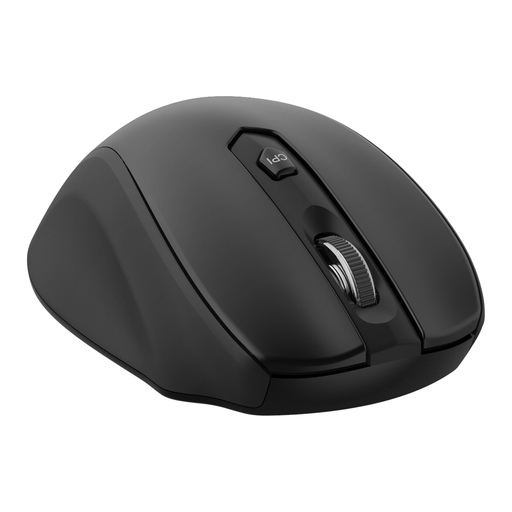 No image available
ET 2.4G Wireless Mouse with USB receiver, Black
Consider this mouse for occasional rota updates at a computer with a suitable USB connection; check its shape if you will use it for long sessions.
The named variant has five adjustable DPI levels and six buttons. Check whether its scrolling and controls meet the needs of your rota application.
View on Joybuy
Frequently asked questions
When should a home-office rota planner ask for a workstation assessment?
Raise it with your employer if you use display-screen equipment daily for continuous periods of an hour or more, particularly if you have discomfort concerns. The Health and Safety Executive uses that daily-use pattern to identify DSE users and advises considering equipment, furniture and work conditions in a workstation assessment.
Should I choose Bluetooth or a USB receiver?
Choose a connection your computer and workplace IT rules allow. Bluetooth avoids using a USB port, while a receiver needs a compatible port; check the exact mouse model and operating-system support before buying.
Will programmable mouse buttons work in my rota software?
Not automatically. Check whether the mouse needs configuration software, whether your workplace permits it and whether your rota application recognises the shortcuts you want to assign.


