Multi-device hybrid workers
If you reconnect a laptop to a display, power and desk accessories in different places, check the laptop’s capabilities before choosing a dock by its port count.


Choose the peripheral that addresses your main interruption first: a compatible dock or monitor for connections and screen space, call equipment for meetings, or separate input devices for a cramped laptop setup. Before choosing a dock or USB-C monitor, check the laptop’s display limits, port capabilities and charging requirements; a matching connector alone does not establish that the whole setup will work.
If you reconnect a laptop to a display, power and desk accessories in different places, check the laptop’s capabilities before choosing a dock by its port count.
If calls interrupt your work, decide whether audio, camera position or both need attention before adding equipment to the desk.
If you work at a shared or temporary table, consider the room needed for a screen, separate input devices and cables before planning a permanent setup.
Identify the problem that would most change your first purchase, then check the device and space requirements for that choice.
| Concern | What to check | Who this matters to |
|---|---|---|
| Laptop and display compatibility | Check the exact laptop’s supported displays, USB-C video capability and charging requirements against the dock or monitor and its cable. | If I reconnect several desk devices, I need to know they will work with my laptop rather than rely on the shape of its USB-C port. Around 36% of consumers would put compatibility first. |
| Call audio and video | Identify whether audio or camera position is the problem; check the intended device’s meeting-app compatibility and controls. | When meetings fill my day, I want to address the part of a call that causes difficulty instead of upgrading unrelated desk connections. Around 29% of consumers would prioritise call clarity. |
| Temporary setup and desk space | Measure the usable desk area and check device footprint, cable reach and the connections needed each day. | If I have to clear the table after work, equipment that is manageable to set up and put away matters more to me than a permanent arrangement. Around 21% of consumers would put space and flexibility first. |
| Input and laptop position | Check a stand’s stated device support and whether a separate keyboard and mouse will fit and connect. | When I raise my laptop screen, I still need a practical place to type and use a mouse. Around 14% of consumers would make input and positioning their primary concern. |
A dock can fit a laptop’s port yet have limited video, data or charging functionality. Microsoft Support advises that USB-C and USB4 functionality depends on the connected equipment and PC.
Compare the exact laptop port, display limits, required charging power and cable with the dock or monitor documentation.
Apple Support says external-display support depends on the Mac model. Anker UK states that its A210B hub extends different content on two displays in Windows but mirrors the content on macOS; that behaviour is specific to the model and setup.
Check the laptop-and-dock display arrangement. For a DisplayLink device, also check its software and permission requirements.
A dock consolidates connections; it does not by itself change camera position or where you type. If calls or laptop placement cause the interruption, extra dock ports may not address it.
Choose the first peripheral around the task that needs attention: connecting devices, making calls or arranging the screen and input devices.
A mains-powered setup needs equipment suited to its electrical supply. Faults and eventual disposal raise separate questions from day-to-day compatibility.
Follow Health and Safety Executive guidance on supply suitability, check the specified power equipment, keep the product description and purchase details, and look up local or retailer collection arrangements when replacing electronics.
Anker UK offers USB-C hubs and docks for connecting laptop power, displays and desk accessories.
Logitech UK lists webcams, headsets, keyboards and mice that can be chosen separately for calls or laptop input.
Dell UK offers external monitors, including USB-C models for a fixed laptop desk.
Kensington offers docking options and device stands for laptop workspace setups.
These products cover several ways to equip a hybrid-work laptop desk: connections, external screens, personal listening and separate input devices. Choose by the task and compatibility checks relevant to your own setup.
 No image available
Consider this dock if reconnecting a laptop to desk devices is your main difficulty.
The product name specifies dual HDMI 4K outputs and 100W power-delivery pass-through. Check the laptop’s video and charging support, the intended display arrangement and the power equipment required for your setup.
 No image available
Consider this monitor when a more permanent desk has room for a larger external screen.
Its product name specifies a height-adjustable stand. Check the available desk space and whether the laptop supports the intended USB-C video and charging setup.
 No image available
Consider a portable screen if you add display space to a temporary laptop workspace.
The product name specifies a kickstand and USB-C and HDMI connections. Check the laptop’s video output and the monitor’s power requirements before deciding how to connect it.
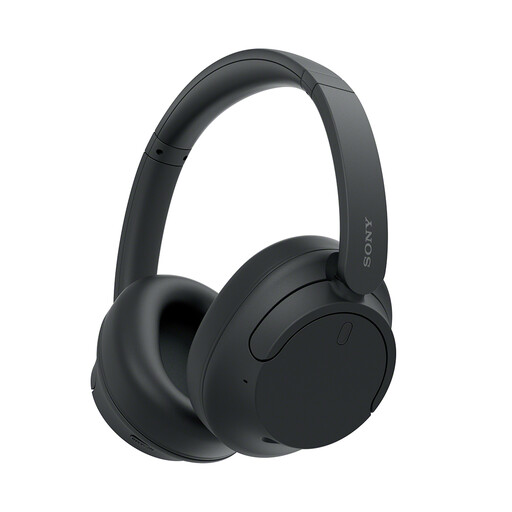 No image available
Consider these headphones if personal listening is part of your workday and check call suitability separately if meetings are the priority.
Confirm compatibility with your meeting app and assess microphone needs for your call environment. Do not use noise cancellation where you need to remain aware of your surroundings.
 No image available
Consider separate input devices if raising or repositioning the laptop makes its built-in keyboard and trackpad inconvenient.
The product name identifies a UK English wireless keyboard-and-mouse combination. Check the laptop’s operating-system and receiver-port compatibility before buying.
No: the laptop and dock must support the intended display arrangement. Apple Support says a Mac’s supported display count depends on its model and display settings; Anker UK states that its A210B hub extends different content to two screens in Windows but mirrors the content on macOS. Check the exact devices rather than counting video ports.
Choose Thunderbolt when the dock and the functions you need require it and your laptop supports it. Microsoft Support warns that USB-C or USB4 functionality can be limited by the PC, cable or connected device, so compare their specifications rather than choosing by connector shape.
DisplayLink-based products require DisplayLink Manager. DisplayLink Support says macOS also requires Screen Recording permission for the app to render displays through the device; check whether you can install the software and grant that permission before choosing such a dock.
Check that the equipment and its specified power supply suit your electrical supply and are in sound condition. The Health and Safety Executive advises checking supply suitability, including voltage and current requirements; follow the product documentation for the particular setup.
Contact the seller and keep your order details and the product description. Citizens Advice explains that a broken, unfit or misdescribed item may give rise to a refund, repair or replacement, depending on the circumstances; this is distinct from a retailer’s change-of-mind returns policy.