What matters when choosing?
Start with how often schedules are printed, then consider the paper and scanning work that accompanies them. Check connections against the devices that produce your schedules.
| Concern |
What to check |
Who this matters to |
| Ink interruptions |
Check the exact model’s refill system and manufacturer-stated included-ink yield. Yield figures do not guarantee your own output. |
If I print schedules repeatedly, I want to avoid stopping a job to deal with ink. Around 44% of consumers put avoiding those interruptions first. |
| Paper and document handling |
Confirm automatic A4 duplex printing, tray capacity and, if you scan batches, automatic document feeder capacity. |
When schedules and delivery paperwork run to several pages, I want less manual paper handling. For around 33% of consumers, that workflow is the primary concern. |
| Device setup |
Check compatibility with your computer or phone, the required Wi-Fi band or wired connection, and model-specific software support. |
If schedules come from more than one device, I need a connection each device can use. Straightforward setup is the first priority for around 23% of consumers. |
Joybuy product choices
These printers offer different starting points for home-office schedule printing, from models identified as ink-tank printers to wireless inkjet options. Check each exact model’s paper handling and ink requirements against how often you print.
 No image available
Canon MAXIFY GX6150
For recurring delivery schedules and accompanying paperwork, check whether this exact GX6150 configuration has the automatic duplex printing, tray capacity and document feeder you need.
View on Joybuy
 No image available
Epson EcoTank ET-5150 +Ink A4 multifunction printer
Its A4 print, scan, copy and Wi-Fi description makes it relevant when delivery schedules accompany other home-office documents. If you scan batches, confirm the document feeder’s capacity and whether it scans both sides automatically.
View on Joybuy
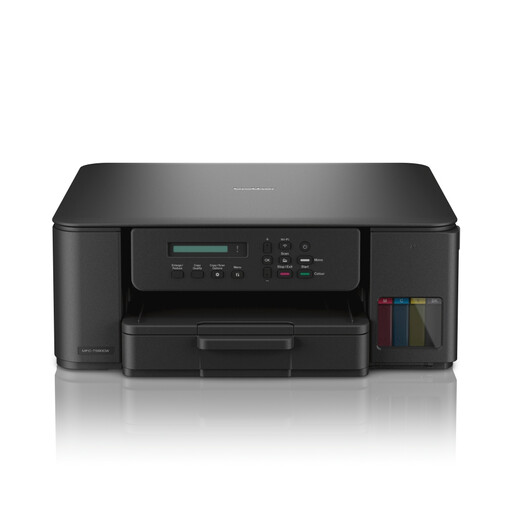 No image available
Brother DCP-T580DW 3-in-1 wireless ink-tank printer
If you print schedules regularly and prefer an ink-tank model, check the included-ink yield and replacement-bottle availability. Confirm its duplex printing and paper capacity against your usual jobs.
View on Joybuy
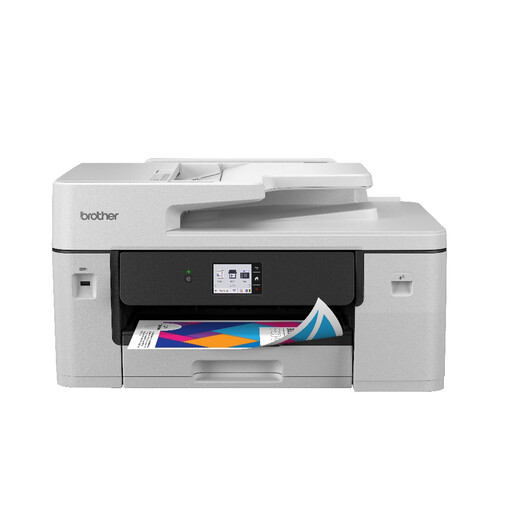 No image available
Brother MFC-J6760DW all-in-one inkjet printer
Consider this all-in-one inkjet if schedules are part of a wider document workflow. For repeated or multi-page jobs, confirm automatic duplex printing, tray capacity and the ink consumables for this model.
View on Joybuy
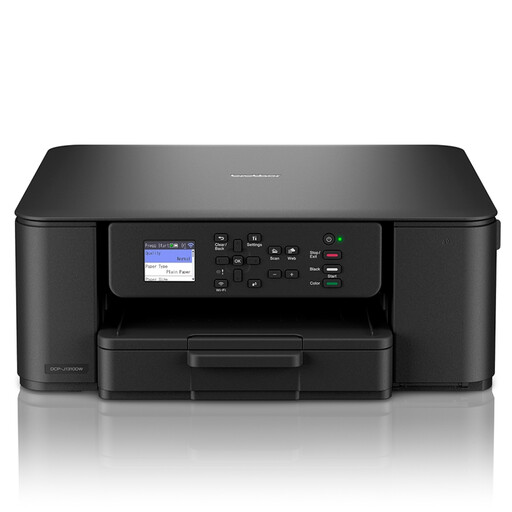 No image available
Brother DCP-J1310DW wireless inkjet printer
For occasional schedules sent over a wireless connection, check that it supports your device and required paper size. If you print regularly, also confirm duplex printing and replacement-cartridge details.
View on Joybuy
Frequently asked questions
Do I need a document feeder to print delivery schedules?
No: an automatic document feeder is for feeding pages into a scanner or copier, not for printing a schedule. It becomes useful if you also scan or copy multi-page delivery paperwork; Brother UK specifies a 20-sheet feeder for the DCP-T780DW, while Canon UK specifies a 35-sheet feeder for the MAXIFY GX2051.
Is automatic two-sided printing worth choosing for schedules?
It is useful if schedules or related documents often run to more than one page and you want to avoid turning sheets manually. Confirm automatic duplex printing for your intended paper size and type: Brother UK lists it for the DCP-T780DW, and Canon UK lists automatic A4 duplex printing for the MAXIFY GX2051.
What should I check before connecting a home-office printer to Wi-Fi?
Check that the exact model supports your devices, network connection and current software, then follow the manufacturer’s setup and update instructions. For example, Brother UK provides model-specific downloads for the DCP-T780DW, while Epson United Kingdom states that the ET-4950 will receive security updates for seven years from purchase; those commitments do not automatically apply to other models.
What should I do with an unwanted printer in the UK?
Use an appropriate electrical-equipment reuse or recycling route rather than treating the printer as general waste. GOV.UK identifies the Waste Electrical and Electronic Equipment Regulations 2013, as amended, as the UK legislative framework for electrical waste.


