Recipe researchers comparing text and images
If you move between long recipe pages, ingredient details, photographs and index fields, compare screen resolution and usable workspace before giving weight to gaming-oriented features.


Choose a 4K monitor if fine recipe text and photographs are your priority; a QHD monitor is another option when you do not need the extra pixels. For a laptop desk, check USB-C video support and charging requirements before relying on one cable, and choose a stand that lets you position the screen comfortably.
If you move between long recipe pages, ingredient details, photographs and index fields, compare screen resolution and usable workspace before giving weight to gaming-oriented features.
If your laptop is your main computer, a USB-C monitor may combine display, peripheral connections and charging. Check the laptop’s video capability and charging requirement against the exact monitor.
If you spend extended periods building the index, consider how the stand fits your desk and seating position. Height, tilt, swivel and pivot options can help you place the screen, but the rest of the workstation matters too.
For a recipe index, decide how much detail you need on screen, then check laptop connections and whether the stand fits your desk. The Health and Safety Executive advises positioning a screen around arm’s length away, with its top around eye level, in a standard workstation setup.
| Concern | What to check | Who this matters to |
|---|---|---|
| Reference detail | Compare 2560 × 1440 QHD with 3840 × 2160 4K on a 27-inch screen, and check that your computer can output the chosen resolution. | When I compare small ingredient details with photographs and index fields, I put readable reference material first. Around 45% of consumers prioritise that need. |
| Laptop connections | Check USB-C video support and compare the laptop’s charging requirement with the monitor’s stated power delivery. | If my laptop anchors the desk, I want fewer separate connections without losing the charging it needs; around 33% of consumers make that their primary concern. |
| Screen positioning | Measure desk depth and compare the stand’s height range, tilt, swivel and pivot options. | During longer indexing sessions, I need to place the screen to suit my chair and desk. This is the first priority for around 22% of consumers. |
USB-C charging varies by monitor: BenQ states 65W for the GW2790QT, LG states up to 90W for the 27UP850K-W, and HP states 100W for the 527pu. The connector alone does not establish whether your laptop can receive video and enough power through one cable.
Check the laptop’s USB-C video capability and charging requirement against the exact monitor before buying.
You may still need the laptop’s own charger or an additional cable or adapter.
A sharper pixel grid does not position the screen for you. The Health and Safety Executive advises a screen position around arm’s length away, with the top around eye level, in a standard workstation setup.
Measure your desk and compare height, tilt, swivel and pivot adjustment on the model you intend to buy.
If the supplied stand cannot reach a suitable position, a compatible monitor arm, riser or change to the desk layout may be needed.
The Health and Safety Executive considers workstation layout and working practices as well as the screen when addressing display screen equipment risks.
Set up the chair, keyboard and mouse alongside the monitor. If you are an employee who regularly uses display screen equipment, use your employer’s workstation-assessment process.
These brand examples describe specific monitor models, not every display in each range.
The UltraSharp U2724D is a 27-inch QHD option for a desk where stand adjustment matters more than charging a laptop through the monitor.
The GW2790QT combines a QHD workspace with USB-C connections for a compatible laptop desk.
The Series 5 Pro 527pu is a 27-inch QHD model to consider when laptop docking is a priority.
The 27UP850K-W is a 27-inch 4K option for detailed recipe sources and image reference.
These 27-inch 4K and QHD monitors offer different ways to set up a recipe-indexing desk. If you need laptop docking, check the connections on the exact model rather than relying on resolution or stand features alone.
 No image available
Consider this model if detailed recipe references and an adjustable screen height matter to your desk setup.
The product name specifies a 27-inch 4K IPS display, USB-C and a height-adjustable stand. Before planning to charge a laptop through it, check the laptop’s USB-C video and charging requirements against this model.
 No image available
This is a 4K option for recipe references if you also want the smart features named for this model.
The product name specifies an IPS display and USB-C 65W. Check both USB-C video support and whether 65W meets your laptop’s charging requirement before relying on one cable.
 No image available
Consider this QHD model if your priority is a recipe-indexing workspace rather than relying on the monitor to charge a laptop.
The product name specifies an IPS QHD display and 100Hz refresh rate. Check the exact variant’s USB-C connections and charging capability if docking matters to you.
 No image available
This model is worth considering when 4K recipe text and image reference matter more to you than a planned one-cable laptop setup.
The product name specifies 60Hz, built-in speakers, HDMI and DisplayPort. Check USB-C connectivity and charging on the exact model before choosing it for laptop docking.
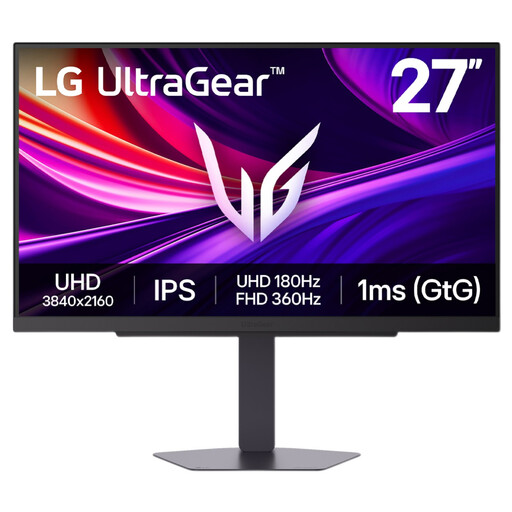 No image available
This 4K display may suit a recipe-indexing desk if you also want the gaming features identified in its product name.
Its named variant includes Dual Mode with a stated maximum of 360Hz. Check its connections and laptop-charging capability separately if you need a one-cable desk.
Choose 4K if fine text and image detail are central to your work and your computer can output 4K through the connection you plan to use. QHD is an alternative for a 27-inch recipe-and-records workspace when you do not need the extra pixels; check how each resolution looks at a comfortable viewing scale for you.
It can if the laptop supports video through its USB-C port and the monitor’s power delivery suits its charging requirement. BenQ states 65W for the GW2790QT, LG states up to 90W for the 27UP850K-W, and HP states 100W for the 527pu; check the specifications of your exact laptop and monitor before buying.
For a standard workstation setup, the Health and Safety Executive advises placing the screen directly in front of you, about an arm’s length away, with its top around eye level. Consider the chair, desk, keyboard and mouse position as well as the monitor stand.
Yes, the Health and Safety Executive says the UK Display Screen Equipment Regulations include home workers who use display screen equipment daily for continuous periods of an hour or more. If that describes your work, use your employer’s workstation-assessment process rather than treating a new monitor as the complete solution.
Check your local electrical-waste collection options or a retailer take-back route before disposing of it. The appropriate route for an old monitor can depend on the collection arrangements available where you live.