Who is this setup for?
The useful starting point depends on where you work and what currently interrupts your work.
Hybrid workers using a temporary space
If you work at a kitchen table or shared desk, the equipment needs to leave room for your laptop and input devices and may need to be put away afterwards. Which? discusses home-working spaces ranging from kitchen tables to dedicated rooms and distinguishes smaller monitors for limited spaces.
Laptop-first document workers
A second screen can give documents and spreadsheets more room, but the way it connects matters as much as its dimensions. Check your laptop’s video outputs and charging requirements before deciding between a direct monitor connection, a USB-C monitor and a separate hub.
Workers who spend much of the day on calls
If screen space is adequate but camera position, microphone pickup or private listening is awkward, a call peripheral may address the more immediate need. Check how it connects to your device and whether it works with your meeting software.
What should you check before buying?
For a home or hybrid workspace, identify the constraint that matters most to you before comparing screen sizes, ports or camera features.
| Concern |
What to check |
Who this matters to |
| Laptop and display compatibility |
Check the exact laptop’s video output and external-screen limits. For one-cable setups, also check the USB-C display mode and charging requirements against the monitor or hub. |
I want to connect a screen and charge my laptop without finding that the port cannot do both; around 31% of consumers would put connection compatibility first. |
| Desk space |
Measure usable width and depth, including the stand, laptop position and cable clearance. Decide whether the setup must be packed away. |
At a shared or temporary desk, I need room to keep working after the screen is in place; for around 25% of consumers, available space would be the primary concern. |
| Screen position |
Look for the height and angle adjustments you need. For an arm, match the monitor’s mounting pattern and weight to the arm and check its desk attachment. |
During long sessions, I need to position the display without working around a fixed stand; screen placement would come first for around 25% of consumers. |
| Video-call clarity and privacy |
Check webcam placement and device compatibility, or the headset’s connection and microphone arrangement, according to the call problem you want to solve. |
In frequent calls, I care more about framing, voice pickup or listening privately than adding screen area; around 19% of consumers would prioritise the call setup. |
A USB-C connector alone does not establish that a laptop can send video or receive the charging power you need. VESA’s DisplayPort guidance describes display output over supported USB-C connections and multiple-screen technology, but the laptop and accessory specifications determine the arrangement available to you. For instance, Anker says its A210B dual-display hub can show different content on two external monitors in Windows Extended Mode, while its stated macOS mode mirrors the same content; that distinction applies to that product, not every hub.
If your existing display is usable but sits too low, consider its support before replacing the screen. For prolonged laptop use, the Health and Safety Executive advises using a separate keyboard and mouse when raising the laptop screen on a riser or similar support. A monitor arm needs a compatible mounting interface, an appropriate weight range and a suitable desk attachment.
Brands to consider by product type
These examples point to specifications worth checking on individual product lines, not features shared by every product from a brand.
Dell
A reference for adjustable business-oriented monitors, including models that combine a display with USB-C hub functions.
- Dell specifies height, pivot, swivel and tilt adjustment for its Pro 24 Plus P2425E, a 24-inch 16:10 monitor.
- Dell lists up to 90W power delivery for that model; check whether your laptop supports the connection and whether the available power meets its needs.
Anker
A reference for laptop hubs that add display and peripheral connections to a compatible host port.
- Anker specifies HDMI and pass-through charging of up to 100W, minus 15W for hub operation, for its A8383 hub.
- Anker lists different Windows and macOS external-display modes for its A210B hub. Check the exact hub and laptop combination rather than treating its port count as a display guarantee.
Logitech
A reference for dedicated webcams and headsets when call equipment, rather than screen area, is the priority.
- Logitech lists Microsoft Teams, Zoom and Google Meet support for its Brio 4K webcam and specifies dual MEMS microphones for its Zone Vibe Wireless headset.
- Check the connection and version you intend to use; manufacturer battery-life and wireless-range claims can vary with use and conditions.
Ergotron
A reference for monitor arms when changing an existing screen’s position or footprint is the aim.
- Ergotron’s US-listed HX Desk Monitor Arm specifies a 9.1–19.1 kg monitor range and VESA MIS-D/E/F mounting support.
- That specification does not establish a fit for every screen or desk; some ultra-curved monitors require an additional accessory.
Joybuy video-call products
These webcams and headphones address the call-equipment side of a home-office setup. If your main difficulty is document space, screen position or laptop connections, use the checks above to choose a monitor, support or hub instead.
 No image available
Targus 2K Webcam with Auto Focus
Consider this dedicated webcam if the laptop camera’s position is the problem on calls. Its title says 2K, but the stated technical specification is Full HD 1080p at 30fps; confirm the resolution you need before buying. Also check that its connection options suit your device.
View on Joybuy
 No image available
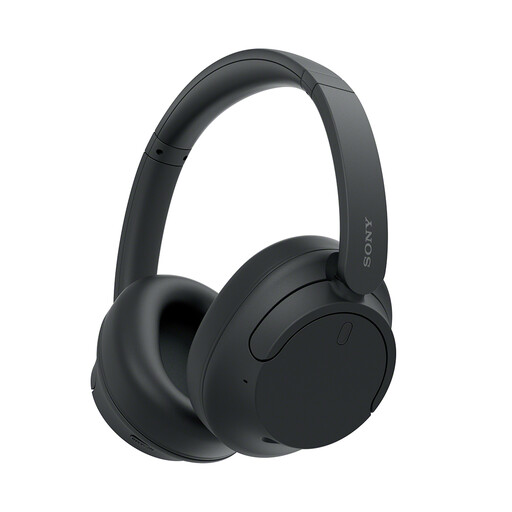
Sony WH-CH720N Noise-Cancelling Over-Ear Headphones, Black
These over-ear headphones are a call-equipment option when listening privately in a shared space matters. Check whether the stated Bluetooth or wired connection suits your device and whether the headphones work as needed with your meeting software.
View on Joybuy
 No image available
EMEET All-in-One 4K Webcam with Sony Sensor, 4-Mic Array and Dual AI Speakers
Consider this camera-and-audio unit if you need to frame a small meeting space rather than just one person at a laptop. The named variant has fixed focus and a 98° adjustable field of view; check whether that framing, its host connection and your meeting platform suit your setup.
View on Joybuy
 No image available
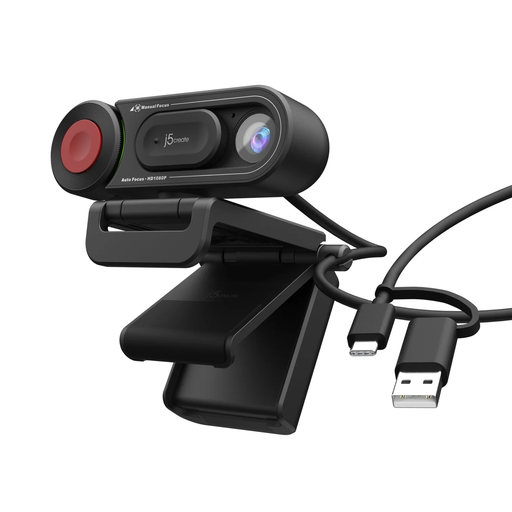
j5create JVU250 HD Webcam with Auto and Manual Focus, Black
This webcam offers a separate camera for calls when you want a choice of automatic or manual focus. It is specified for 720p video and a USB-A connection; check that the resolution meets your needs and that your device has a suitable port.
View on Joybuy
 No image available
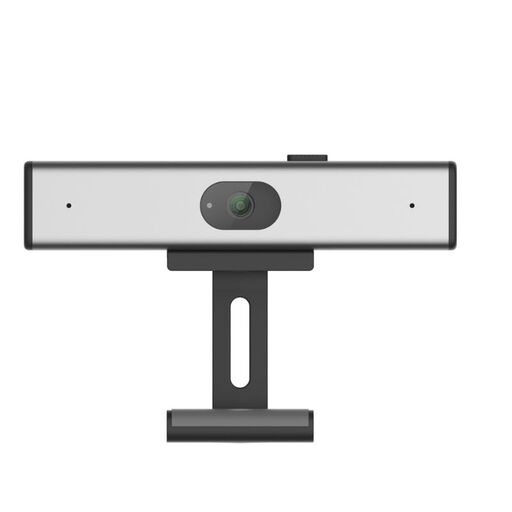
Philips SPL6308S/00 2K QHD Webcam, EU Version, Silver
This clip-on webcam is an option if the built-in camera is the limiting part of your call setup. Its title identifies a 2K QHD camera and noise-reduction microphone; confirm its connection, operating-system and meeting-platform requirements for your device before buying.
View on Joybuy
Common questions
Will any USB-C laptop port run a monitor and charge the laptop through one cable?
No: display output and charging are separate capabilities, even when they use the same USB-C connector. Check the exact laptop’s supported video mode and charging requirement, then compare them with the monitor or hub, cable and charger specifications. VESA describes DisplayPort over supported USB-C connections, but connector shape alone is not a compatibility check.
Will a dual-monitor USB-C hub give me two separate external desktops?
Only if the laptop, operating system and hub support the intended extended-display arrangement. Anker’s A210B specification, for example, distinguishes Windows Extended Mode with different content on each external monitor from its stated macOS mode, which mirrors the same content across monitors. Check the behaviour of the exact combination you plan to use.
What needs to match before I fit a monitor arm?
Match the monitor’s VESA mounting interface and weight to the arm’s supported specifications, and check that the desk accepts its attachment method. VESA defines display mounting interfaces, while individual arms can impose further limits for particular screen shapes or depths.
Can I raise my laptop screen for prolonged work?
Yes, but use a separate keyboard and mouse so you can raise the screen without having to use the laptop’s built-in input devices at that height. That is the arrangement advised by the Health and Safety Executive for prolonged laptop use; its general guidance places the top of the screen around eye level and the screen about an arm’s length away.


