What to check before buying
Start with the task that most constrains your work, then check whether your computer and workspace can support the equipment you have in mind.
| Concern |
What to check when buying |
Who this matters to |
| Readable space for documents |
Compare screen size, native resolution, stand adjustment and the computer’s available video output. |
If I need several documents visible at once, usable screen space comes first; around 26% of consumers put document space first. |
| Laptop connections and charging |
Check the exact laptop port’s video support, the supported displays and the monitor or dock’s power output against the laptop’s requirements. |
For my existing laptop, the priority is connecting the desk setup without losing display or charging functions; around 21% of consumers put laptop connections first. |
| Screen and input positioning |
Check whether the current stand meets your needs; for an arm, match the monitor’s mounting pattern and weight to the exact arm and desk. |
If I spend regular working hours at the screen, I want its position and my input devices to suit the workspace; around 21% of consumers put positioning first. |
| Taking part in video meetings |
Confirm the camera connection, calling software and any software required for specific camera features. |
When calls are a regular part of my work, a suitable camera, microphone or listening arrangement matters most; around 16% of consumers put calls first. |
| Connection at the workstation |
Check whether the issue is Wi-Fi coverage or broadband service, then consider router placement, Ethernet or mesh equipment as appropriate. |
If my connection falters where I work, I need to identify the cause before choosing equipment; around 16% of consumers put home connectivity first. |
Joybuy product options
These options cover external monitors, desk input devices, a video-call webcam and a laptop docking station for a home-office setup.
 No image available
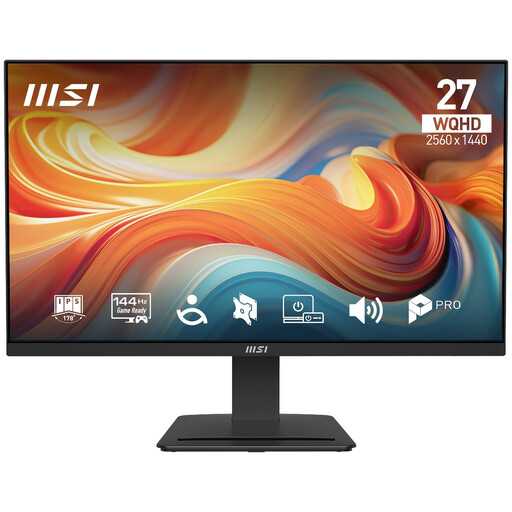
MSI PRO MP273Q E14 27-inch WQHD 144Hz IPS Monitor
Consider this external screen if you want a separate display for document work and work windows.
27-inch WQHD (2560 × 1440) IPS; 144Hz; HDMI and DisplayPort.
Joybuy
 No image available
MSI MD272UPSW 27-inch 4K UHD Smart Monitor, USB-C 65W
Consider this monitor if you want a 4K display and are checking whether its USB-C charging output suits your laptop.
27-inch 4K UHD IPS; USB-C 65W; check that the power output meets your laptop’s charging requirement.
Joybuy
 No image available
HP 680 CFT Dual-Mode Keyboard and Mouse Combo
Consider a separate keyboard and mouse if you want input devices for your home workstation.
Dual-mode keyboard and mouse combo.
Joybuy
 No image available
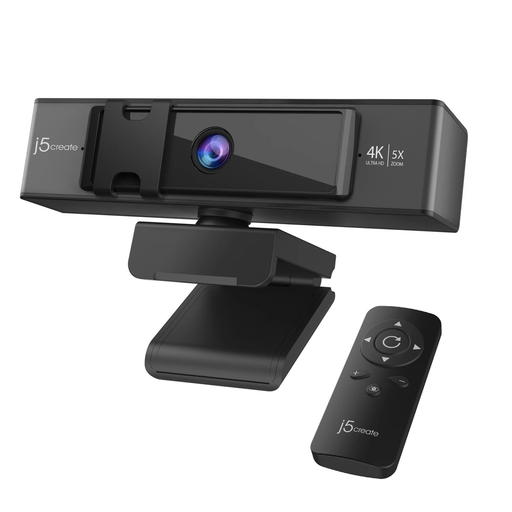
j5create JVCU435 USB 4K Ultra HD Webcam
Consider a separate webcam if your existing camera setup does not meet your video-meeting needs.
USB 4K Ultra HD; 5x digital zoom; remote control.
Joybuy
 No image available
Targus USB-C Universal Dual HDMI 4K Docking Station, 100W Power Delivery Pass-Through
Consider a dock if your laptop needs connections for multiple displays and desk peripherals; check host compatibility before choosing.
Dual HDMI 4K; 100W power-delivery pass-through. The listing specifies a USB-C Alt. Mode host connection and an external 100W-or-higher adapter for power-delivery pass-through.
Joybuy
Home-office equipment FAQs
Can any USB-C laptop connect to and charge through a USB-C monitor or dock?
No. Check the exact laptop’s USB-C video capability, supported external displays and charging requirement against the monitor or dock’s stated connection and power output. A USB-C connector alone does not confirm all three functions; Dell lists the P2425H monitor’s USB-C port as data-only downstream, rather than a laptop-charging video input.
What should I check before fitting a monitor arm?
Match the monitor’s mounting pattern and weight to the exact arm, then check that the clamp fits your desk. For its LX 45-526 variant, Ergotron specifies 75 × 75 mm or 100 × 100 mm VESA mounting and a 3.2–11.3 kg range; those figures are not universal arm requirements.
Should I buy mesh Wi-Fi if work calls keep disconnecting?
First distinguish weak Wi-Fi coverage at your workstation from a problem with the broadband service, and check router placement. Ofcom says improved Wi-Fi cannot outperform the broadband service; mesh is a coverage option if coverage is the issue.
Who pays if an employee’s home workstation needs extra display-screen equipment?
Where an individual display-screen-equipment assessment indicates that an employer needs to take action, such as providing equipment, the Health and Safety Executive says the worker cannot be charged for that action. This does not mean every home worker is entitled to the same equipment; the assessment and applicable rules matter.
Is UKCA marking the only acceptable marking for applicable electrical equipment throughout the UK?
No. Government guidance describes continued recognition of certain CE-marked goods in Great Britain and separately explains how electrical-equipment rules apply in Northern Ireland. Check the rules for the particular product and destination rather than treating one marking as a universal UK-wide test.


