Build around how often you move your laptop. A portable riser with a separate keyboard and mouse suits a workspace that travels with you; a regular home desk may warrant a monitor or dock if it makes the connections you use each day easier to manage. Before choosing a USB-C device, check your laptop’s video output, charging requirements and any operating-system limits, and check workplace equipment arrangements before buying duplicates.
Who is this setup for?
Laptop-based desk workers
If you work on a laptop at home and at your employer’s workplace, consider how the screen and input devices are positioned in each location. The Health and Safety Executive advises using a separate keyboard and mouse when raising a laptop screen for prolonged work.
Frequent home-to-office movers
If the same laptop travels with you, decide which accessories need to travel too and which can stay at your home desk. A portable arrangement reduces what you leave set up at home, while a fixed monitor and dock can simplify connections when you return.
Workers with regular video meetings
Choose camera and audio equipment around your home lighting, privacy needs and call environment. A webcam’s built-in microphone is one option for basic calls; noisy rooms or confidential conversations may call for a separate audio device.
What should you choose first?
Decide what travels with the laptop, then check the screen position, connections and meeting equipment needed at the home desk.
Portable laptop setup
Consider it when: You regularly move between locations or have little permanent desk space.
Trade-off: A riser and separate input devices travel more readily than a fixed display, but they do not give you the screen area or desk connections of a monitor-and-dock setup.
Fixed home desk
Consider it when: You often work at the same desk and reconnect a display or several peripherals each time.
Trade-off: A monitor or dock stays at the desk, and its video, ports and charging still need to match your laptop.
| Priority |
What to check |
Your needs |
| Screen and posture |
Check whether the screen can be raised for prolonged laptop work. The Health and Safety Executive advises a separate keyboard and mouse when using a raised laptop screen. |
I spend long sessions at a home desk and want the screen at a comfortable height without reaching up to type. |
| Desk connections |
Match the laptop’s USB-C video capability to the hub or dock’s stated display modes. Check charging output, required power supply and cable, not just the number of ports. |
Several desk connections need to be ready when I bring my laptop home, or I need a particular external-display arrangement. |
| Meeting equipment |
Check camera positioning, lighting features and a physical privacy shutter if relevant. Consider microphone and headset needs separately from camera resolution. |
My home days include video calls, and I want a camera position and audio arrangement that fit the room I use. |
| Moving between locations |
Decide which accessories must fit in your work bag and which can remain connected at home. Check what you would have to reconnect at each desk. |
I carry the same laptop between home and work, so I need to balance what I transport against what stays ready on the desk. |
| Workplace arrangements |
Ask how your employer assesses display-screen work at home and at the workplace before buying specialist or duplicate equipment. |
Before buying for my home desk, I want to know which equipment arrangements have already been considered at work. |
What can go wrong when buying?
-
Choosing a USB-C dock by port count alone
HDMI sockets do not establish which display modes your laptop and dock can use together. The stated charging arrangement may also require a particular power supply or cable.
Check the exact laptop model’s video and charging capabilities against the dock’s single- and multi-display specifications, operating-system notes and required accessories.
-
Raising a laptop but still typing on its keyboard
Once the laptop is elevated, its keyboard rises with the screen. The Health and Safety Executive’s posture guidance recommends separate input devices for this arrangement.
For prolonged laptop work, pair a riser or elevated screen with a separate keyboard and mouse.
-
Buying duplicate desk equipment before asking at work
Equipment decisions for a hybrid worker may need to account for both the home and workplace workstations.
Ask your employer about its display-screen-equipment assessment process before purchasing specialist ergonomic equipment or another set of desk hardware.
-
Assuming a webcam microphone suits every call
A built-in microphone keeps a basic setup simple, but a camera’s listed features alone do not settle audio needs in a noisy room or for confidential calls.
Assess the camera and microphone separately; consider a headset or speakerphone if your call environment calls for one.
Which brands offer relevant examples?
These model examples illustrate features to compare; they do not describe every product from each brand.
Dell
Dell UK lists the U2424HE as a USB-C hub monitor for a fixed desk.
- The U2424HE combines an integrated USB hub with stated 90 W Power Delivery, according to Dell UK.
- Check the ports, charging output and stand on the exact monitor model rather than assuming other Dell monitors share this configuration.
Anker
Anker UK provides USB-C hub and dock examples for connecting a laptop to equipment kept at a desk.
- Anker’s 565 USB-C Hub is an 11-in-1 model; its guidance directs buyers to check whether their laptop supports DP 1.4 or DP 1.2.
- Anker notes that macOS does not support Multi-Stream Transport (MST) for its cited dual-display dock. Check display behaviour for the particular dock and laptop combination.
Logitech
Logitech’s Brio 100 is an example of a separate webcam for home video meetings.
- Logitech specifies Full HD 1080p, auto-light balance, a built-in microphone and a privacy shutter for the Brio 100.
- Those features are model-specific. A webcam microphone does not by itself settle whether separate call audio is needed in your room.
Joybuy options for desk connections and meeting audio
These options cover USB-C docks and adapters for a laptop desk, plus headphones to consider for meeting audio. Match any dock to your laptop and intended displays before choosing it.
 No image available
Targus USB-C Universal Dual HDMI 4K Docking Station, 100W Power Delivery Pass-Thru
Consider this dock for a home desk where you want to connect a laptop to two HDMI displays. Its stated 100W Power Delivery is pass-through: check the laptop’s USB-C video and charging requirements, and confirm whether the required external power adapter is included.
View on Joybuy
 No image available
Baseus Metal Gleam Series II 10-in-1 USB-C Hub, Cosmic Black
For a desk with displays and several peripherals, this hub’s title lists two HDMI ports, USB connections, RJ45, SD/TF and a USB-C PD port. The HDMI ports have separately stated maxima of 4K@120Hz and 4K@60Hz; do not assume those modes work simultaneously. The stated 100W figure is maximum PD input, so check the power delivered to your laptop and its USB-C video compatibility.
View on Joybuy
 No image available
V7 V7UC-U3CRJ45HDVG-BLK USB-C Adapter with HDMI, VGA and Ethernet
Consider this adapter if you need connections for a single external display when moving between desks. Its name lists 4K HDMI, VGA, Gigabit Ethernet, 100W Power Delivery and two USB 3.0 ports. The listed operation is single-display, not a dual-monitor arrangement; check USB-C Alt Mode support and the power available to your laptop.
View on Joybuy
 No image available
USB-C Multiport Adapter with 2 HDMI, DP, RJ45, PD and SD/TF
This adapter is an option if your home desk needs several types of connection. Its name also lists two USB 3.0 ports, two USB 2.0 ports and audio. Check the host connection, operating-system display limits, usable display modes and charging capacity against your laptop before planning a multi-display setup.
View on Joybuy
 No image available
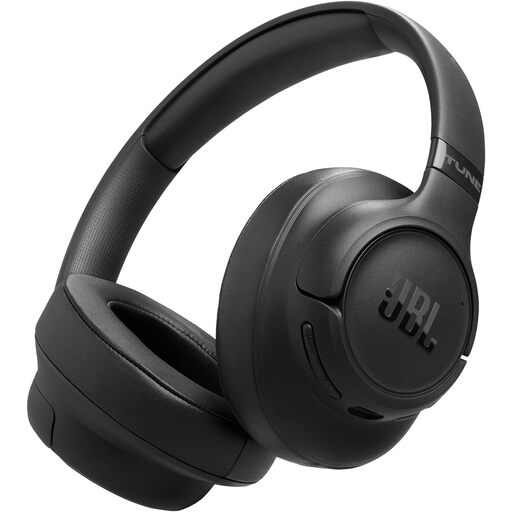
JBL Tune 780NC Wireless Over-Ear Noise-Cancelling Headphones, Black
For the audio side of a hybrid-work setup, these wireless over-ear headphones are worth considering alongside your camera choice. Check compatibility with your computer and meeting app, including how the microphone behaves during calls; the noise-cancelling name alone does not establish call performance.
View on Joybuy
Common questions
Do I need a separate keyboard and mouse with a laptop riser?
For prolonged laptop work, the Health and Safety Executive advises using a separate keyboard and mouse so you can raise the screen without raising the input devices with it. A riser is one way to support the screen; the guidance does not prescribe a particular model.
Will any USB-C laptop work with a dual-monitor dock?
No: the USB-C connector alone does not establish the laptop’s video capability or the display modes it can use with a dock. Anker’s guidance for its 565 hub directs buyers to check the laptop’s DP 1.4 or DP 1.2 support, while its cited dual-display dock notes a macOS MST limitation. Compare the exact laptop and dock specifications for your intended displays.


