What to prioritise
For home or hybrid work involving both meetings and documents, choose the upgrade around your main interruption, then check it against your laptop and any workplace device rules.
| Concern |
What to check |
Who this matters to |
| Document workspace |
Check the laptop’s supported external displays and the monitor’s connection. Plan screen placement and external input devices if the laptop will sit on a stand. |
If I compare documents throughout the day, I need room to see them without constant window switching and a desk arrangement I can keep using. Around 33% of consumers would put workspace first. |
| Call video and audio |
Check camera mounting, audio connection, operating-system support and any meeting-platform features needed from the exact variant. |
When calls are frequent, I want control over how I appear and sound, as well as privacy between meetings. Call quality would be the main concern for around 27% of consumers. |
| Reliable connections |
Match the laptop’s video output, display limits and charging requirements to the dock or adapter and its cable. |
If reconnecting a monitor and peripherals disrupts my work, I need a connection plan that suits my laptop rather than simply more sockets. Around 27% of consumers would prioritise connectivity. |
| Work-device rules and privacy |
Ask IT which peripherals, drivers or apps are permitted on a managed computer; check the webcam’s actual privacy control. |
With a managed work laptop, I need to know an accessory is permitted before relying on it, and I may want a visible way to block the camera. These would be the primary concerns for around 13% of consumers. |
Joybuy products for the setup
These products cover separate parts of a laptop-based desk setup: an external screen for document work, cameras and wired headphones for calls, and a dock for multiple connections. Choose the part that addresses your main need, then confirm its connection and workplace compatibility.
 No image available
Targus 2K Webcam with Auto Focus
Consider this webcam if camera positioning and focus are your main call concerns. Its product name specifies autofocus.
The product title says 2K, while its technical specification says Full HD 1080p; confirm the resolution for this SKU if it affects your choice. Check the connection and your workplace’s camera policy as well.
View on Joybuy
 No image available
Targus USB-C Universal Dual HDMI 4K Docking Station with 100W Power Delivery Pass-Thru
This dock is a route to consider if you regularly reconnect displays and other desk peripherals. Its named configuration includes dual HDMI connections and 100W Power Delivery pass-through.
Check the laptop’s USB-C video support, external-display limits and charging requirements; the dock’s stated outputs do not override the laptop’s limits. Confirm whether the required external power adapter is included.
View on Joybuy
 No image available
AOC Q32V4 31.5-inch 2K IPS Monitor
An external monitor is relevant if keeping documents visible is more pressing than changing your call equipment. This Q32V4 variant is listed as a 31.5-inch IPS monitor.
Check your laptop’s video output and supported display configuration, as well as the space available on your desk. If stand height matters, confirm its adjustment range before buying.
View on Joybuy
 No image available
EMEET All-in-One 4K Webcam with Sony Sensor, 4-Mic Array and Dual AI Speakers
Consider a combined camera-and-audio device if that arrangement suits your meeting space. This model’s named features include fixed focus, an adjustable 98° field of view, four microphones and integrated speakers.
Confirm its exact USB connection and operating-system compatibility with your computer. If you want a physical camera shutter, check the form of its privacy control before buying.
View on Joybuy
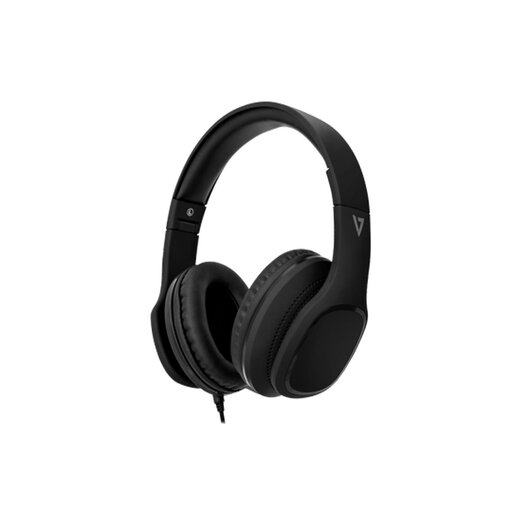 No image available
V7 HA701-3EP Wired Over-Ear Headphones with Inline MEMS Microphone
These headphones are a call-audio option if you prefer private listening through a wired connection. The named variant has an inline microphone and 40 mm drivers.
Check that your computer has a compatible 3.5 mm audio connection and that workplace policy permits the headset. Confirm any meeting-platform controls you require for this exact model.
View on Joybuy
Common questions
Do I need a dock for a home-office video-call setup?
No: a dock is most relevant when you repeatedly connect several devices and your laptop supports the dock’s required connections. For one external display, a direct cable or suitable adapter may meet the need with fewer connection requirements.
Why might a USB-C dock not run my monitor or charge my laptop?
USB-C describes the connector, not every display or charging capability available through it. Check the exact laptop, dock and cable requirements; Apple also says a Mac’s external-display limits vary by model and display configuration.
Should I ask IT before connecting a personal webcam or dock to a work laptop?
Yes, if your employer manages the computer: check which devices and software it permits before buying. Microsoft documents policies that organisations can use to control USB peripherals on managed Windows devices, including cameras.
Does a bigger monitor also improve my video calls?
A monitor can give you more space for meeting content and working documents, but it does not change the laptop camera or microphone. If how you appear or sound is the main problem, assess camera or audio equipment separately and check its compatibility with your computer.
What should I check before relying on a webcam, headset or dock for meetings?
Check the complete connection and call setup on the computer you intend to use before an important meeting. Keep the required cables and charging arrangement in place, and follow your organisation’s rules for peripherals and updates on a managed device.


