Who needs which setup?
The useful starting point is how you work at home, not a standard list of equipment. A fixed desk, frequent meetings and access to work data place different demands on a setup.
Fixed-desk hybrid workers
If you regularly return to the same desk, focus on whether the screen, charging and peripherals are practical to connect each day. A monitor or dock is worth considering when it solves a specific workspace or connection problem; check your laptop’s ports and your employer’s equipment arrangements first.
Meeting-heavy remote collaborators
If calls occupy much of your working week, identify whether your immediate difficulty is hearing others, being heard or appearing clearly on video. Check that any headset or webcam works with the devices and meeting software your organisation permits.
Security-conscious home workers
If you handle employer or customer information at home, convenience is not the only test for a new device or app. The Information Commissioner’s Office advises using approved technology for personal data, so confirm your organisation’s requirements before changing how you connect or communicate.
What should you check first?
Identify the task that fails most often, then check whether the proposed upgrade addresses that cause. For screen work in Great Britain, an employer’s display screen equipment assessment can also affect which equipment is needed, rather than every hybrid worker needing the same monitor.
| Concern |
What to check |
Who this matters to |
| Screen workspace |
Check the screen arrangement needed for your regular tasks and whether your laptop can drive the intended display. If work equipment is being assessed, discuss the existing setup with your employer. |
When I spend long periods working at one desk, I need a screen and peripheral arrangement that suits those tasks; around 33% of consumers would put this workspace need first. |
| Calls and video |
Check the headset or webcam connection and compatibility with your workplace meeting software. Consider whether microphone placement or camera framing addresses the recurring problem. |
If calls are a substantial part of my day, being heard and seen appropriately matters more than adding desk connections; roughly 27% of consumers would prioritise call equipment. |
| Device compatibility |
Match the exact laptop model and port functions to the dock or monitor’s video, data and charging requirements. Check the required displays and charging power before ordering. |
My workspace already functions, but a new accessory must connect to the computer I use for work; about 20% of consumers would make compatibility their primary concern. |
| Network and secure access |
Compare the connection near the router with the rooms where you work. Confirm that any device or software used for work meets your organisation’s approval requirements. |
When a connection drops away from the router or access to work information is restricted, I need to resolve that issue before changing my screen setup; around 20% of consumers would put reliable, approved access first. |
A computer replacement is a separate decision if the current machine cannot run required, employer-approved applications or connect to essential equipment. Where the computer itself is adequate, an accessory may address the narrower problem without changing the device used for work.
Purchasing pitfalls
-
Ordering work equipment before checking approval
Acas advises employers and staff to agree what equipment is needed, who provides it and how support works. For personal-data work, the Information Commissioner’s Office advises using approved technology.
Check your employer’s home-working, expenses, IT and security policies before choosing a computer, dock, call accessory or router for work use.
Buying independently may leave you with equipment your employer would have supplied or requires in a different approved form.
-
Assuming every dock works with every laptop
Dock charging and display functions depend on the particular dock and host computer. Dell, for instance, states different power delivery for Dell and non-Dell systems on its Pro Thunderbolt 4 Smart Dock SD25TB4 page.
Compare your exact laptop model, port capabilities, charging requirement and intended displays with the dock’s documented compatibility.
If those functions do not match, using the desk setup may require a separate charger or additional adapters.
-
Replacing the router without locating the connection problem
Ofcom explains that Wi-Fi cannot outperform the underlying broadband connection. Router position and in-home coverage are different issues from a limitation in the broadband service.
Test the connection near the router, review its placement and contact your provider where appropriate. Consider a router or mesh change when coverage within the home remains the problem.
-
Treating a larger screen as an automatic requirement
A different screen may help a particular task, but the relevant question is whether the existing workstation is suitable. The Health and Safety Executive’s guidance for Great Britain links action on display screen equipment to the workstation assessment.
Use your regular tasks, current arrangement and any employer assessment to identify what needs changing before choosing an accessory.
Brands to consider
These brands provide examples of the equipment categories involved. Features and compatibility depend on the particular model, not the brand name alone.
Dell
Relevant when building a laptop-centred fixed desk around a dock.
- Dell lists a Thunderbolt 4 host interface and display options for its Pro Thunderbolt 4 Smart Dock SD25TB4.
- For that model, Dell states power delivery of 130W to Dell systems and 96W to non-Dell systems; check the laptop’s charging and display requirements.
HP
Relevant to home-office displays, including models designed to simplify a laptop desk connection.
- HP describes USB-C docking monitors that carry video, data and charging through one cable.
- Docking and conferencing features, including integrated webcams, depend on the selected monitor and a compatible computer.
Logitech
Relevant when a standalone webcam addresses the immediate meeting-video need.
- Logitech specifies 1080p video at 30fps, a 78° field of view and a privacy shutter for its C920s webcam.
- Those are C920s specifications, not a measure of how every Logitech camera will work with your lighting or meeting software.
Jabra
Relevant to headsets and other audio devices for frequent online meetings.
- Jabra offers meeting-oriented headsets, earbuds and speakerphones with model-dependent connection choices.
- Jabra’s statements about voice-prioritising microphones and noise handling are manufacturer claims; check the exact device’s connection, comfort and workplace-platform requirements.
Joybuy products for specific upgrades
These products address particular hybrid-work needs: connecting a fixed desk, adding a screen, improving in-home Wi-Fi coverage or choosing headphones for calls. Choose the category only after identifying the problem it needs to solve, and check compatibility with your work equipment.
 No image available
Targus USB-C Universal Dual HDMI 4K Dock, 100W Power Delivery Pass-Thru (Retail Packaging)
Consider this dock if connecting two HDMI displays and laptop charging at a regular desk is your main need.
The product name specifies dual HDMI 4K connectivity and 100W power-delivery pass-through. Check your laptop’s video-output and charging compatibility, whether an external power adapter is required, and what the package contains.
Joybuy
 No image available
ASUS ZenScreen MB249C IPS USB-C Monitor
Consider an additional monitor if your current screen arrangement makes regular work difficult and you need a USB-C display connection.
Check that your laptop supports the video connection you intend to use. If moving the monitor between workspaces matters, confirm its weight and the mounting arrangement before choosing it.
Joybuy
 No image available
ASUS PROART PA278CV IPS WQHD Monitor
Consider this external display when a fixed desk needs a separate WQHD screen for your work tasks.
The product name identifies an IPS WQHD monitor. If you intend to connect or charge a laptop through USB-C, confirm the supported video function and power-delivery wattage against that laptop’s requirements.
Joybuy
 No image available
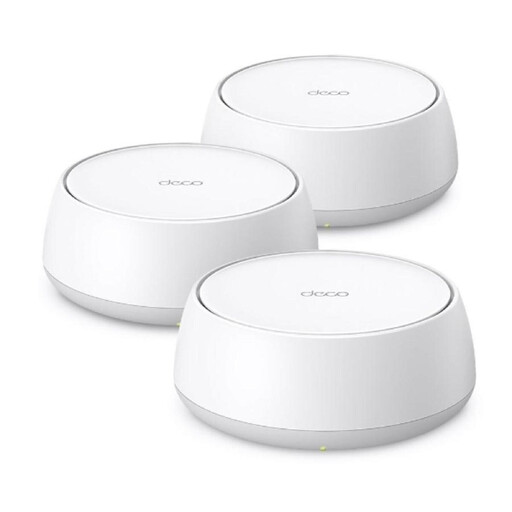
TP-Link Deco BE22 (3-Pack) BE3600 Mesh Wi-Fi 7 System
Consider a three-unit mesh system when Wi-Fi coverage, rather than the broadband service itself, is disrupting work in different rooms.
Check the connection near your existing router first, then confirm the system suits your broadband equipment and home layout. A mesh kit does not resolve a limitation in the underlying broadband service or establish employer approval for work-data use.
Joybuy
 No image available
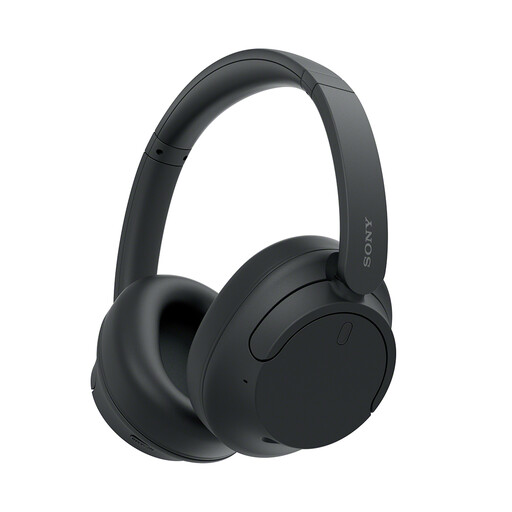
Sony WH-CH720N Noise-Cancelling Over-Ear Headphones (Black)
Consider headphones when listening during frequent calls is the recurring difficulty, rather than assuming a new screen or computer will address it.
The product name identifies a noise-cancelling over-ear model. Confirm its microphone suitability, connection and compatibility with your workplace meeting platform before relying on it for calls; the name alone does not establish call performance.
Joybuy
Common questions
Should I ask my employer before buying home-working equipment?
Yes, ask what equipment is needed and what your employer provides or approves before ordering for work. Acas advises employers and staff to discuss equipment provision, expenses, repairs and support; your organisation’s IT rules may also determine which devices and software you can use.
Does every hybrid worker need an employer-provided monitor?
No, a monitor is not an automatic requirement for every hybrid worker. For relevant display screen equipment work in Great Britain, the Health and Safety Executive says the employer should assess the workstation; where that assessment identifies equipment as necessary, the worker cannot be charged for it.
Can I use my personal laptop or video-call app for work?
Use them only if your organisation permits them for the work involved. The Information Commissioner’s Office advises following organisational policies and using approved technology when handling personal data, so check before moving work calls or information to a personal device or app.
Will mesh Wi-Fi fix a connection that drops during home-working calls?
Mesh Wi-Fi may help if coverage within your home is the cause, but it cannot fix an inadequate underlying broadband connection. Ofcom advises checking the connection and router placement; compare performance near the router with the place where you work before choosing a coverage upgrade.


