Choose a portable hard disk drive (HDD) if your main need is capacity for periodic local backups; a portable solid-state drive (SSD) is more relevant if you frequently move large files or carry the drive. Cloud backup can provide an off-device copy, but you need to check what it includes and how restoration works. For files you cannot replace, keeping both a local copy and a separate off-device copy reduces reliance on one location.
Who is this for?
Growing household archive keepers
If photos, videos, scans and documents keep accumulating, your immediate question is how much space a separate local copy needs now and as the collection grows. Which? discusses external drives for this kind of file backup.
Frequent large-file movers
If you regularly copy large photo or video batches or carry a drive between devices, transfer speed, connection compatibility and physical handling may matter alongside capacity. Which? distinguishes the generally faster SSD route from HDD backup storage.
Hands-off multi-device backup users
If you want backups to run routinely across phones or computers, check which device data and folders each service or tool covers. The National Cyber Security Centre advises keeping important data in a separate safe location.
What matters when choosing?
Portable HDD
Choose it when: You mainly make local backups at home and need room for a growing archive; Which? identifies HDDs as a long-term backup option.
Bear in mind: Transfers are generally slower than with an SSD, and a drive beside the computer is still exposed to some of the same loss events.
Portable SSD
Choose it when: You often transfer large files or carry the drive and value the generally faster SSD route described by Which?.
Bear in mind: Compare capacity as well as speed; quoted maximum transfer rates depend on the drive, computer port and cable.
Cloud storage
Choose it when: An automatic off-device copy across household devices matters more than keeping every copy on physical storage.
Bear in mind: Check the plan’s storage, backup conditions and restoration limits; a synced file is not necessarily protected in the same way as a device backup.
Local and cloud copies
Choose it when: Files would be difficult to replace and you want a local copy plus one stored away from the device, in line with National Cyber Security Centre guidance on separate backups.
Bear in mind: Two routines need managing, and neither copy helps with missing files unless you check its contents and can restore them.
| Concern |
What to check |
Who this matters to |
| Separate copies and recovery |
Where each copy is kept; whether you can restore a sample file. |
If my computer and a connected drive could be affected together, I want another copy elsewhere that I can actually restore. Roughly 26% of consumers put separate-copy recovery first. |
| Capacity for growth |
The size of the files and devices to back up; room for future files or additional backup versions. |
As family photos and videos accumulate, I need a backup destination that will not fill before the intended files are copied. Capacity is the primary concern for around 27% of consumers. |
| Automatic coverage |
Which devices and folders are included; the conditions under which backups run. |
I would rather have backups run routinely than remember to copy files, but I need them to cover the folders and devices I use. Around 26% of consumers place automatic coverage first. |
| Portable transfers |
Computer ports and supplied cable; the conditions behind speed and handling claims. |
When I move large photo or video batches between devices, waiting for transfers and carrying the drive become my main considerations. For roughly 21% of consumers, portable transfer is the first priority. |
Backup mistakes to avoid
-
Keeping the only backup drive connected
A drive beside the main computer can be affected by theft, damage or malware alongside it.
Keep another copy in a separate location or cloud service, disconnect the local drive outside backup periods and try restoring a file. Northern Ireland Cyber Security Centre guidance recommends copies on different devices, including one kept offline.
-
Buying on maximum speed alone
A portable SSD may not reach its quoted maximum through a slower computer port or unsuitable cable. Samsung conditions its T7 Shield speed claims on a USB 3.2 Gen 2 host, supporting cable and UASP.
Check your computer’s port and the cable supplied with the exact drive before making speed the deciding factor.
-
Treating encryption or recovery services as another copy
Encryption controls access; it cannot recreate a missing backup. Seagate says its Rescue Data Recovery Services are not available in all countries, while Samsung excludes liquid, dust and drop damage from the cited T7 Shield warranty.
Check the terms for the exact product and keep a separate copy rather than relying on a feature or service to recover files.
-
Assuming automatic backup includes every file
Backup tools cover different data. Microsoft says Windows File History automatically backs up libraries, while Apple sets specific conditions for automatic iPhone or iPad iCloud backups.
List the devices and folders you need, check the completed backup against that list and restore a test file.
Relevant brands to consider
Western Digital
The My Passport portable HDD line is relevant if local archive capacity and a backup utility are your priorities.
- Western Digital lists My Passport variants from 1TB to 6TB, alongside device-management and backup software.
- Operating-system setup varies; check the exact variant and any macOS formatting or driver requirements before choosing it.
Seagate
One Touch portable HDDs offer another local-backup route, with the cited Seagate line listed at capacities up to 5TB.
- Seagate lists USB 3.0 connectivity and configurable backup tools for the cited One Touch line.
- Seagate says Rescue Data Recovery Services are not available in all countries; check the terms for the exact product.
Samsung
The cited T7 Shield portable SSD is relevant when carrying a drive and transferring large files are central to the choice.
- Samsung quotes T7 Shield sequential speeds of up to 1,050MB/s read and 1,000MB/s write with a suitable USB 3.2 Gen 2 host, cable and UASP.
- Samsung bases its IP65 and drop statements on controlled tests and says liquid, dust and drop damage are excluded from warranty coverage.
Portable drives on Joybuy
These portable HDD and SSD options are for keeping a local copy of home photos and files. Match the stated capacity to your backup set and check device compatibility; a drive can also be one part of a plan that keeps a separate copy elsewhere.
 No image available
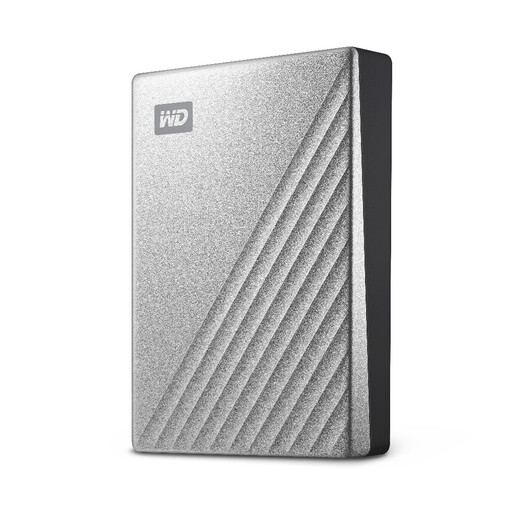
Western Digital My Passport Ultra 4TB portable HDD, silver
Consider this local HDD for a growing photo and document archive if 4TB accommodates the files you intend to back up.
Check the connection and operating-system setup for your computer, particularly if you plan to use it with a Mac.
View on Joybuy
 No image available
Samsung Portable SSD T7 4TB, grey
This local SSD may suit regular transfers of large photo or file collections if its 4TB capacity fits your backup set.
The product name specifies USB Type-C and USB 3.2 Gen 2 connectivity; check the port and cable you will use rather than assuming a particular transfer rate.
View on Joybuy
 No image available
Samsung T7 Shield 1TB portable SSD, blue
This portable SSD is worth considering if you carry a local copy, provided 1TB is enough for the files you need to protect.
The product name specifies USB 3.2 Gen 2. Samsung’s T7 Shield speed, IP65 and drop statements have connection or controlled-test conditions; its warranty excludes liquid, dust and drop damage.
View on Joybuy
 No image available
SanDisk Portable SSD 2TB
Consider this 2TB portable SSD for a local copy of photos and files if that capacity covers your intended backup set.
Check its connector and operating-system compatibility against the devices you plan to use.
View on Joybuy
Common questions
How much capacity do I need for a home backup drive?
Measure the files and devices you intend to back up, then allow room for growth and any backup versions you want to keep. Which? advises that a drive used to back up a whole system should be at least as large as the source drive; also check the exact drive’s capacity and operating-system requirements.
Does putting files in cloud storage mean they are backed up?
Not necessarily: file synchronisation and device backup can cover different data and have different recovery rules. Apple describes conditions for automatic iPhone or iPad iCloud Backup, while Microsoft says a file permanently deleted from the OneDrive Recycle Bin cannot be recovered through it. Check what your chosen service copies and try restoring a file.
How do I reduce the risk of losing files kept on an external drive?
Keep another copy separately, disconnect the drive when it is not backing up and test that you can restore files. Northern Ireland Cyber Security Centre guidance recommends copies on different devices, including one kept offline. A drive password or encryption can restrict access, but it does not create another copy.


