What matters when choosing storage?
Choose the local destination around where the backup will live: a portable HDD or SSD that you connect when needed, a desktop drive kept at a fixed backup point, or NAS for a shared network destination. Then decide how you will maintain another copy away from the original; a cloud subscription can complement a local backup, but its account and cancellation terms become part of the plan.
| Concern |
What to check |
Who this matters to |
| Capacity and growth |
Measure the files or devices to be backed up; allow space for new files and any versions you intend to retain. |
If my photo library keeps growing, I need space for more than its current contents. Around 25% of consumers would put capacity and growth first. |
| Routine and recovery |
Check when backups run, what they include and how to restore a single file or a whole device. |
I am unlikely to keep up with manual copying, so I need a routine I can use to retrieve files. For around 25% of consumers, a workable backup and restoration routine is the primary concern. |
| Device compatibility |
Check each device’s port, the drive’s file system and the backup application’s destination requirements. |
With different computers at home, I need each one to use the planned destination in the right way. Device compatibility would come first for around 17% of consumers. |
| Portable transfers |
Match the drive interface and cable to the host; read speed and enclosure claims with their stated conditions. |
If I regularly move a large library between locations, transfer time and carrying the drive matter to me. Around 17% of consumers would prioritise portable transfer and resilience. |
| Off-site continuity |
Plan a separate location for a copy; for cloud storage, check access, renewal, export and cancellation terms. |
I want important files to remain retrievable if something affects both my computer and a nearby drive. Off-site continuity would be the leading concern for around 16% of consumers. |
Joybuy portable drive choices
These portable HDDs and SSDs are options for making a movable local copy of household photos and documents. Compare their stated capacities with your files, then plan when to connect the drive and where to keep another copy.
 No image available
Western Digital My Passport Ultra 5 TB Portable Hard Drive, Blue
Consider this portable HDD for a movable local copy when your measured files and planned backup history fit within its capacity.
Stated capacity: 5 TB. Check the connection, file-system format and backup workflow required by your computers before use.
View on Joybuy
 No image available
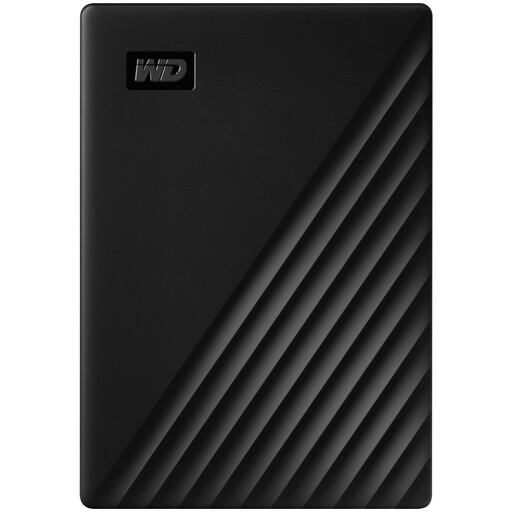
Western Digital My Passport 4 TB Portable Hard Drive, Black
This portable HDD is an option for a local photo and document copy if its capacity accommodates the files and versions you intend to keep.
Stated capacity: 4 TB. Confirm the connection and the backup workflow for each computer that will use it.
View on Joybuy
 No image available
Samsung MU-PG4T0B 4 TB USB-C SSD, Black
Consider this portable SSD if you transfer backups between locations and need a local destination for a library that fits its capacity.
Stated capacity: 4 TB. The model name specifies USB 3.2 Gen 2x2; check your computer’s port and cable before relying on that interface. Choose a backup application and routine separately.
View on Joybuy
 No image available
Samsung MU-PE1T0S 1 TB USB-C SSD, Black
This portable SSD is an option for frequent file transfers if a 1 TB destination accommodates your backup and retained versions.
The model specifies USB 3.2 Gen 2. Samsung says its T7 Shield MU-PE1T0S speed figures require a compatible host, cable and UASP; its tested dust, water and drop claims do not replace a separate backup copy.
View on Joybuy
 No image available
Western Digital Elements Portable 4 TB USB 3.0 Hard Drive, Black
Consider this portable HDD for a local copy you can move or put away between backups, provided its capacity suits your files.
Stated capacity: 4 TB; the name specifies USB 3.0. Check the connection and file-system requirements of your computers, and decide how backups and restores will be managed.
View on Joybuy
Common questions
Is one external drive enough for family photos and documents?
Do not rely on one nearby drive to cover every loss scenario. The National Cyber Security Centre describes a backup as a copy stored separately from the original; for files you cannot afford to lose, plan another location or a cloud copy and test that you can retrieve files.
Can one drive be used with both a Mac and a Windows computer?
A drive can be used for file exchange between them if it has suitable connections and a compatible format, but check each backup application’s destination requirements separately. Apple Support identifies ExFAT for Windows-compatible volumes over 32 GB; do not reformat a drive holding needed files without another copy.
Can a NAS receive Mac Time Machine backups?
A third-party NAS can receive Time Machine backups when it supports Time Machine over SMB, according to Apple Support. Check the particular NAS model and configure a compatible shared destination rather than assuming any network folder will work.
What should I check before using cloud storage alongside a drive?
Check that the service accommodates your library and that you understand its access, renewal, inactivity, export and cancellation terms. GOV.UK consumer guidance warns that suspension or cancellation could interrupt access to data, so allow time to copy files elsewhere before leaving a service.
Does a rugged portable SSD remove the need for another copy?
No: an enclosure rating does not create a second copy of your files. Samsung says the T7 Shield’s IP65 and drop statements are based on controlled tests and that liquid, dust and drop damage is not covered under warranty.


