Who needs which backup arrangement?
Start with the files you would need to recover, where you need to access them and whether one computer or several will use the archive.
Households protecting irreplaceable photos and records
If family photos, scans or documents would be difficult to recreate, plan for recovery after losing the computer as well as after losing the drive or access to its location. The National Cyber Security Centre advises considering both cloud storage and removable media for irreplaceable files.
People who need files available locally
If you need to open documents and photos without depending on your internet connection, keep local access and a separate recovery copy. Check whether files held in a cloud service remain available offline on the computer.
Multi-device households prepared to manage shared storage
A shared local archive may suit several computers or users if someone can manage NAS setup, access and updates. The NAS still needs a separate backup destination; Synology describes external devices, another NAS and supported cloud services as destinations for its compatible Hyper Backup setups.
What matters when choosing?
Decide which failure you need to recover from before choosing storage: a computer failure, an unwanted file change and loss of the home copy call for different recovery paths. Then check that your chosen folders and earlier versions can actually be restored.
| Concern |
What to check |
Who this matters to |
| Local and off-device copies |
Confirm that important files reach two separate destinations and that each copy can be restored. |
If I cannot recreate family photos, I want access to a local copy without depending on the same device or location for every recovery. Around 36% of consumers would make this two-copy protection their primary concern. |
| Local archive access |
Compare drive capacity with the selected files and expected growth; check the connection and backup-software compatibility. |
When my photo archive is large or broadband is unreliable, I want a copy I can reach locally. Around 29% of consumers would put local recovery first. |
| Automatic off-device backup |
Check which folders are included and whether version history and deletion retention cover unwanted changes. |
I may not remember to run a manual backup, so I need an off-device job that runs routinely and leaves a usable earlier version. For around 21% of consumers, that would be the primary need. |
| Shared household storage |
Check NAS backup destinations, user access and the work required to maintain the device. |
With files spread across several household computers, I want one managed local archive and can take responsibility for its backup. Around 14% of consumers would prioritise that shared setup. |
Relevant brands and services
These examples cover different parts of a backup arrangement; a brand’s presence here does not mean every product or plan offers the same features.
Seagate
Seagate’s Expansion Portable line is an external-drive option for a locally held photo and document archive.
- Seagate describes USB 3.0 connectivity and Windows and Mac compatibility for its Expansion Portable drive; check the exact variant and any setup requirements.
- An external drive alone does not provide a copy away from the household location.
Apple
Time Machine is a local backup route for Mac households using compatible external storage.
- Apple Support recommends a backup disk with at least twice the Mac’s storage capacity and describes an encryption option.
- That capacity guidance is specific to a Mac using Time Machine, not every computer or cloud service.
Microsoft
OneDrive can make selected Windows folders available through a Microsoft account, subject to the chosen settings and plan.
- Microsoft Support describes synchronisation of files and folders between a computer and OneDrive.
- Changes and deletions can sync too. Check recovery versions and retention before treating it as your recovery copy.
Synology
Synology NAS hardware and compatible Hyper Backup software can support shared local storage and scheduled backups.
- Synology lists external storage, another NAS and supported cloud services among Hyper Backup destinations, with versioning and integrity-check features.
- Check device and software compatibility, and arrange a separate destination: a NAS kept at home is not itself an off-device copy.
Backblaze
Backblaze offers a computer-backup service route for a Mac or PC when an automatic off-device copy is the priority.
- Backblaze says its computer-backup coverage includes user-generated data on connected external drives under its service conditions.
- Check the selected plan’s external-drive rules, retention and restore options before relying on it for a particular archive.
External drives for a local backup
These external drives offer a destination for a local copy of home photos and documents. Choose capacity and computer compatibility for your archive, then arrange a separate off-device copy if losing the drive or its location would put those files at risk.
 No image available
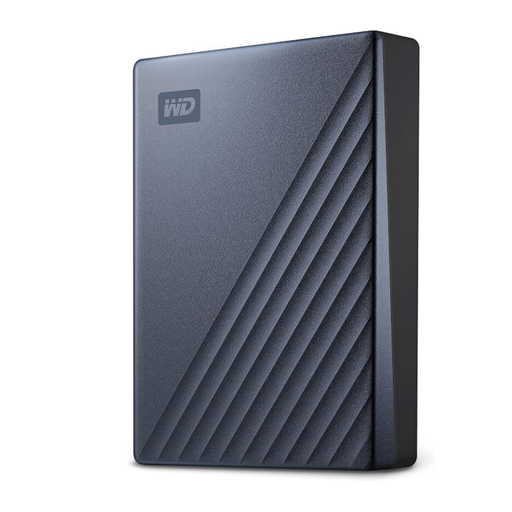
Western Digital My Passport Ultra 5TB external hard drive, blue
Consider this 5TB drive for a local photo and document archive after checking how much space your backup needs. For a Mac, confirm formatting and backup-software compatibility before use; the drive alone is not an off-device copy.
Joybuy
 No image available
Samsung T7 Shield 1TB portable SSD, blue
This USB 3.2 Gen 2 SSD is a portable local-copy option if the selected files and expected growth fit within 1TB. Confirm the computer connection you will use, and keep another copy away from the drive’s location for wider protection.
Joybuy
 No image available
Western Digital My Passport 2TB external hard drive, black
This 2TB drive can hold a separate local copy when your selected archive fits. If you use a Mac, check the driver and backup-software setup required for this variant; plan another destination for off-device recovery.
Joybuy
 No image available
Samsung Portable SSD T7 2TB, grey
Consider this 2TB USB Type-C, USB 3.2 Gen 2 SSD for a portable local archive that fits its capacity. Check your computer’s connection and set up a separate off-device backup rather than relying on the SSD alone.
Joybuy
 No image available
Western Digital Elements 4TB portable external hard drive, black
This 4TB USB 3.0 drive is a local destination for a photo and document archive that fits its capacity. Check formatting and backup-software compatibility for your computer, particularly if you use a Mac, and retain a separate off-device copy where needed.
Joybuy
Common backup questions
Is cloud sync the same as a separate backup?
No, not by itself: Microsoft Support says changes and deletions in a OneDrive folder are reflected on the OneDrive website and vice versa. Check the plan’s version history and deleted-file retention for the recovery you need, and keep an independent copy of irreplaceable files.
How much capacity should an external backup drive have?
Choose capacity for the files you will back up, expected growth and any versions you intend to retain. For a Mac using Time Machine, Apple Support recommends a backup disk with at least twice the Mac’s storage capacity; other backup methods may have different requirements.
Should I leave an external backup drive connected?
For a removable drive used for periodic backups, disconnect it when it is not in use where practical. The National Cyber Security Centre warns that ransomware can affect connected USB and network backup drives, so a continuously connected drive should not be your only recovery copy.
How do I keep local access and recover files after a computer failure?
Keep files available locally and back them up to a separate local drive, then maintain an off-device copy of the irreplaceable ones. Check that the chosen cloud folders are included, that files needed without internet access remain available on the device and that you can restore from both backup destinations.


