For a computer-based home photo backup, choose a portable HDD for a scheduled local copy, an SSD if you regularly move large files, a desktop drive if it can stay beside one computer, or a NAS if several devices need a shared destination. Match capacity, connections and backup workflow to the folders you need to protect; buying a drive alone does not ensure those files are copied or can be restored. The UK National Cyber Security Centre advises keeping a separate safe copy, so for files you could not replace, consider another separately recoverable copy as well as local storage.
Who these backup options suit
Computer photo keepers
If your photos and documents mainly live on one computer, look for a repeatable way to back up the right folders and restore them when needed. Microsoft Support explains that File History can use an external drive or network location; the UK National Cyber Security Centre recommends keeping a separate copy of important data.
Growing-library households
When your photo or video collection is expanding, compare capacity with the space needed for new files and any older versions your backup routine retains. The UK National Cyber Security Centre’s backup guidance also makes keeping a separate copy part of the decision.
Multi-device households
If photos are spread across phones and computers, consider how each device will send files to a shared destination and how you will keep another recoverable copy. Synology describes computer-folder backups and automatic mobile-photo copies for its DS223j; the Information Commissioner’s Office discusses cloud storage as one way to keep copies outside the home.
What to prioritise when choosing
Start with where your photos and documents are stored and how often your backup will run. Then match the drive or service to the devices you use and the kind of copy you need to restore.
| Concern |
What to check when buying |
Who this matters to |
| A copy you can restore |
Check which folders the backup covers, how often it runs and how to restore a file. Try restoring a sample. |
I want to know that the right folders can be recovered if my computer fails, rather than just seeing that a copy ran; around 33% of consumers put recoverability first. |
| Capacity for a growing library |
Measure the folders to protect, allow for growth and check how the backup keeps older versions. |
If my photo and document collection keeps growing, I need room for the files and the history I choose to retain; around 27% of consumers prioritise capacity. |
| Portable, compatible transfers |
Match the drive connection and cable to your devices. Check the required format before reformatting a drive. |
When I move sizeable photo or video files between compatible devices, I want a portable drive that fits my setup without dropping the backup routine; around 13% of consumers focus on transfers. |
| Copies from several devices |
List the phones and computers involved, then check supported apps, upload status and how to make a separate copy. |
If photos arrive on several household devices, I need a reliable way to collect them rather than backing up only one computer; around 20% of consumers prioritise multi-device copying. |
| Access and privacy controls |
Check the protection available on the exact model, operating system or plan, and how you would regain access. |
For sensitive household files, I want to control who can open a local or online copy and still be able to retrieve it; around 7% of consumers put access control first. |
Backup mistakes to avoid
-
Assuming a connected drive or synced library is an independent backup
The UK National Cyber Security Centre describes incidents that can affect connected backup drives. Apple says deletions in iCloud Photos are reflected across devices, so a synced library may not provide a separate way to recover an unwanted deletion.
Map where each copy lives, arrange another separately recoverable copy when the files warrant it, and test a restore.
-
Reformatting a drive before preserving its existing files
Apple says a Windows-formatted disk may need to be erased and reformatted for Time Machine. Changing its format can remove the files already stored on it.
Check the required format first and copy existing files elsewhere before reformatting.
-
Assuming advertised speed or software applies to every setup
Samsung’s rated T7 Shield speed depends on the host and cable, while Seagate says Toolkit activities depend on the supported functions for the specific drive.
Check the exact model, your device’s connection, the supplied cable and the backup functions supported for that drive.
Brands to consider for home photo backups
Western Digital
My Passport is a portable HDD line for a computer-based local copy; check the capacity, revision and whether the specific unit is new or recertified.
- Western Digital describes backup software and Windows-only password protection on its cited recertified My Passport listing.
- The listed one-year limited warranty applies to that recertified product, not to every new My Passport drive.
Seagate
Expansion Portable is a portable-HDD route, while Expansion Desktop is intended for a fixed location.
- Seagate’s Expansion Desktop datasheet lists a power supply and USB cable.
- Seagate describes different Toolkit functions for Windows and macOS and advises checking the specific drive manual for supported activities.
Samsung
The T7 Shield is a portable SSD option for moving files between compatible devices.
- For the cited UK 2TB black variant, Samsung rates sequential read and write speeds of up to 1,050/1,000 MB/s under specified host and cable conditions.
- Samsung’s IP65 statement is based on controlled testing; its cited warranty statement excludes liquid, dust and drop damage.
Crucial
The X9 2TB is a USB-C portable SSD to consider for a file-copy workflow.
- Crucial names File History and Time Machine as possible backup workflows for the X9.
- For model CT2000X9SSD9, Crucial says the drive ships as exFAT and that performance and device compatibility vary by host and formatting. Reformatting erases the data on the drive.
Synology
The DS223j illustrates a NAS approach for collecting files from more than one device rather than using a directly attached portable drive.
- Synology describes computer-folder backups and automatic mobile-photo copies for the DS223j.
- Those features require setup and do not, by themselves, establish a separate off-site backup.
Joybuy products for local photo backups
These Joybuy products are local-storage options for computer-based photo and document backups, spanning portable SSDs and portable or desktop HDDs.
 No image available
Samsung T7 Shield Portable SSD, 1TB, USB 3.2 Gen.2, Blue
A portable SSD option for a computer-based local copy when you also move files between devices.
1TB capacity; USB 3.2 Gen.2.
The listed description warns against submerging the drive.
Joybuy
 No image available
SanDisk Portable SSD, 2TB
A portable local-storage option for a photo and document backup that you may also want to move between devices.
2TB capacity.
Joybuy
 No image available
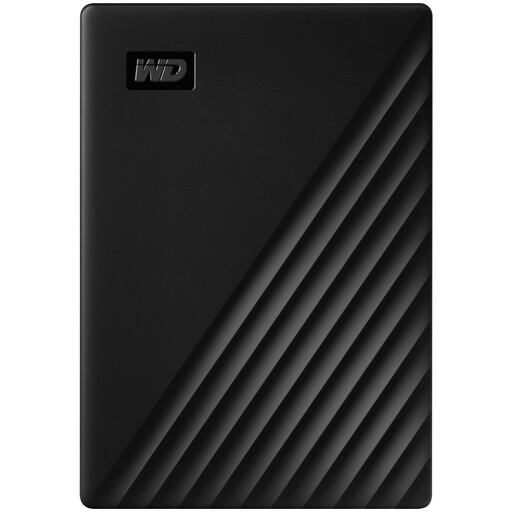
Western Digital My Passport Portable Hard Drive, 4TB, Black
A portable HDD option for a movable computer backup of a growing photo or document library.
4TB capacity.
The listed description says the housing is not waterproof; avoid liquid exposure.
Joybuy
 No image available
Western Digital Elements Desktop External Hard Drive, 10TB
A stationary option for a large collection kept near one computer.
10TB capacity.
The described setup uses a desktop location and an external AC power adapter.
Joybuy
 No image available
Western Digital My Passport Ultra for Mac Portable External Hard Drive, 5TB, Silver
A portable local-copy option for a Mac-based photo and document library.
5TB capacity.
The listed description says Windows use requires a downloadable HFS+ driver.
Joybuy
Home photo backup FAQs
Will copying photos to an external drive once protect everything I add later?
No. Set up a recurring copy or backup job, check which folders it includes and try restoring a file. A disconnected removable drive cannot receive new files until the backup workflow runs again.
Can I use the same drive for ordinary Windows files and a Mac Time Machine backup without changes?
Do not assume so. Apple says Time Machine cannot back up to a Windows-formatted disk and may offer to erase and reformat it. Copy any existing files elsewhere before changing the drive’s format.
Does a phone photo library synced to iCloud count as a separate backup?
Not automatically. Apple says iCloud Photos reflects deletions across devices and those photos are not duplicated in iCloud device backups. Keep a separately recoverable copy if you need protection from an unwanted deletion.
What ongoing costs should I compare with buying a drive?
Check the selected cloud plan’s current storage allowance and recurring terms. For a NAS, check what the enclosure includes, which compatible disks are needed and whether you will use a separate backup destination.


