What matters when choosing?
Choose the printing technology around how often you print and whether documents need colour; then decide whether scanning, copying and device compatibility meet your paperwork routine.
Laser
Consider it when: Text documents are the main task and long gaps between jobs are likely.
Trade-off: Which? notes that laser printing avoids the liquid-ink drying issue, but a colour or scanning requirement still needs checking on the particular model.
Cartridge inkjet
Consider it when: You need colour documents and expect to use the printer regularly enough to keep it in use.
Trade-off: Replacement cartridges and ink used in maintenance can affect ongoing costs; Which? cautions against judging a printer by its initial outlay alone.
Refillable ink tank
Consider it when: Regular colour printing makes ongoing ink use a substantial part of your decision.
Trade-off: Which? reports lower running costs for its recommended tank models than for cartridge inkjets, but a tank printer still uses liquid ink and may need print-head maintenance.
| Concern | What to check | Who this matters to |
|---|
| Long gaps between print jobs |
Decide whether colour is essential; if considering an inkjet, check its maintenance instructions. |
If I mostly print letters and forms, I want the printer to be ready after sitting unused. Around 31% of consumers would put low-use reliability first. |
| Ongoing ink or toner costs |
Compare the exact replacement consumables and page yields on a comparable basis for the models you shortlist. |
Regular colour paperwork makes each replacement bottle or cartridge relevant to my choice. Around 25% of consumers would prioritise ongoing consumable costs. |
| Scanning and copying |
Confirm scan and copy functions; for recurring multi-page jobs, check for an automatic document feeder. |
If I repeatedly digitise or copy several sheets, placing them one by one slows the task down. For around 25% of consumers, the paperwork workflow would be the primary concern. |
| Device compatibility |
Check the exact model’s operating-system support and the printing or scanning method needed for each device. |
When my household uses both computers and phones, I need the intended workflow to work on each of them. Around 19% of consumers would make device compatibility their first priority. |
Joybuy products for these needs
These models span colour multifunction printing, refillable-tank paperwork use and monochrome laser printing. Choose by your document mix and scanning needs, then check consumables and device compatibility for the exact model.
 No image available
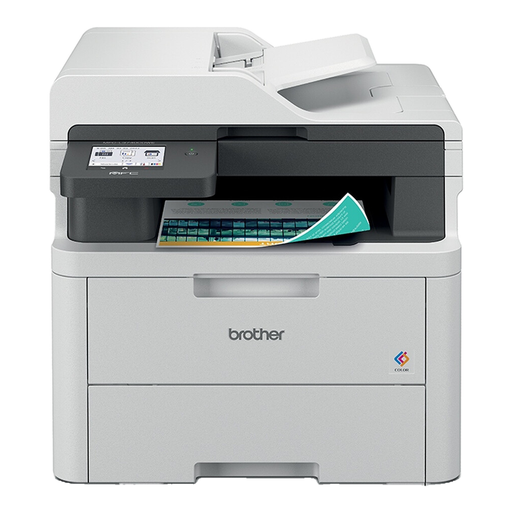
Brother MFC-L3740CDWE Colour Wireless LED All-in-One
Consider this model for colour paperwork when you also need multifunction tasks. Its name identifies wireless LED printing; check the scanning arrangement, replacement toner and compatibility with your devices before choosing.
View on Joybuy
 No image available
Canon MAXIFY GX6150
Consider it for regular colour paperwork if scanning and copying are also part of your routine. Confirm the exact model’s feeder, replacement ink and device support, particularly if you handle multi-page documents.
View on Joybuy
 No image available
Epson EcoTank ET-5150 +Ink A4 Multifunction Printer
Consider this A4 multifunction model for recurring colour documents and paperwork tasks. Check its scanning workflow and the exact replacement ink; as with other inkjets, long idle periods may call for maintenance.
View on Joybuy
 No image available
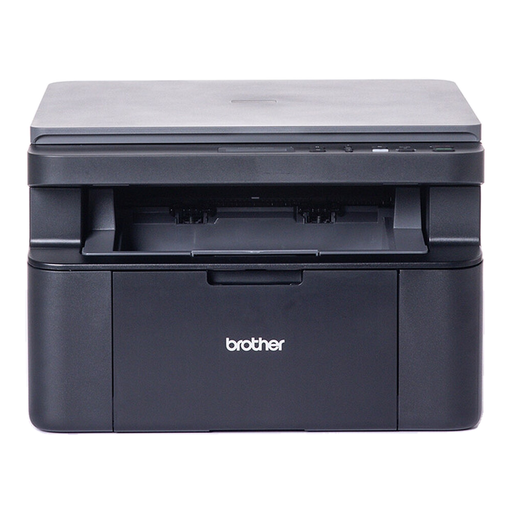
Brother DCP-L1640W Mono Laser Printer
Its monochrome laser printing suits households whose documents do not need colour, especially when jobs may be far apart. If scanning is important, check how it handles multiple pages; also confirm the two-sided-printing method and replacement toner.
View on Joybuy
 No image available
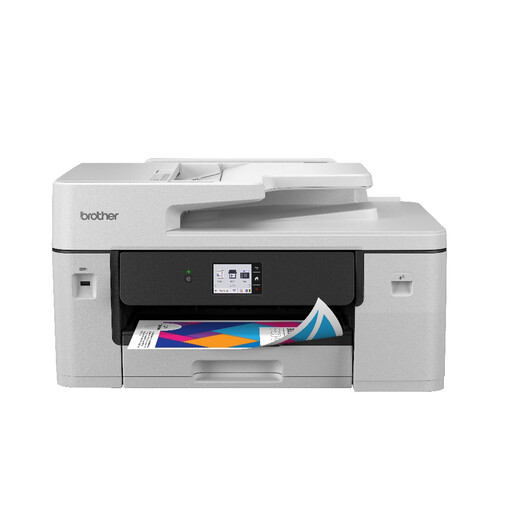
Brother MFC-J6760DW All-in-One Inkjet Printer
Consider this all-in-one inkjet if colour documents and scanning are both regular tasks. For larger or multi-page paperwork, check the supported paper sizes and feeder on the exact model; compare replacement cartridges and allow for inkjet maintenance.
View on Joybuy
Common questions
Is a laser printer sensible if I print only occasionally?
Yes, particularly for text documents separated by long idle periods. Which? notes that liquid ink can dry out when a printer is left unused, whereas laser printing uses dry toner; check colour and scanning requirements before choosing a particular model.
Will an ink-tank printer always cost less to use?
No: the value depends on how much you print and which ink you need to replace. Which? reports lower running costs for the tank printers in its recommended low-cost-to-run selection than for cartridge inkjets, but compare the exact consumables and your likely use before accepting a higher initial outlay.
Do I need an automatic document feeder to scan paperwork?
Not for an occasional single sheet. If you regularly scan or copy multi-page documents, an automatic document feeder is worth checking: Which? describes it as a tray that feeds multiple pages without placing each one on the scanner individually.
How can I check whether a printer works with my laptop and phone?
Check support for the exact printer model and your devices’ operating-system versions. Canon’s app compatibility is model-specific, and HP says mobile-printing options vary by model and country or region; confirm your intended Wi-Fi, app, driver and scanning workflow rather than relying on a wireless label.
What should I do with an old printer?
Prepare it for reuse or electrical recycling rather than putting it with ordinary household waste. Recycle Your Electricals advises removing cartridges and memory cards and restoring the printer to factory settings to clear stored data; check local reuse or recycling options when replacing it.


