Prioritise the weak point in your current setup: close microphone placement for voice, controllable lighting and stable framing for talking-head video, or a capture card only when you need an HDMI source. Before buying, check the host device, ports and cables, software support, available resolution and frame-rate modes, and any HDCP restrictions.
Who this equipment suits
Desk-based voice and talking-head creators
Suitable for tutorials, podcasts, commentary and video calls where intelligible speech, stable framing and controllable lighting matter in a domestic room. Shure notes that reflected room sound becomes more prominent as microphone distance increases.
Phone and laptop creators using existing devices
Useful if a phone or laptop remains the main camera or recording device. Check operating-system support, USB or UVC compatibility, data-capable cables, mounting and app settings before adding accessories.
Console or HDMI-source streamers
For creators bringing gameplay or an HDMI camera source into a computer. Confirm capture-card input and output modes, host software support and HDCP restrictions before choosing a workflow.
Buying priorities
Choose the equipment type around the part of your setup that is currently limiting recording or streaming, then confirm that it works with your room and devices.
USB microphone and close placement
Choose it when: Spoken voice is the main weakness and you can place the microphone consistently near the speaker.
Consider: A microphone cannot change the room acoustics, so reflections and background noise can remain audible.
Camera, mount and controllable light
Choose it when: Your current camera is poorly framed, dim or unstable for seated video.
Consider: Phone and webcam features still depend on compatible software, a stable mount and the available room light.
Capture card workflow
Choose it when: You need to bring a console or HDMI camera source into a computer-based recording or livestream setup.
Consider: Protected HDMI content cannot be captured through the stated Elgato workflow, and HDR support is not universal.
| Priority |
What to check |
Your needs |
| Voice capture |
Check that a stand or arm can keep the microphone close and correctly aimed. Confirm the connector, cable and app input selection. |
I want speech to be clear without assuming a more expensive microphone will fix room reflections. |
| Lighting and framing |
Check brightness control, colour-temperature settings, power arrangement and whether the mount fits the device securely. Verify the camera’s usable resolution and frame-rate modes. |
I need a repeatable frame with controllable front or side light before upgrading camera resolution. |
| Device compatibility |
Match the accessory to the host operating system, port, cable type and recording or streaming app. For OBS on Windows, check available video-device modes and DirectShow output where relevant. |
I want the camera, microphone or capture device to be recognised by the devices and software I already use. |
| HDMI capture |
Confirm the exact source, HDCP status, intended content type, capture mode and host operating system. Check USB bandwidth and software support. |
I need to record or stream gameplay or another HDMI source without discovering that the selected workflow cannot accept it. |
Common buying pitfalls
-
Buying a sensitive microphone but keeping it far away
Shure explains that a microphone cannot improve room acoustics. At excessive distance, reflected speech can overlap the direct voice and make recordings harder to understand.
Measure the usable desk area and choose a stand, arm or mount that allows repeatable close placement. Use a pop filter for plosive control rather than as a substitute for room treatment.
A boom arm, acoustic treatment or other room-management measures may be needed if reflections remain a problem.
-
Assuming 1080p, 4K or HDR guarantees better home video
Specifications and manufacturer features do not establish identical low-light, colour, motion or audio results in every room. OBS also notes that compatible hardware alone does not guarantee recording or streaming performance.
Check the output mode required by your platform and computer, improve lighting and framing first, and seek independent testing for the exact model and mode you plan to use.
-
Choosing a capture card without checking the HDMI source
Elgato states that its capture devices cannot capture HDMI signals with HDCP enabled. Its stated PS5 gameplay workflow requires HDCP to be disabled, while protected streaming and film content remains unavailable to capture.
List the exact console, camera or other source, then verify HDCP status, content type, input and output modes, host USB port and required software support.
Extra HDMI cables or adapters may not solve a workflow that is restricted by the source or protected content.
-
Assuming every USB accessory works with every device
Phone-as-webcam and USB-microphone setups depend on host support, connectors, data-capable cables and app settings. Google’s Pixel webcam guidance, for example, requires a data cable and a UVC-capable host.
Confirm the exact host device, operating system, port, cable and video or audio input settings before choosing a USB microphone, webcam, phone mount or capture device.
The setup may require an appropriate data cable, adapter or powered hub.
Relevant brand references
Logitech
Relevant for plug-in webcams for desk-based video, including Full HD and 4K options.
- Logitech describes Brio 500 as a 1080p webcam with auto-light correction, auto-framing and noise-reducing microphones.
- These are manufacturer claims; check software requirements and the resolution and frame-rate mode needed for your setup.
RØDE
Relevant for USB microphones used for podcasting, voice-over, streaming and computer or mobile recording.
- RØDE states that the NT-USB+ uses USB-C, is class-compliant and includes headphone monitoring.
- Confirm that your recording or communications app can select the microphone and that the required cable suits the host device.
Elgato
Relevant for capture cards and accessories in computer-and-console livestream workflows.
- Elgato’s guidance identifies HDCP as a capture limitation and gives a stated PS5 gameplay-capture setup.
- Check source resolution, computer ports, passthrough, software and content restrictions for the exact model.
Shure
Relevant for understanding the acoustic limits of microphone upgrades in untreated domestic rooms.
- Shure’s technical guidance supports prioritising microphone placement and room management for spoken voice.
- Its guidance is not a comparative test of all microphone types or brands.
ASUS
Relevant for capture-card shoppers seeking an OBS-tested HDR workflow on Windows.
- OBS lists ASUS CU4K30 and 4KPRO among its HDR-tested devices.
- OBS says its HDR guidance is Windows-only and non-exhaustive; confirm the source device and full workflow.
Joybuy product options
Joybuy product options for home voice recording, phone video, desk-based webcam use and stable mobile framing.
 No image available
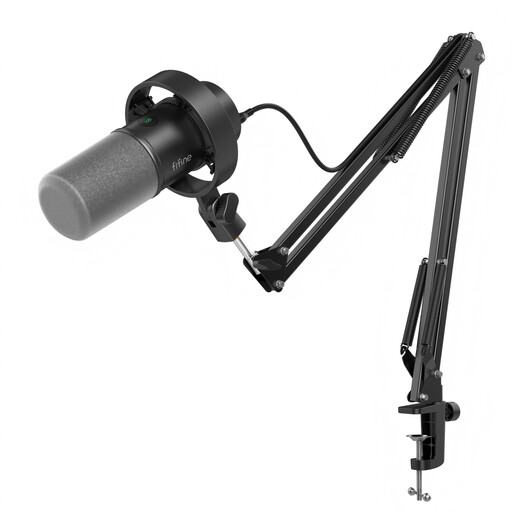
FIFINE K688CT USB/XLR Dynamic Microphone Kit
For desk-based voice recording where close, repeatable microphone placement is a priority.
USB-C and XLR connections; boom arm, shock mount, windscreen, gain control, mute button and headphone jack are stated. The C-clamp fits desks under 2 inches thick; XLR cable is not included. Mute, gain and headphone controls work in USB mode only.
Joybuy
 No image available
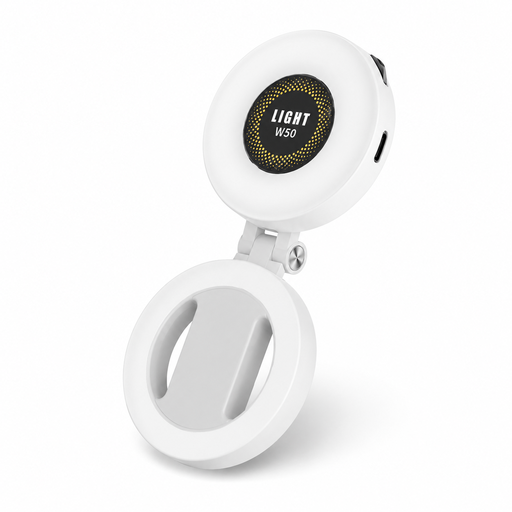
VoxorAI M28 Magnetic Fill Light
For phone video or calls where adjustable lighting is needed before changing cameras.
The listing states 2700K, 5600K and 7500K settings, 10%–100% brightness adjustment, Type-C charging and magnetic attachment for MagSafe devices or an included metal-ring adapter. Confirm secure attachment, battery details, runtime and flicker suitability for your camera settings.
Joybuy
 No image available
EMEET All-in-One 4K Fixed-Focus Webcam
For seated talking-head recording or streaming with a dedicated USB camera.
The listing states 3840 × 2160 at 30 fps, fixed focus, an adjustable 98° field of view, a Sony 1/2.55-inch CMOS sensor, four microphones and dual speakers. Verify operating-system, app and OBS video-mode compatibility; fixed focus may not suit close product demonstrations.
Joybuy
 No image available
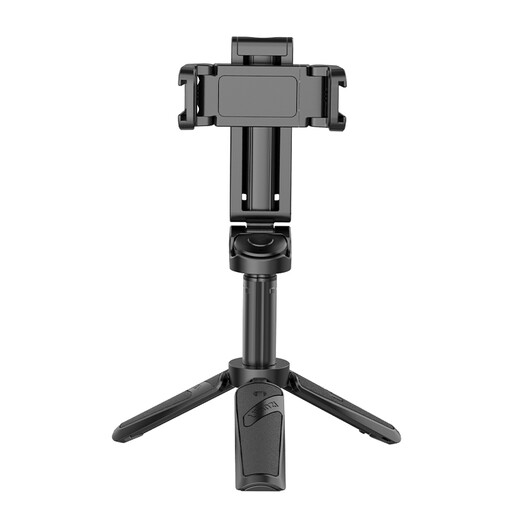
Ulanzi JJ02 Bluetooth Phone Tripod Stand
For mobile recording or phone-as-webcam setups that need hands-free, repeatable framing.
The listing states a phone grip, extendable mini tripod, detachable 2.4 GHz Bluetooth remote with a stated range of up to 10 m, and two cold shoes. Confirm phone clamp range, load limit, extended height and remote compatibility with your chosen app.
Joybuy
 No image available
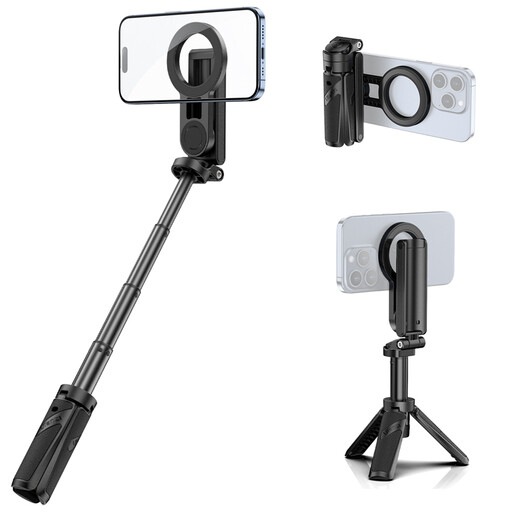
Ulanzi JJ03 Magnetic Phone Tripod Stand
For compact phone recording where MagSafe attachment or a suitable metal ring can be secured.
The listing states a 3-in-1 grip and extendable mini tripod design, Bluetooth shutter, MagSafe or metal-ring use, and a 12 N magnet. Confirm the phone case, magnetic-ring security, height, footprint and load capacity for the intended position.
Joybuy
Frequently asked questions
Should I buy a microphone or acoustic accessories first for voice recording at home?
Prioritise microphone placement first. Shure explains that a microphone cannot improve the acoustic environment and that speech can become reverberant when the microphone is too far away. Use a stable stand or arm to bring it closer, then consider room-management measures if reflections remain a problem.
Can I use my phone as a webcam instead of buying a webcam?
Sometimes. Apple states that a compatible iPhone can act as a Mac camera or microphone through Continuity Camera when mounted stably and unobstructed. Google states that a Pixel can work as a USB webcam with a data-capable cable and a UVC-capable host; check the exact phone, computer, operating system and app first.
What should I check before buying a USB microphone?
Check the connector, cable, host USB support and whether the recording or communications app can select the microphone as its input. RØDE’s NT-USB+ guidance notes that USB-A-only computers need an appropriate USB-C-to-USB-A cable.
Why does a capture card show no video from a console or HDMI source?
Check HDCP before assuming the card is faulty. Elgato states that its capture devices cannot capture HDMI signals with HDCP enabled, and its PS5 guidance requires HDCP to be turned off for gameplay capture. Protected movies and streaming-app content remain unavailable through that capture workflow.
Will any webcam or capture card work in OBS?
Do not assume so. OBS says that Windows video devices need DirectShow output for its Video Capture Device source, and selected resolutions and frame rates must be available from the device. OBS also notes that compatible hardware does not by itself guarantee reliable streaming or recording performance.


