Upgrade the part of your home call setup that is causing the problem: consider audio for unclear speech or distracting sound, a webcam or lighting for poor framing or exposure, and a monitor or dock when screen space or connections constrain regular work. Check your device’s display and port capabilities, as well as the meeting application and connection, before buying; a hub cannot create video output the computer does not support.
Who is this setup for?
The useful first purchase depends on what interrupts your recurring work or study calls.
Remote workers in shared homes
If household sound makes speech difficult to follow or private listening matters, assess the microphone and headset before adding display accessories. Noise cancellation for what you hear is not the same as noise handling for what others hear.
Students and workers who share screens
An external monitor may give you room to follow participants while reading or presenting material. Check how many external displays your computer supports and which connection the monitor needs.
Laptop users with a regular call desk
If you repeatedly connect a display, peripherals, charging and perhaps Ethernet, a dock or adapter may simplify the connections. Match it to the laptop’s actual ports, video capability and charging requirements.
What should you check first?
Try a call with your current equipment, then identify whether the obstacle is sound, image, workspace or connectivity. Buy for that use case rather than assuming every desk needs every accessory.
| Priority | What to check | Your needs |
|---|
| Voice and listening |
Listen to a test recording of the microphone; check headset connection and fit; distinguish listening noise cancellation from microphone noise handling. |
I need other people to follow my speech despite activity at home, or I need to hear a call without using laptop speakers. |
| Camera and lighting |
Test framing and exposure with the built-in camera; check webcam placement, focus and port compatibility; confirm what video quality your meeting application and connection can carry. |
People cannot see me or the material I show clearly. If positioning is fine but my face is dim, I would check the lighting before replacing the camera. |
| Screen space |
Check the computer’s video ports and supported external-display count; choose the required monitor input and cable; do not assume a splitter creates independently extended screens. |
I want to follow participants while working with documents or sharing a screen, rather than continually switching windows. |
| Desk connections |
Match the dock’s display modes to the host port; check USB and Ethernet needs; confirm power delivery and whether a charger or cable is required. |
At a regular desk, I would rather reconnect the peripherals I use through a compatible adapter than manage several separate connections. |
| Call connection |
Check other household network use and whether the fault affects Wi-Fi or the underlying broadband; compare the meeting application’s requirements with the video setting you use. |
Calls falter at my fixed desk. I want to find out whether local Wi-Fi is the cause before trying a wired connection. |
Purchases that may miss the problem
-
Assuming every USB-C port can run the same dock
A connector that fits does not establish the laptop’s video output, supported display count or charging capability. Anker’s 565 USB-C Hub, for example, has display modes that depend on the host’s DisplayPort capability.
Check the exact computer model, intended displays, monitor inputs and charging requirements against the dock’s specifications.
Anker states that the 565 hub does not include a charger or cable, so that arrangement requires separate compatible ones.
-
Buying a splitter for two extended screens
Microsoft Support says a display splitter duplicates a signal; it does not create two independently extended displays.
Confirm the computer supports the number of extended displays you want, then choose connections or a compatible dock for that arrangement.
-
Choosing webcam resolution before testing the call
A higher-resolution camera does not guarantee that participants receive video at that resolution. Zoom’s published bandwidth requirements vary by resolution, meeting type and feature.
Check framing, lighting, application settings and connection behaviour in the calls you actually make before deciding which camera features matter.
-
Assuming a work monitor must always be self-funded
The UK Health and Safety Executive says display screen equipment rules can apply to long-term home and hybrid workers. Where an applicable assessment identifies necessary equipment, workers cannot be charged for it.
If you are buying for regular home work, ask your employer about its workstation assessment and equipment process before purchasing.
Brand and product-line references
These examples illustrate features and compatibility questions to investigate; they are separate from the Joybuy products below.
Logitech
Its Brio 500 webcam is an example to consider when camera framing and lighting are the concern.
- Logitech describes the Brio 500 as a 1080p webcam with automatic light correction, auto-framing and noise-reducing microphones.
- Those manufacturer features do not establish the resolution a particular meeting application and connection will transmit.
Jabra
The Evolve2 65 Flex is a headset reference for private listening and calls in distracting surroundings.
- Jabra describes hybrid active noise cancellation, noise-cancelling microphones and a fold-flat design.
- Check the exact connection variant, charging arrangement and fit; listening noise cancellation alone does not establish outgoing call quality.
BenQ
The GW2486TC illustrates a monitor with USB-C connectivity for a regular desk.
- BenQ states that its USB-C connection carries data and provides up to 65W power delivery.
- BenQ’s daisy-chain guidance says a Mac needs Thunderbolt-based support or a suitable dock or device; check the exact computer and display arrangement.
Anker
The 565 USB-C Hub (A8388) illustrates the connections a compatible laptop desk might consolidate.
- Anker lists display, USB, Ethernet, audio and pass-through charging connections.
- Its display modes depend on host DisplayPort support, and Anker says a charger and cable are not included.
Joybuy product options
These options address different parts of a home call desk: connections, camera, screen space and listening. Choose the component that matches the problem you have identified.
 No image available
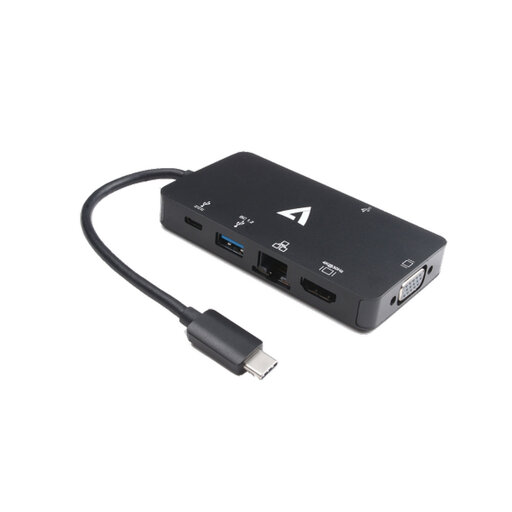
V7 V7UC-U3CRJ45HDVG-BLK USB-C adapter
For a compatible desk setup that needs display and wired-network connections. Its listed connections include 4K@30Hz HDMI, VGA, Gigabit Ethernet, two USB 3.0 ports and 100W power delivery. The described display operation is single-display SST; check that your computer supports USB-C Alt Mode and your intended display arrangement.
View on Joybuy
 No image available
Targus 2K Webcam with Auto Focus
Consider this when the built-in camera’s framing or focus is the issue. The description lists autofocus, a 67° field of view, lighting correction, a privacy slider and an adjustable clip. The title says 2K while the description specifies Full HD 1080p, so confirm the resolution and connection options for this SKU before buying.
View on Joybuy
 No image available
EMEET All-in-One 4K Webcam with Sony sensor
This combines a camera with listed microphones and speakers for a call space. The product description specifies 4K at 30 FPS, fixed focus, an adjustable 98° field of view and a four-microphone array. Check whether fixed focus suits your camera distance, and confirm the USB connection and computer compatibility.
View on Joybuy
 No image available
ASUS ProArt PA278CV IPS WQHD monitor
For following a call while working with documents, this monitor adds a listed 27-inch, 2560 × 1440 display. Its details include USB-C, HDMI and DisplayPort connections and an adjustable stand. Check your computer’s video output and display support, and confirm USB-C charging capability if you intend to charge a laptop through it.
View on Joybuy
 No image available
JBL Tune 780NC wireless over-ear headphones – black
Consider these if private listening and switching between Bluetooth devices matter at your call desk. The listed features include multipoint connection, adaptive noise cancellation and two beamforming microphones. Check microphone behaviour with your computer and meeting application; noise cancellation for listening does not establish how your voice will sound to others.
View on Joybuy
Common questions
Do I need a separate webcam for work or study calls?
Not if your built-in camera provides suitable framing and an acceptable image for your calls. Consider a webcam when positioning or focus is the problem; test lighting and check the meeting application’s video settings before choosing a higher resolution.
Should I change my headset or camera first?
Prioritise audio if people struggle to hear you or you need private listening; prioritise the camera if sound is satisfactory but framing or exposure is poor. Test each issue in your usual meeting application so a connection fault is not mistaken for a device problem.
Can any USB-C hub connect two extended monitors?
No. Apple and Microsoft advise checking the computer’s ports and supported display arrangement; the hub and cables must also support the intended setup. Microsoft Support notes that a display splitter duplicates a signal rather than creating two independently extended screens.
Will Ethernet resolve poor video calls?
Ethernet is worth considering when local Wi-Fi is the difficulty at a fixed desk, but it cannot repair an underlying broadband fault. Ofcom advises checking household network use and equipment, while Zoom’s bandwidth requirements vary with the meeting type and video setting.
Should I buy my own monitor for regular home work?
Ask your employer about its workstation assessment and equipment process first. The UK Health and Safety Executive says display screen equipment rules can apply to long-term home and hybrid work; where an applicable assessment identifies necessary equipment, the worker cannot be charged for it. That does not automatically apply to students or occasional home use.


