Hybrid workers making frequent home video calls
If calls are the difficulty rather than screen space, compare a headset for listening and speaking or a webcam for framing and camera position before adding desk equipment.


Start with the limitation that affects your work: a headset or webcam for calls, or a monitor for more visible workspace. Consider a dock when repeated cable changes are the problem, but check the exact laptop’s video, charging and display support first; a portable display makes more sense when the extra screen needs to travel.
If calls are the difficulty rather than screen space, compare a headset for listening and speaking or a webcam for framing and camera position before adding desk equipment.
An external or portable display can give documents and meeting windows more room. Check the laptop’s display limit, ports and required connection before choosing the screen or a dock.
A work device may restrict software, permissions or connection methods. Confirm those requirements before buying a wireless peripheral or a dock that needs DisplayLink software.
Choose for the task that is difficult now, then check whether the equipment will work with your laptop and workplace setup.
| Priority | What to check | Your needs |
|---|---|---|
| Camera for calls | Compare framing, mounting position and the connection with your laptop. Check resolution and features on the exact model; Logitech lists different resolutions and selected models with light correction or privacy shutters. | I want a camera that fits my position and room lighting when the laptop camera does not. |
| Call audio | Check the headset’s wired or wireless connection, microphone controls and workplace-platform requirements. Microsoft says Teams-certified devices offer plug-and-play operation and Teams call control. | Being able to hear, speak and control calls matters more to me than adding another screen. |
| Screen space and position | Decide whether a display will stay on the home desk or travel with the laptop. Check its input and the laptop’s supported display configuration; the Health and Safety Executive also advises assessing whether home workers can maintain a comfortable, sustainable posture. | I need room for meeting content alongside my documents, or a screen position that works at my home desk. |
| Docking | Check the laptop’s video and charging capabilities, the dock’s supplied power and the intended monitor modes. Anker’s guidance for a USB-C dock requires host support for DisplayPort Alt Mode and Power Delivery; Apple says Mac display limits depend on the model and each display’s resolution and refresh rate. | I move my laptop between workplaces and want to reconnect displays and peripherals without swapping several cables. |
| Work-device permissions | Confirm permitted software and connection methods with your employer. DisplayLink Support says macOS requires Screen Recording permission for DisplayLink Manager to function properly. | I need equipment that will work on my managed laptop without relying on permissions I cannot grant. |
A matching connector does not establish that the laptop supports the dock functions you need. Anker’s USB-C dock guidance calls for DisplayPort Alt Mode for video and Power Delivery for charging.
Identify the laptop model and host port, then compare their capabilities with the dock’s host requirements, power and display modes.
An unsuitable connection may mean changing the dock or using additional compatible cables or adapters.
Dell specifies display modes for its docks, while Apple says a Mac’s simultaneous display support depends on its model and the displays’ resolution and refresh rate.
Check the intended laptop, dock and monitors together, including the resolution and refresh rate you plan to use.
A headset’s connection and call controls need to fit the laptop and meeting platform. Microsoft identifies specific Teams call-control benefits for Teams-certified devices; certification does not settle an employer’s device restrictions.
Check which Bluetooth or USB connections the work laptop permits, and whether Teams certification matters for the controls you use.
A new screen alone may not address the way the home workstation is arranged. The Health and Safety Executive says an assessment should cover home and office situations where display screen equipment is used in both.
Use your employer’s display screen equipment assessment process to identify the workstation change needed before choosing an accessory for that purpose.
Logitech lists webcams for video meetings across 720p, 1080p and 4K options.
Jabra offers office headsets, speakerphones and video products aimed at work calls.
Dell publishes specifications for UK-listed docks and monitors used with laptop desks.
Anker lists compact USB-C hubs and larger docks for displays and peripherals.
These options address four different tasks: adding a call camera, using a wired headset, connecting a home desk through a dock, or carrying an extra screen with a laptop.
 No image available
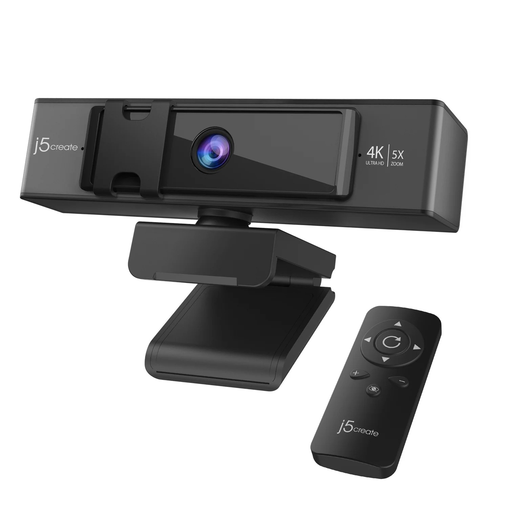
Consider this webcam when camera framing is the call limitation. Its title specifies 4K video, 5x digital zoom and a remote control; check the connection and any workplace certification requirements for your setup.
 No image available
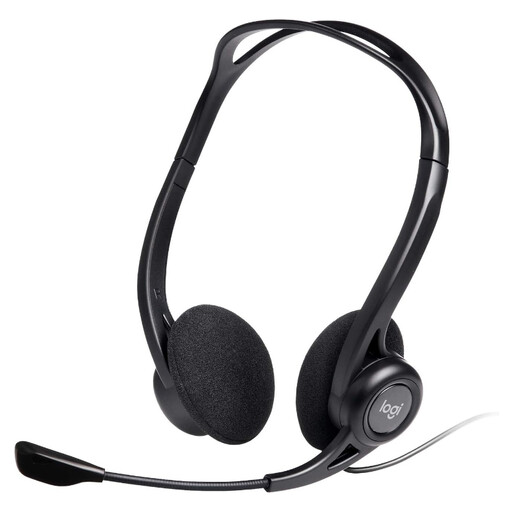
This wired headset is an option when listening and speaking on desk-based calls matter more than camera changes. Its name specifies inline controls and a noise-cancelling microphone; check the work laptop’s USB connection and whether you need Teams certification.
 No image available
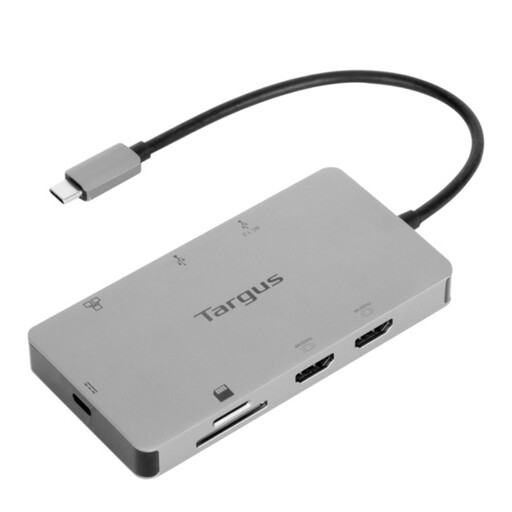
Consider a dock when reconnecting a laptop to home displays and peripherals is the recurring difficulty. This model’s name specifies dual HDMI connections and 100W power-delivery pass-through, but the intended display modes and charging depend on the laptop and setup. Check host-port support and whether the required external 100W+ adapter is included.
 No image available
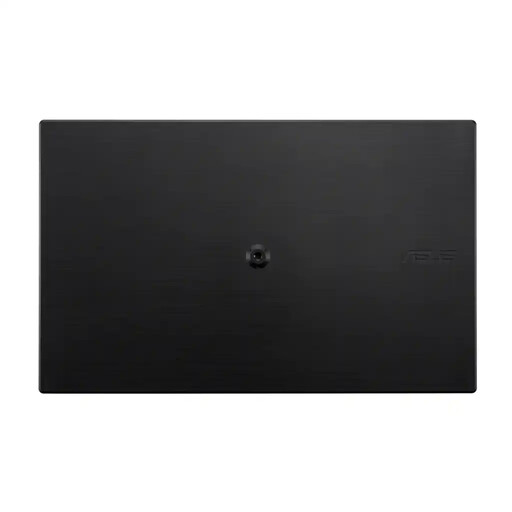
This portable display suits a need for extra screen space in more than one location. Its name specifies an IPS panel and USB Type-C connection; check the laptop’s USB-C video and power support, as well as the cable needed for your intended setup.
Not automatically. Consider one if the laptop camera cannot give you the framing, position or features needed for regular calls. Compare the exact model: Logitech’s UK listings include different resolutions and selected webcams with light correction or privacy shutters.
No. Check the laptop’s external-display support and host port, then the dock’s modes and both monitors’ inputs at the intended resolution and refresh rate. Apple says simultaneous display support varies with the Mac model and display configuration; Anker’s guidance for a USB-C dock requires DisplayPort Alt Mode for video.
DisplayLink offers a different display connection method, but check software access before buying a DisplayLink dock. DisplayLink Support says macOS requires Screen Recording permission for DisplayLink Manager to function properly; an employer-managed Mac may restrict installation or permissions.
It is worth checking when Teams is your required meeting platform and you want its supported call controls or plug-and-play operation. Microsoft describes those functions for Teams-certified devices, but you should still confirm the connection and permissions allowed on your work laptop.
Ask first if the purchase is intended to address a workstation concern or must work with an employer-managed laptop. The Health and Safety Executive advises assessing display screen equipment use at home and in the office where both apply; that process can identify the change your workstation needs.