Multi-room households
If calls, streaming or connected devices need Wi-Fi in several rooms, consider whether the network needs more than a fix for one isolated spot.


Check your broadband service and where the Wi-Fi fails before buying: Ofcom notes that home Wi-Fi cannot outperform the incoming broadband connection. A range extender can suit one weak area if it still receives a usable signal, while mesh is worth considering for several rooms; powerline or an Ethernet-fed access point may suit a remote room when the home’s wiring or a cable provides a route. Placement, electrical wiring, operating modes and the need for extra units all affect the choice.
If calls, streaming or connected devices need Wi-Fi in several rooms, consider whether the network needs more than a fix for one isolated spot.
If most rooms work but one frequently used bedroom or other area has a weak connection, a targeted option may be enough.
Walls or floors may interrupt the wireless path. Consider whether existing electrical wiring or an Ethernet cable can carry the connection to the room that needs it.
Consider it: when several rooms or floors need coverage and you can place powered nodes where they can connect to each other.
Trade-off: it uses multiple units, and their placement and connection still matter; check whether the system works with your existing router as intended.
Consider it: for one weak area if a suitable position between the router and that area still receives a usable signal.
Trade-off: it repeats the existing wireless connection, so placing it where the signal has already failed will not solve the upstream problem.
Consider it: when a remote room is hard to reach wirelessly, Ethernet is impractical and the home’s electrical wiring can carry the connection.
Trade-off: performance depends on the wiring and electrical conditions; make sure the destination unit broadcasts Wi-Fi if wireless devices need to connect there.
Consider it: when an Ethernet cable can reach the room that needs Wi-Fi and the device supports access-point mode.
Trade-off: running a cable and arranging power take effort; check how the device’s operating mode affects the existing router’s functions.
Start by checking the connection near the router, then match the route to the number of weak rooms and the connection paths available. Ofcom advises checking the incoming broadband service too, since in-home equipment cannot make that service faster.
| Concern | What to check when buying | Who this matters to |
|---|---|---|
| Coverage in several rooms | How many nodes are included, where they can be placed and how they connect to each other. | If I need Wi-Fi for calls, streaming or devices in several rooms, I want coverage beyond one router location. Around 33% of consumers prioritising several weak rooms share that need. |
| One weak room | Whether a powered extender position still receives a usable signal from the router. | If most rooms work but one bedroom or other regular-use area does not, I want a targeted fix rather than more equipment than the problem calls for. About 25% of consumers prioritising one isolated weak room share that need. |
| Remote room with no practical cable | For powerline, check the kit’s wiring requirements and whether its destination adapter provides Wi-Fi. | If walls or floors obstruct the wireless path and running Ethernet is impractical, I want another way to reach the room. Roughly 25% of consumers prioritising this situation share that need. |
| Room reachable by Ethernet | Confirm the cable route, available ports, device support for access-point mode and power needs. | If Ethernet can reach the room, I want to use that connection to add Wi-Fi there. Around 17% of consumers prioritising a cable-ready room share that need. |
If the incoming connection is slow or faulty, adding in-home Wi-Fi equipment will not make that service faster. Ofcom advises checking the broadband connection and possible service problems first.
Check your provider’s service status, then compare the connection near the router with the rooms where it fails.
An extender needs a usable signal from the router to repeat. If its own position has a weak upstream connection, the destination room may remain poorly served.
Test a powered position between the router and the weak area before settling on an extender.
Powerline performance depends on the home’s wiring and electrical conditions, and a receiving adapter that supplies Ethernet only does not add Wi-Fi to a room.
Check the kit’s circuit requirements and confirm that the destination adapter broadcasts Wi-Fi if wireless devices need it. Treat advertised link rates as specifications, not guaranteed room speeds.
Mesh systems, extenders and wired access points use different connection paths and operating modes. Those differences can affect compatibility and the functions retained on the existing router.
Decide how the remote room will connect first, then check the exact model’s supported modes and feature limitations.
Its consumer range includes mesh systems, range extenders and powerline adapters, so its products span several approaches to room-to-room coverage.
The Halo H80X V1 three-pack is a mesh example for households considering coverage across several rooms.
Some ASUS consumer routers can serve as Ethernet-fed access points, and supported AiMesh equipment can use wired connections between nodes.
The Magic powerline Wi-Fi range is relevant when a room needs a connection carried over household electrical wiring.
The eero 6+ is a mesh option to consider when distributing Wi-Fi across multiple rooms.
These Joybuy product choices cover mesh systems for several rooms and Wi-Fi range extenders for a targeted weak area. Check the number of units, connection options and the placement needed for your home.
 No image available
A three-unit mesh system for households considering Wi-Fi across several rooms.
The listed configuration is dual-band BE3600. The description identifies one router and two satellites, with a 2.5Gbps LAN port on each satellite.
Coverage varies with building construction, network conditions and connected devices.
 No image available
A range extender to consider for one weak area, provided it can be placed where it still receives a usable signal from the router.
The listing describes dual-band Wi-Fi, EasyMesh support, range-extender and access-point modes, and a 1Gbps Ethernet port.
 No image available
A three-unit mesh system for households looking to distribute Wi-Fi among several rooms.
The listing describes dual-band operation, a unified network and roaming between units. Node placement and the connection between units affect whether coverage reaches the intended rooms.
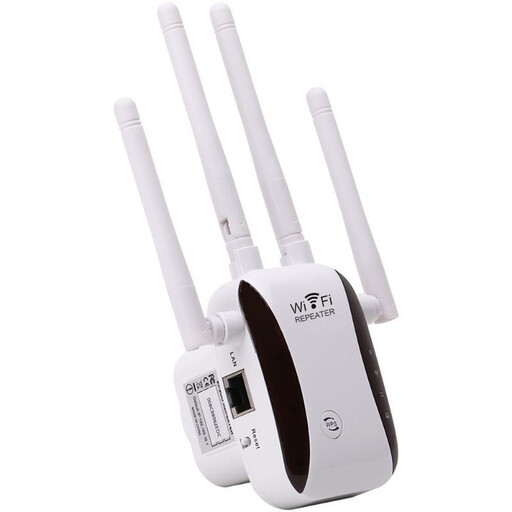 No image available
A Wi-Fi extender to consider for a targeted weak area, with placement chosen so it can receive the router’s signal.
The listing describes access-point, relay, router and client modes.
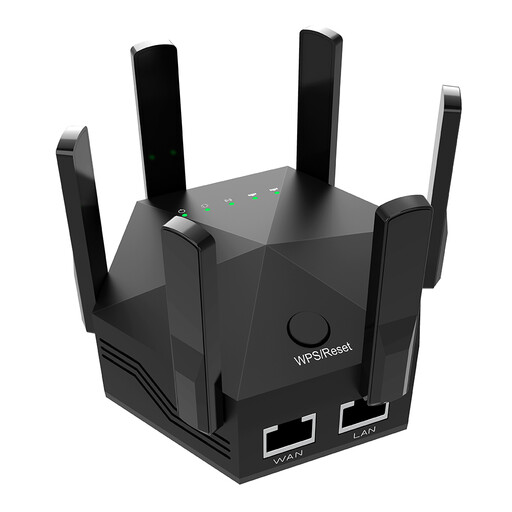 No image available
A Wi-Fi extender for a targeted weak area, provided it can be positioned where the router’s signal remains usable.
The listing specifies dual-band Wi-Fi, six adjustable antennas and two Ethernet ports.
Compare the connection near or directly connected to the router with the rooms where it fails, and check for an outage or other service problem. Ofcom’s postcode checker gives predicted availability and speeds; it does not measure Wi-Fi coverage inside your home.
Place it between the router and the weak area, where it still receives a usable router signal, then check the connection in the destination room. An extender placed in the dead zone has a poor signal to repeat.
No: check that the kit includes a destination adapter that broadcasts Wi-Fi, as some adapters provide Ethernet only. TP-Link distinguishes Wi-Fi-capable TL-WPA models from Ethernet-only TL-PA models; also check the particular kit’s circuit requirements and test it on your home’s wiring.
It can, so check the system’s router or bridge mode and the requirements of your broadband equipment before changing the setup. For example, eero says its Profiles feature is unavailable in bridge mode; that limitation should not be assumed for other brands.
No separate broadband service is described for the ASUS AP setup: a supported router in access-point mode connects by Ethernet to the primary router. Check the exact device’s AP support, cable route and power needs.