What should you check first?
Start by separating broadband speed from Wi‑Fi coverage, then choose equipment for the rooms and devices that need help.
| Priority | What to check | Your needs |
|---|
| Broadband connection |
Check availability at the address, then test speed over Ethernet at different times. Compare the results with the provider’s stated speeds; Ofcom notes that availability-checker estimates can differ from service at a property. |
I need to know whether the connection can cope when household activities overlap. In the UK Department for Science, Innovation and Technology’s Public Engagement Survey 2025/2026, 39% of adults who connected to the internet at home said its speed met their needs all the time. That measure does not identify whether any shortfall came from the line or in-home Wi‑Fi. |
| Coverage |
Compare reception near the router with the rooms where it is weak. Try a more central router position; if one location still cannot reach the needed rooms, consider mesh and plan node positions. |
Calls or streams need to remain usable in rooms away from the router, not just beside it. |
| Fixed devices |
Check whether a cable can reach a computer or console. For mesh nodes, check model-specific Ethernet-backhaul support and wiring rules; TP-Link says Deco’s wired backhaul avoids using Wi‑Fi for traffic between connected nodes. |
For a desk or gaming setup that stays put, I would rather use a practical wired connection than rely on reception in that room. |
| Setup mode |
Check compatibility with the existing modem or gateway and decide which device will route the network. TP-Link describes Deco access-point mode for keeping an existing router in charge, and router mode for making Deco the primary router. |
I want to keep my existing router if it still serves its purpose, without setting up the new mesh equipment in the wrong mode. |
| Wired ports |
Count nearby devices needing Ethernet and check their port requirements. An unmanaged switch adds wired ports; it does not extend Wi‑Fi or raise broadband speed. |
Several fixed devices need connections near the router, while wireless coverage can be dealt with separately. |
Joybuy options for mesh and wired ports
These options cover mesh systems for Wi‑Fi across rooms and switches for connecting more nearby wired devices. Choose between those jobs after checking the broadband line and the devices or rooms causing difficulty.
 No image available
TP-Link Deco BE22 BE3600 Wi‑Fi 7 Mesh System, 3-Pack
Consider this three-unit mesh system when Wi‑Fi is weak beyond the main router’s room. The product name specifies BE3600 and Wi‑Fi 7; check node placement, Ethernet connections and how it will work with your existing router before buying.
View on Joybuy
 No image available
NETGEAR Orbi 370 RBE373 BE3600 WiFi 7 Mesh System, 3-Pack, White
This three-unit mesh option is relevant when one router location cannot reach the rooms that need Wi‑Fi. Its product name states dual-band WiFi 7 and 2.5Gbps Ethernet; confirm the intended modem or gateway setup and the cable connections needed for fixed devices.
View on Joybuy
 No image available
TP-Link Deco BE65 BE9300 Tri-Band Wi‑Fi 7 Mesh System, 3-Pack
This three-pack is another mesh option for rooms that a single router cannot reach reliably. The product name identifies tri-band Wi‑Fi 7 and BE9300; check its Ethernet ports, backhaul options and setup with your existing router against the connections you plan to use.
View on Joybuy
 No image available
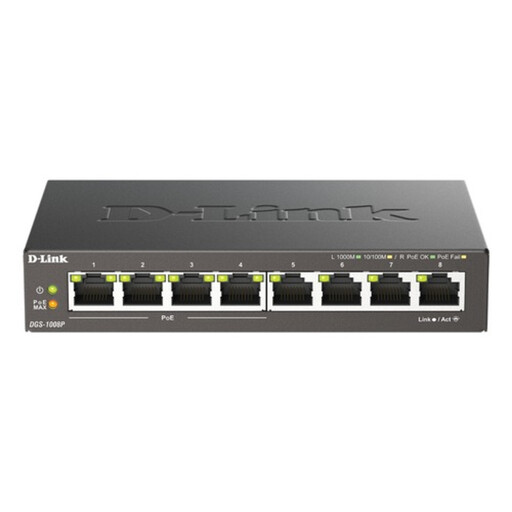
D-Link 8-Port Gigabit PoE Unmanaged Desktop Switch
Use a switch when several nearby devices need wired connections, not to extend Wi‑Fi coverage. This product name specifies eight Gigabit ports and Power over Ethernet (PoE); check the PoE requirements of any device you intend to power through it.
View on Joybuy
 No image available
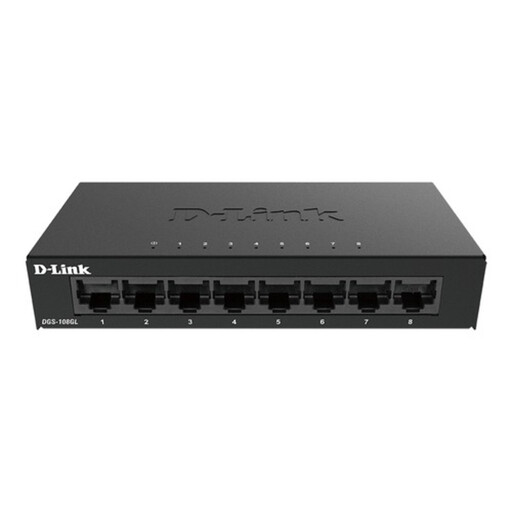
D-Link DGS-108GL 8-Port Gigabit Unmanaged Desktop Switch
This switch is for adding Ethernet connections to several fixed devices near a cable route. Its product name specifies eight Gigabit ports and unmanaged operation; devices needing wireless coverage require a different solution.
View on Joybuy
Common questions
How can I tell whether broadband or Wi‑Fi needs attention?
Test the connection through Ethernet before buying Wi‑Fi hardware. Check availability at your address and compare wired speeds at different times with the provider’s stated speeds. Ofcom advises using an Ethernet-connected device for a clearer speed test because Wi‑Fi can slow the connection between the router and the device.
When should I consider mesh rather than one replacement router?
Consider mesh when Wi‑Fi is weak in rooms or on floors that one well-placed router does not reach. If reception is poor only because of the current router’s position, try improving placement first. Neither mesh nor a replacement router increases the speed delivered by a slow broadband line, as Ofcom’s Wi‑Fi guidance makes clear.
Is Ethernet worth using for a gaming PC or work computer?
Yes, where a practical cable route exists. Ofcom advises connecting a computer directly to the router by Ethernet for a faster, more reliable connection than Wi‑Fi; a wired test also helps distinguish a Wi‑Fi problem from a broadband-line problem.
Can mesh work alongside an ISP-supplied router?
Yes, if the chosen system supports the intended setup. TP-Link describes Deco access-point mode for keeping the existing router in charge of network functions, and router mode for making Deco the primary router. Check the exact model’s connection and operating-mode instructions before installation.
Will an unmanaged switch help several wired devices?
An unmanaged switch can add Ethernet ports when several devices need wired connections nearby. For example, NETGEAR specifies five 10/100/1000 Mbps ports and plug-and-play setup for its GS305v3. Count the ports and check device requirements first; a switch will not extend Wi‑Fi coverage.


