Check the broadband connection before replacing home Wi-Fi equipment: Ofcom notes that Wi-Fi cannot outperform the underlying service. If coverage fails across several rooms, consider mesh; for one dead zone, an extender needs a usable signal where it is placed. Wire fixed devices where practical, consider a router replacement when the router itself appears to be the problem, and use powerline only after checking the intended sockets meet the kit’s circuit requirements.
Who is this for?
Homes sharing one connection
If streaming, downloads and video calls happen at the same time, establish whether slowdowns affect the broadband connection or particular Wi-Fi devices before buying more equipment. Ofcom identifies simultaneous, data-heavy use as a factor to check.
Homes with distant-room dead zones
If service is satisfactory near the router but unreliable in other rooms or across floors, compare a mesh system with an extender that can receive a usable signal, or consider a wired connection where cabling is practical.
Households with fixed PCs or consoles
A stationary gaming or work device can use Ethernet instead of a wireless link when a cable can reach it. Compatible mesh nodes can also use Ethernet for the connection between nodes, as described in TP-Link’s Deco setup guidance.
What should you check before choosing?
Start with where the connection slows down, then match the equipment to the affected rooms and devices.
| Priority | What to check | Your needs |
|---|
| Broadband or Wi-Fi |
Compare performance near the router with the problem rooms under similar conditions. Note whether slowdowns affect everyone or coincide with heavy use; Ofcom says Wi-Fi cannot outperform the broadband service. |
I want to know whether new home equipment could address the problem, rather than assuming a weak broadband service is a Wi-Fi fault. |
| Room coverage |
Identify how many rooms need coverage and whether an extender could receive a usable signal between the router and one weak area. For several gaps, check mesh-node placement and the path back to the main router. |
Calls or streaming need to work away from the router, not just beside it. |
| Router replacement |
Check whether problems also occur close to the existing router. Before replacing provider equipment, confirm the broadband hand-off, required router mode and provider support arrangements. |
I would consider a different router if the present one appears to be the bottleneck, but not expect one box to cure distant-room dead zones. |
| Fixed devices |
Check cable routes and available router or switch ports. For wired mesh nodes, confirm that the exact system supports Ethernet backhaul and follow its connection instructions. |
A stationary PC, console or workstation could use a cable so it does not depend on a Wi-Fi link. |
| Powerline setup |
Confirm the intended sockets meet the kit’s circuit requirements. TP-Link says its powerline adapters must be on the same electrical circuit and that the advertised link rate is not actual transfer speed. |
If running Ethernet is impractical, I need to check whether powerline can work between the rooms involved. |
| Wireless equipment |
Check compatibility with the existing network and request conformity information appropriate to delivery in Great Britain or Northern Ireland. UK government guidance describes distinct applications of the Radio Equipment Regulations 2017 in those destinations. |
I need equipment that can be installed with my existing connection and supplied with information appropriate to where it will be delivered. |
Buying pitfalls
-
Buying mesh before checking the broadband connection
A mesh system cannot raise Wi-Fi performance beyond the underlying broadband service, as Ofcom explains. If the connection is poor even near the router, extra nodes may leave the main problem unchanged.
Compare the problem rooms with a location near the router, note when slowdowns occur and check for a provider fault before choosing an in-home upgrade.
-
Putting an extender in the room with no usable signal
An extender has to receive the router’s signal before it can repeat it. Obstacles can still affect the link to the extender.
For one weak area, place the extender where it can still receive a usable signal; consider mesh or a wired route if several rooms are affected.
-
Treating a powerline link rate as delivered speed
TP-Link says actual powerline transfer speed depends on the electrical environment. Its guidance also requires the intended adapters to be on the same circuit.
Check the socket locations and circuit layout before buying, and check compatibility when adding an adapter to an existing kit.
-
Replacing provider equipment without an integration plan
A retail router still needs to work with the broadband hand-off and the rest of the home network. Changing provider equipment may also change the support available for that setup.
Confirm the existing router or ONT’s role, the replacement’s WAN connection and operating mode, and the provider’s support arrangements before purchase.
Relevant brand references
TP-Link
TP-Link documents mesh, range-extender and powerline approaches that are relevant when comparing ways to reach weak rooms.
- TP-Link’s Deco guidance describes Ethernet backhaul for compatible systems.
- Its powerline guidance requires adapters on the same electrical circuit; check backhaul and kit requirements for the exact models.
NETGEAR
NETGEAR presents Nighthawk routers and Orbi mesh systems as separate home Wi-Fi routes.
- NETGEAR describes wired and wireless backhaul arrangements for Orbi systems.
- Check the particular model’s ports and backhaul options rather than assuming every system has the same connections.
BT
BT’s Complete Wi-Fi and Whole Home Wi-Fi documentation is relevant to households considering an extension route associated with their existing setup.
- BT documents disc placement and wired connection options for specified equipment.
- Check which equipment works with the existing hub and package; one BT setup should not be assumed to apply to another.
Joybuy wired-network options
These switches are options for adding Ethernet ports to a home network. They serve the wired-device route; a switch alone does not extend Wi-Fi coverage.
 No image available
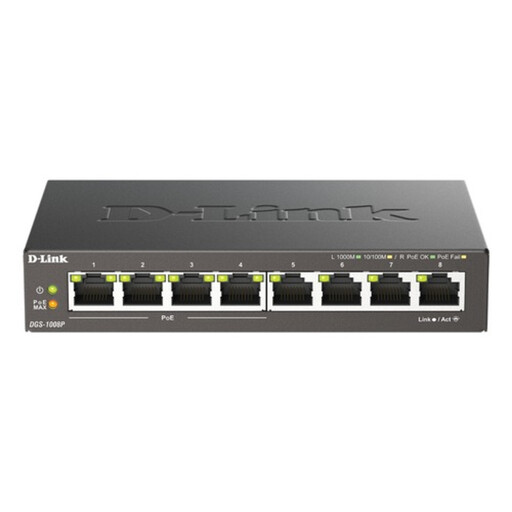
D-Link 8-Port Gigabit PoE Unmanaged Desktop Switch
For a setup needing more wired connections, this eight-port Gigabit switch also has four PoE ports for compatible powered devices. It is not a Wi-Fi access point; check a device’s PoE requirements against the switch’s port and total power limits.
View on Joybuy
 No image available
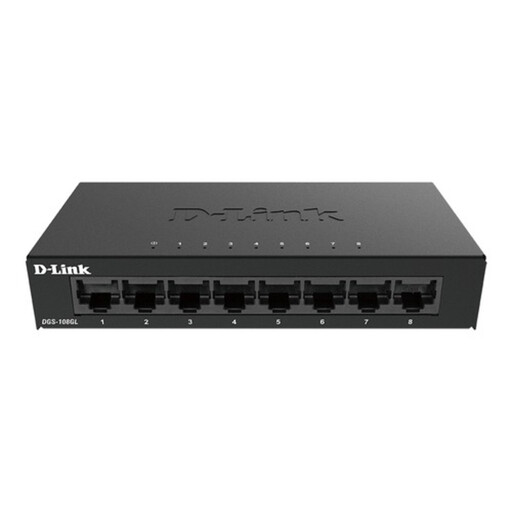
D-Link DGS-108GL 8-Port Gigabit Unmanaged Desktop Switch
This eight-port Gigabit switch can add wired connections for fixed devices. It does not provide Wi-Fi coverage, so check that cabling can reach the intended location and connect back to the existing network.
View on Joybuy
 No image available
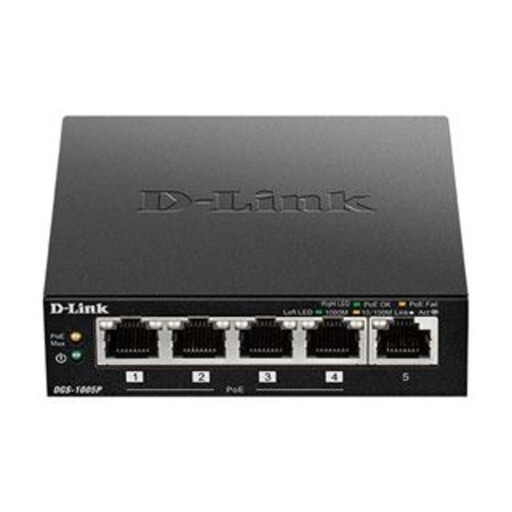
D-Link DGS-1005P 5-Port Desktop Gigabit PoE+ Switch
This five-port Gigabit switch provides wired connections, including four PoE+ ports for compatible devices. It does not create a Wi-Fi signal; check connected devices’ PoE needs against the per-port and total power limits.
View on Joybuy
Common questions
How can I tell whether the problem is broadband or Wi-Fi?
Compare the connection near the main router with the rooms where it is poor, and note whether everyone slows down at the same time. Ofcom says Wi-Fi cannot outperform the broadband service; if the connection is poor even near the router, check for a provider fault before assuming mesh will help.
When should I consider mesh instead of an extender?
Consider mesh when several rooms or floors have recurring coverage gaps that one router cannot reach reliably. An extender is a more targeted option for one weak area, provided it can be placed where it still receives a usable signal from the router.
Will powerline adapters work between any two rooms?
Do not assume they will. TP-Link says its adapters must be on the same electrical circuit, and that actual transfer speed depends on the electrical environment rather than matching the advertised link rate.
Is Ethernet worth considering for gaming or home working?
Ethernet is worth considering for a fixed device when a cable can be routed to it, because that device no longer depends on a Wi-Fi link. On compatible mesh systems, Ethernet can also carry traffic between nodes; TP-Link’s Deco guidance notes that this avoids using wireless bandwidth for that inter-node connection.


