What to consider when buying
Compare wired and wireless performance before choosing a route: a coverage product will not address every broadband, modem or router problem.
Ethernet or a wired access point
Consider it when: the main need is a reliable connection at a fixed device and you can run a cable.
Trade-off: a direct cable connects that device; room-wide Wi-Fi from an access point needs additional equipment.
Mesh Wi-Fi system
Consider it when: several rooms need wireless access from interconnected units.
Trade-off: unit placement matters, and wired backhaul requires a cable route; access-point mode can remove some system features.
Wi-Fi extender
Consider it when: there is a local weak-signal area and a suitable position for the extender between the router and that area.
Trade-off: wireless repeating still relies on the extender receiving the router’s signal; access-point mode instead requires an Ethernet feed.
Powerline networking
Consider it when: you want to reach another room without installing a long Ethernet run.
Trade-off: the connection uses your home’s electrical wiring, so performance depends on the installation and sockets.
Replacement Wi-Fi router
Consider it when: checks point to the existing router’s capabilities or configuration as the limitation.
Trade-off: confirm the upstream connection, authentication requirements and provider-linked services before replacing a hub.
| Concern |
What to check when buying |
Who this matters to |
| Dependable calls at one desk |
Compare wired and wireless results; check whether the working device can use Ethernet. |
If calls mainly happen at one fixed desk, I would prioritise a dependable connection there over upgrading every room. Around 28% of consumers put fixed-position reliability first. |
| Coverage across several rooms |
Map the rooms that need access and check possible unit positions and cable routes. |
When several rooms need wireless access, I would consider how interconnected units could be placed around the home. Around 28% of consumers make multi-room coverage their primary concern. |
| Reaching a room without new cabling |
For powerline, check the manufacturer’s socket and circuit requirements and test the intended sockets. |
If installing a long Ethernet run is impractical, I would look for a route that avoids new cabling while checking what the home’s wiring can support. Around 17% of consumers prioritise avoiding a new cable run. |
| Keeping provider services working |
Identify the existing hub, upstream connection, authentication needs and any phone service before changing modes or equipment. |
If my phone or other provider-linked service relies on the existing hub, I would check how an upgrade affects that setup before changing it. Around 16% of consumers prioritise retaining provider integration. |
| A limited change for one weak room |
Try a better router position first; check whether an extender can receive a suitable signal or use a cable-fed access-point mode. |
If just one area is affected, I would try to solve that problem without redesigning the whole network. Around 11% of consumers prioritise a minimal one-room change. |
Joybuy product options
These Joybuy options cover mesh Wi-Fi, a local Wi-Fi extender, a replacement router and powerline networking for improving connectivity in distant rooms.
 No image available
NETGEAR Orbi 370 RBE373 WiFi 7 Mesh System, 3-Pack, Dual-Band BE3600, White
The three-unit mesh system is described as providing coverage across the home, making it an option to consider when several rooms need wireless access.
The pack contains one router and two satellites, each with a 2.5Gbps LAN port. The router also has a 2.5Gbps WAN port.
An existing modem or gateway and a high-speed internet connection are required. NETGEAR Armor features may require account registration and a paid subscription after any included trial period.
Joybuy
 No image available
TP-Link RE220BE BE3600 Wi-Fi 7 Range Extender
This extender is an option for a local weak-signal area if it can be placed within range of the existing router; the listing recommends a position halfway towards the weak area.
It supports range-extender and access-point modes and has one 1 Gbps LAN port. Access-point mode requires an Ethernet feed; EasyMesh roaming requires a compatible router.
Joybuy
 No image available
TP-Link Deco BE22 BE3600 Whole Home Mesh Wi-Fi 7 System, 3-Pack
This three-unit Deco mesh system is an option to consider when several rooms need wireless access.
The listing describes dual-band Wi-Fi 7 and wired or wireless backhaul. An Ethernet cable is included.
Joybuy
 No image available
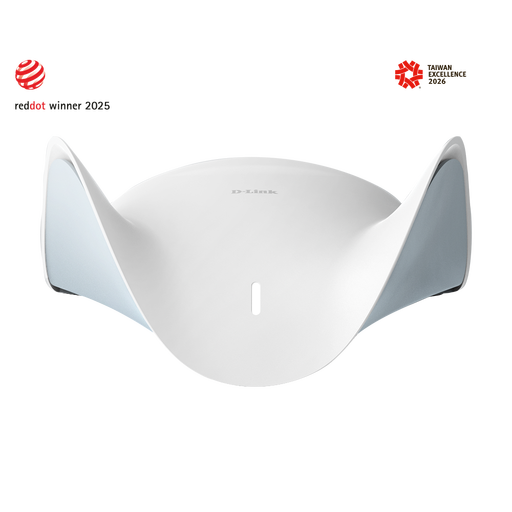
D-Link BE9500 Wi-Fi 7 Smart Mesh Router M95
This router is an option to consider when replacing the central device fits the diagnosis and the existing provider setup can be accommodated.
It is tri-band, with a 2.5-Gigabit WAN port and three 2.5-Gigabit LAN ports. Mesh expansion requires compatible AQUILA PRO AI routers or extenders.
Joybuy
 No image available
TP-Link TL-WPA8631P KIT AV1300 Gigabit Powerline Wi-Fi Extender Kit
This kit uses powerline networking to provide a connection in another room, with destination Wi-Fi for devices that need wireless access.
The Wi-Fi unit has dual-band 802.11ac Wi-Fi, three Gigabit Ethernet ports and a passthrough socket. Plug the adapters directly into wall outlets, not power strips or extension cords.
The stated rate of up to 1300 Mbps is an advertised powerline rate, not actual throughput. TP-Link’s basic setup requires at least two adapters on the same electrical circuit.
Joybuy
Frequently asked questions
What should I test before buying Wi-Fi equipment?
Compare Ethernet at the router with Wi-Fi nearby and in the affected room, under similar conditions where practical. Repeat at different times; if wired results are also poor, investigate the service, modem, router or test device before treating the problem as distant-room coverage.
Can I keep my provider’s router and add mesh?
Some documented configurations allow this: Deco access-point mode and eero bridge mode let the existing router continue handling network services. Check the added system’s mode-specific feature limits and follow its wiring requirements.
Will all mesh features work if I keep my existing router?
Not necessarily. TP-Link documents some unavailable Deco features in access-point mode, while eero documents restrictions in bridge mode. Check whether the exact features you want work in the operating mode you plan to use.
What should I check before using powerline adapters?
For TP-Link’s basic powerline setup, use at least two adapters on the same electrical circuit and test the sockets where you intend to use them. Plug the adapters directly into wall outlets rather than power strips or extension cords, and treat the advertised rate as distinct from actual throughput.
Does weak Wi-Fi mean I need to change BT Digital Voice equipment?
BT says Digital Voice is not affected by Wi-Fi strength and documents a setup using the Smart Hub, which must remain switched on and connected to broadband. Confirm a supported phone-service arrangement before removing or replacing that hub.


