Who this suits

Multi-room households with recurring dead zones

You have usable Wi-Fi near the router but unreliable signal in bedrooms, upper floors or distant rooms. Mesh coverage, router placement and the option of wired backhaul are key decision points. Ofcom and TP-Link’s UK guidance discuss these setup considerations.

Homes with many simultaneous users and devices

You need stable connections while several people stream, video-call, game, work or use smart-home devices. First distinguish weak Wi-Fi coverage or congestion from a broadband-service limitation, then consider whether newer router or mesh hardware suits the household.

Households fixing one weak room

You mainly need to reach one weak area and can place equipment between the router and that area. An extender can be suitable when it matches the existing router and network capabilities, but it cannot remedy inadequate broadband or a poorly performing source router. NETGEAR’s UK setup guidance makes this distinction.

What to prioritise before buying

Check the existing connection first

Choose this first: when devices close to the router are also slow or the connection drops throughout the home.

Keep in mind: a postcode availability result does not diagnose room-by-room Wi-Fi conditions, and a new broadband service alone may not overcome poor router placement.

Mesh Wi-Fi

Choose this when: several rooms or floors need one joined-up network and household members move around while connected.

Keep in mind: the first mesh node needs a physical connection to the modem, router or internet cable, and larger homes may need more nodes.

Extender or replacement router

Choose this when: one room needs a targeted signal extension, or the current router is old, frequently disconnects or lacks the capacity the household needs.

Keep in mind: an extender relays the existing signal, while a retail router may require provider-specific configuration and support checks.

Priority What to check Your needs
Coverage beyond the router room Check where signal falls away, whether the router can be moved, and whether Ethernet cabling is available for mesh nodes. For several weak rooms, compare a multi-node mesh arrangement rather than relying on one relay point. I need a usable connection in bedrooms, upstairs rooms or distant areas, not only beside the router.
Performance with many devices Test devices near the router before blaming coverage. Compare the stated network features, wired backhaul options and Ethernet ports where several people use demanding services at once. Streaming, video calls, gaming and smart-home devices need to coexist without one weak room becoming the household bottleneck.
Broadband service versus Wi-Fi Check provider fault information, recurring dropouts and service availability for the postcode. Ofcom says Wi-Fi cannot outperform the underlying broadband service. If the whole home is slow, including devices close to the router, I want to rule out the incoming service before buying extra hardware.
Compatible setup Confirm the modem, ONT or provider-router arrangement; decide whether the new equipment will operate in router or access-point mode; and check extender or mesh compatibility with the existing network. I want a setup that can connect to my current broadband equipment without avoidable configuration or support problems.

Common buying pitfalls

  • Treating every slow connection as a Wi-Fi coverage problem

    A mesh system, extender or replacement router cannot make the incoming broadband service faster. If the connection is slow throughout the home, hardware may leave the main problem unresolved.

    Test close to the router, check the provider’s fault-status information, record recurring dropouts and use Ofcom’s postcode checker before choosing a hardware route.

  • Placing an extender inside the dead zone

    An extender relays the router signal. If its connection back to the router is weak, it is extending an already poor connection.

    Place the extender between the router and the weak room, then confirm compatibility with the existing router and network standard.

  • Buying mesh without checking topology and backhaul

    A mesh setup may need more than its starter pack for full coverage, and unsuitable router-mode wiring can create a network loop. Wireless backhaul can also be less consistent in homes with thick walls or long distances between nodes.

    Plan node locations, confirm where the first node will be wired, choose router or access-point mode deliberately, and use Ethernet backhaul where existing cabling makes it practical.

    A larger installation may require additional mesh nodes, Ethernet cabling or a network switch.

  • Assuming higher advertised Wi-Fi numbers guarantee faster internet

    Advertised Wi-Fi rates, coverage areas and device figures are commonly manufacturer specifications under stated conditions. Layout, building materials, client devices, source-router quality, broadband speed and backhaul all affect results at home.

    Compare the exact model’s supported modes, Ethernet ports, backhaul options and compatibility with existing equipment. Treat claimed maximum rates as a specification comparison, not a forecast of delivered broadband speed.

Relevant brand references

TP-Link

Relevant for households comparing Deco whole-home mesh systems, DSL-integrated mesh hardware and extender-style solutions. TP-Link’s UK documentation covers adding Deco to an existing router in router or access-point mode.

  • TP-Link states that Deco nodes can use wired or wireless connections, and that Ethernet backhaul can improve stability while leaving more wireless capacity for devices.
  • The main Deco unit must be physically connected to the modem, router or internet cable; it should not be treated as a wirelessly connected repeater.

NETGEAR

Relevant for a targeted weak-room fix using wall-plug or desktop extenders, as well as wider-coverage mesh options.

  • NETGEAR’s UK guidance places an extender roughly midway between the main router and the area needing better coverage.
  • An extender must suit the existing router and network capabilities, and it does not improve the source router’s fundamental capability.

ASUS

Relevant for households with compatible ASUS routers that want to reuse hardware in an AiMesh setup, or add an extender that can participate in AiMesh.

  • ASUS says AiMesh can connect compatible ASUS routers into one whole-home network and may allow an older compatible router to become an additional node.
  • Check compatible models, firmware support and cable topology before planning an AiMesh installation. ASUS notes that Ethernet backhaul is setup-dependent.

Joybuy product options

Joybuy product options for households considering a multi-node mesh system for broader home coverage, plus one extender for a targeted weak area.
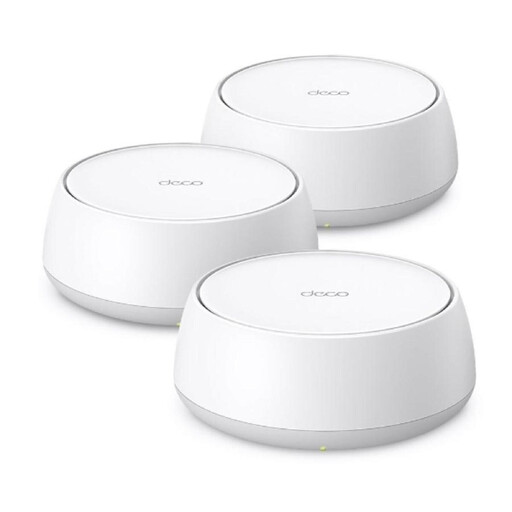
TP-Link Deco BE22 3-Pack BE3600 Whole Home Mesh Wi-Fi 7 System

TP-Link Deco BE22 3-Pack BE3600 Whole Home Mesh Wi-Fi 7 System

A three-unit mesh option for several rooms or floors that need one network with roaming.

The product name identifies a BE3600 Wi-Fi 7 whole-home system; the listing states two 1Gbps Ethernet ports per unit, combined wired and wireless backhaul, WPA3, a private IoT network and app management.

One unit needs a physical connection to the modem or existing router. Actual coverage, speed and device handling depend on layout, client devices, broadband service and backhaul conditions.

Joybuy
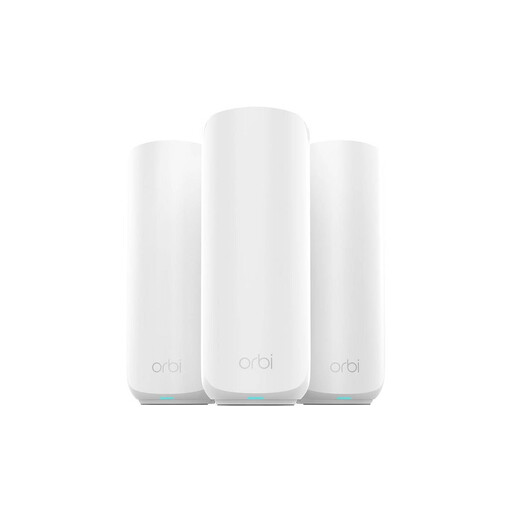
NETGEAR Orbi 370 RBE373 WiFi 7 Mesh System 3-Pack

NETGEAR Orbi 370 RBE373 WiFi 7 Mesh System, 3-Pack

This router-and-two-satellite mesh set suits a household trying to cover multiple weak areas with a single mesh network.

The listing states dual-band BE3600 WiFi 7, 2.5Gbps Ethernet on the router and a 2.5Gbps LAN port on each satellite, plus guest and IoT networks, WPA3 and automatic updates.

An existing modem or gateway and a high-speed internet connection are required. The stated coverage and wireless performance vary with installation, building materials, traffic and connected devices.

Joybuy
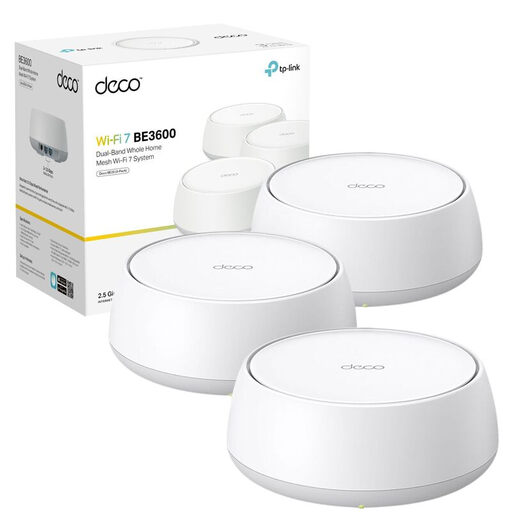
TP-Link Deco BE25 Whole Home Mesh WiFi 7 System 3-Pack

TP-Link Deco BE25 Whole Home Mesh WiFi 7 System, 3-Pack

A three-pack mesh choice for multiple weak rooms that need roaming between additional Deco units.

The listing identifies WiFi 7, 2.5Gbps Ethernet ports, WPA3, VPN-router functionality, Deco app management and smart-home voice-control support.

One Deco unit must connect to the modem by Ethernet. Check the broadband hardware, placement plan and exact-model backhaul support if wired links between units are important.

Joybuy
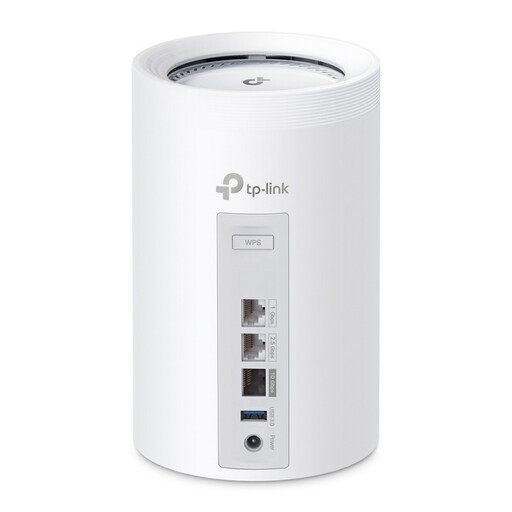
TP-Link Deco BE65 BE9300 Tri-Band Wi-Fi 7 Whole Home Mesh System 3-Pack

TP-Link Deco BE65 BE9300 Tri-Band Wi-Fi 7 Mesh System, 3-Pack

This three-unit mesh system is aimed at busy homes with coverage gaps in more than one area.

The listing states tri-band Wi-Fi 7, BE9300 combined wireless speed, 320MHz channels, 4K-QAM, parental controls, guest access and Deco app management. It also describes a dedicated backhaul band.

Coverage, capacity and speed depend on home layout, source broadband, client devices and backhaul conditions. Confirm the modem or ONT connection arrangement and port configuration before purchase.

Joybuy
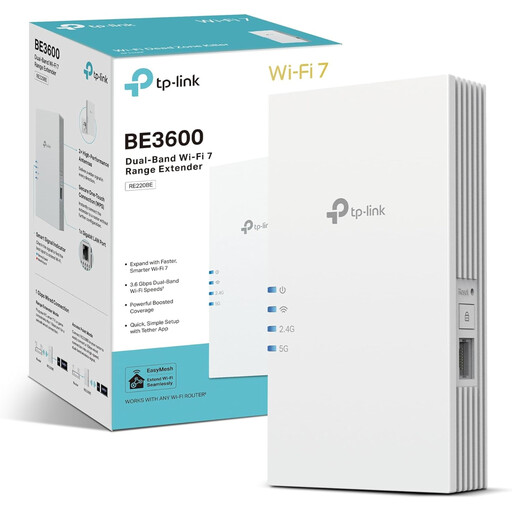
TP-Link RE220BE BE3600 Wi-Fi 7 Range Extender

TP-Link RE220BE BE3600 Wi-Fi 7 Range Extender

A targeted option for one reachable weak area rather than a whole-home multi-node redesign.

The listing states Wi-Fi 7, EasyMesh, smart roaming, range-extender and access-point modes, MLO, a 1Gbps Ethernet port, WPA3 and app or web management.

Place it between the router and the weak area, where it can still receive a usable source signal. EasyMesh roaming depends on an EasyMesh-compatible router, and the extender cannot upgrade the incoming broadband service or the source router’s core capability.

Joybuy

Frequently asked questions

Should I buy a Wi-Fi product before checking my broadband service?

Not necessarily. Ofcom says Wi-Fi cannot outperform the broadband service, and slow performance when many people connect can be caused by the incoming service. Check whether devices near the router are also slow, review the provider’s fault status and use Ofcom’s postcode checker before assuming a Wi-Fi product is the only answer.

Where should an extender be placed?

Place it roughly midway between the router and the weak area, where it can still receive a usable router signal. NETGEAR’s UK guidance also advises checking that the extender supports the current router and network capabilities; it can extend a signal but cannot upgrade the broadband service or the old router’s fundamental capability.

Can a mesh system connect wirelessly to my current router like an extender?

Not for the TP-Link Deco arrangement covered in TP-Link’s UK support guidance. The main Deco unit must be physically connected to the modem, router or internet cable; other nodes may then communicate through wireless or Ethernet backhaul. Choose router mode or access-point mode according to which device should manage the network.

When is Ethernet backhaul worth using?

It is particularly relevant when Ethernet cabling already exists, or when thick walls, long distances or several floors make wireless links harder. TP-Link and ASUS describe wired backhaul as leaving more wireless bandwidth for end devices, but it does not promise a particular delivered broadband speed.

What UK compliance information should I check before buying Wi-Fi hardware?

For Great Britain, the Office for Product Safety and Standards states that radio equipment placed on the market must meet the Radio Equipment Regulations 2017’s essential requirements for safety, electromagnetic compatibility and efficient use of spectrum. Consumer-connectable products within scope are also subject to baseline product-security requirements under the PSTI regime; Northern Ireland has distinct regulatory treatment, so check the product documentation and seller information for the delivery location.