Households with weak Wi-Fi in several rooms
If internet works near the router but drops off across rooms or floors, wall construction, node placement and the available backhaul can shape the choice.


After checking the broadband service, keep a working provider router and add the smallest-scale solution that addresses the local problem: an extender for one reachable weak spot, mesh for several rooms, or a wired option for a fixed device. Consider replacing the router only if nearby Wi-Fi is also limiting performance and your provider confirms the connection and setup requirements; Ofcom notes that Wi-Fi cannot outperform the broadband service feeding it. Wall construction, usable signal at a repeater or mesh node, Ethernet access and household wiring all affect which option is practical.
If internet works near the router but drops off across rooms or floors, wall construction, node placement and the available backhaul can shape the choice.
When work or study calls overlap with streaming and other connected devices, check whether the limiting link is the broadband service, router or in-home Wi-Fi. Ofcom advises that Wi-Fi cannot outperform the broadband service feeding it.
For a desk or entertainment area, the practical options depend on whether Ethernet can reach the room or powerline networking can work over the household wiring.
Check the incoming service and compare a wired connection near the router with Wi-Fi in the affected rooms. Then decide whether you need broader coverage, a single-room fix, a dependable wired connection or a change to the router itself.
| Concern | What to check when buying | Who this matters to |
|---|---|---|
| Coverage across several rooms | Map the weak rooms and possible node positions; check whether Ethernet backhaul is practical for the system. | If I need a reliable connection across floors or rooms, I want nodes to reach useful positions without relying on a weak wireless link. Around 29% of consumers put multi-room coverage first. |
| Several people online at once | Compare wired and Wi-Fi performance during typical use; check the broadband service before paying for higher Wi-Fi specifications. Ofcom recommends checking the service and how the connection is being used. | When calls, study and streaming overlap at home, I want to know whether the service or the local network is the bottleneck before upgrading equipment. Around 24% of consumers prioritise simultaneous use. |
| A dependable link in one room | Check the Ethernet route and available ports; if considering powerline, test the intended sockets because wiring and circuit conditions can affect the link. | If one desk or device needs a steady connection, I would rather check a direct wired route than buy equipment for whole-home roaming. Around 23% of consumers focus on a fixed-room connection. |
| One weak Wi-Fi spot | For a repeater, check for a socket where the existing router signal is still usable; confirm compatible router support for any coordinated mesh feature. | If only one area loses Wi-Fi, I want to extend a usable signal without setting up several nodes. Around 12% of consumers prioritise a single weak spot. |
| Router compatibility and support | Check the provider hub, connection arrangement, any phone service and features affected by access-point or bridge mode. For mains-powered equipment, check the supplied plug and input rating. | If I need to keep my provider’s connection or home-phone arrangement working, I want to confirm the exact setup before changing router modes or replacing the hub. Around 12% of consumers prioritise compatibility and support. |
Wi-Fi equipment cannot improve the incoming broadband service itself, so a faster-rated mesh system may leave the original fault unchanged. Ofcom advises checking the service and comparing wired and wireless connections.
Check the provider’s service status and compare a wired connection near the router with Wi-Fi in the rooms causing trouble before choosing coverage equipment.
Walls and node placement affect Wi-Fi, while electrical wiring and circuit conditions affect powerline links. Product ratings do not establish the connection you will get in a particular room.
Plan around the affected rooms and available backhaul, and test powerline adapters in the intended sockets.
A different layout may require extra nodes, a cable run or another solution.
Access-point and bridge modes can change which controls remain available. TP-Link and eero describe feature changes for their respective supported setups.
Decide which device will route the network, then check the exact model’s features in the mode you plan to use.
Provider support and hub functions can vary by model and operating mode, and changing equipment may require reconfiguration.
Identify your hub, broadband connection and any home-phone service first; ask your provider about a supported upgrade or add-on arrangement.
Its product lines include mesh systems, range extenders and powerline kits, which serve different in-home networking routes.
ZenWiFi XD5 is a mesh option to compare when considering a multi-node layout; standalone routers serve a different setup.
The Orbi range includes multi-node systems for households comparing mesh arrangements.
Its mesh systems can be compared by gateway arrangement, wired-node options and operating mode.
The UniFi U6+ is a wired access point to consider where Ethernet and a more involved setup are practical.
These choices cover mesh, a Wi-Fi range extender and powerline networking for improving in-home connectivity. Match the route to the rooms affected, the available wiring and your existing router arrangement.
 No image available
A three-unit mesh option for a multi-room setup; the product listing says an existing modem or gateway is required.
 No image available
A range-extender option for one weak area; place it where it can still receive the router’s signal. Its EasyMesh roaming feature requires a compatible router.
 No image available
A three-pack mesh option for a multi-room setup; consider whether wireless or wired backhaul can work in the rooms where nodes are needed.
 No image available
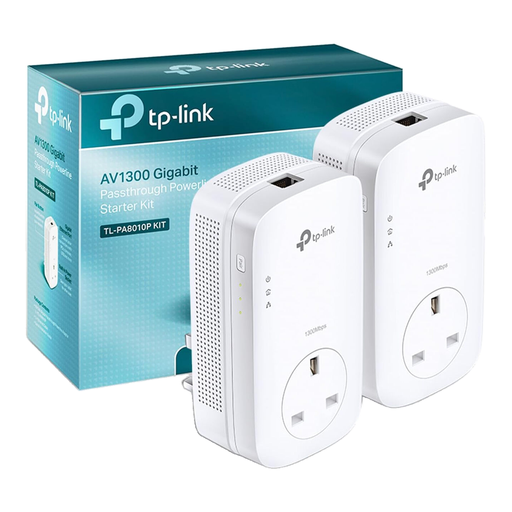
Consider this powerline and Wi-Fi route when extending a cable is impractical; test the intended sockets, and check router compatibility if you need the OneMesh feature.
 No image available
Consider this for a fixed wired device when a new Ethernet run is impractical; powerline results depend on the electrical path, so test the intended sockets.
Check your provider’s service status, then compare a wired connection near the router with Wi-Fi in the affected rooms, including during normal simultaneous use. Ofcom notes that Wi-Fi cannot outperform the broadband service; a service fault and a local weak spot call for different responses.
Yes, if the specific mesh system and existing router support the proposed arrangement. TP-Link documents Deco access-point mode with the existing router supplying DHCP, but some Deco features are unavailable in that mode; eero also documents feature changes in bridge mode. Check the exact hub and system instructions.
Do not assume the connection will work in every socket pair. Powerline adapters use household wiring, and TP-Link identifies different circuits as a common reason its adapters fail to establish a link. Test the intended sockets and keep a workable alternative in mind.
For equipment connecting to a domestic UK mains socket, check that the supplied plug or adapter is suitable for the applicable BS 1363 socket and the UK’s 230 V, 50 Hz supply. UK safe-connection rules address plug-in devices and relevant lead-and-plug assemblies; an adapter does not convert voltage or frequency.
For consumer connectable products within the applicable UK Product Security and Telecommunications Infrastructure regime, manufacturers must state the minimum period for security updates. The regime has applied since 29 April 2024; the UK government also identifies scope exceptions, including a specified Northern Ireland supply exception. Check whether the rules apply to the exact product and look for its published support period.