Check the incoming broadband connection before buying: Wi-Fi equipment inside the home cannot make a slow broadband service faster, as Ofcom explains. If the service works well near the router but not in distant rooms, consider placement or mesh; for one stationary device, Ethernet may address its wireless link, while a router or access point is worth considering when the existing equipment is the issue.
Who this guide is for
Housemates with weak rooms
If Wi-Fi works near the router but struggles in a bedroom, upstairs workspace or viewing room, consider room layout, obstacles and where a mesh node could connect. Ofcom's Wi-Fi guidance explains that in-home factors can affect the connection.
Housemates sharing busy hours
When calls, study downloads and streaming happen together, check whether the issue is with the broadband service, in-home Wi-Fi or both before choosing new equipment. Ofcom advises considering other people’s Wi-Fi use when troubleshooting.
Households unsure what is failing
If the connection also struggles close to the router or drops throughout the home, compare a wired or near-router connection with results in problem rooms, then check for a provider fault before deciding whether to replace hardware.
What to consider before buying
| Concern |
What to check when buying |
Who this matters to |
| Is broadband the bottleneck? |
Compare wired or near-router results with those in problem rooms, including at different times. Check provider service information if the connection remains poor. |
I want to know whether the incoming service is limiting the household before spending on Wi-Fi hardware. Around 29% of consumers put diagnosing the service first. |
| Will Wi-Fi reach the rooms in use? |
Note the weak rooms and intervening walls or floors. For mesh, check the exact kit’s node count, placement options and backhaul; Ethernet backhaul needs a workable cable route. |
If a bedroom or study has a weak signal, I need to know whether a node can connect from a useful position. Consumers who prioritise coverage account for around 29%. |
| What happens during busy periods? |
Check whether problems occur when several people are online and whether they also happen near the router. Compare relevant device compatibility and router features, not just a listed wireless rate. |
I care most about keeping calls, study and streaming usable when people connect at the same time. Around 24% of consumers prioritise shared busy-hour use. |
| Does one device need Ethernet? |
Check for a practical cable route, a free Ethernet socket and a compatible port on the device, or confirm that an adapter suits the device. |
For a stationary work or study device, I may prefer a direct cable if one can reach the router. Consumers who prioritise a wired connection for one device make up around 18%. |
Buying pitfalls
-
Buying mesh before checking the incoming connection
Wi-Fi equipment cannot deliver faster internet than the broadband service provides, so mesh may not address a service-level problem.
Compare a wired or near-router connection with the problem rooms, and check the provider’s service status if results remain poor.
-
Putting a wireless mesh node in a dead zone
A node needs a usable connection to the main unit; placing it where the signal is already unreliable may not extend coverage as intended.
Plan node positions before choosing a kit, and check whether its exact model supports Ethernet backhaul if a cable route is practical.
-
Treating advertised Wi-Fi rates as room-level speeds
A listed wireless rate or coverage figure does not establish the connection a particular device will receive through a home’s walls or from its broadband service.
Use specifications to compare features, then consider the rooms, connection arrangement and devices in your home.
-
Overlooking provider support and optional software costs
Support arrangements may differ when using a third-party router, and some eero 6+ security and management features require a separate subscription.
Before buying, ask your provider about support for third-party equipment and check which software features are included.
Relevant brands
TP-Link
The Deco X50 illustrates a mesh option with optional Ethernet backhaul for rooms separated from the main router.
- TP-Link specifies three Gigabit ports per Deco X50 V2 unit and optional wired backhaul.
- Check the kit size and hardware version; stated coverage and device capacity do not guarantee results in a particular home.
ASUS
The RT-AX58U illustrates a conventional router with an access-point mode, which may be relevant if a provider router needs to stay in place.
- ASUS lists router, access-point and AiMesh-node modes, four Gigabit LAN ports and OFDMA for this model.
- Check the connection setup and intended mode; published wireless rates are specifications, not measured speeds in your rooms.
eero
The eero 6+ listing illustrates an app-configured mesh option for households prepared to manage setup through an app.
- The UK listing describes app-guided setup and expansion with compatible eero hardware.
- Some additional security and network-management tools require a separate subscription; check which features you intend to use.
NETGEAR
The Orbi RBK752 datasheet illustrates a tri-band mesh design with a dedicated wireless backhaul.
- NETGEAR specifies a dedicated wireless backhaul and Ethernet ports for this system.
- The manufacturer’s performance claims do not establish suitability for a particular layout; check UK-specific power-supply contents before purchase.
Anker
The Anker 555 USB-C Hub, model A8383, illustrates an adapter option for a compatible laptop without a built-in Ethernet port.
- Anker specifies an Ethernet port alongside other connections on this multi-port hub.
- Check compatibility with the intended device; an adapter provides a wired connection for that device, not new Wi-Fi coverage for the home.
Joybuy product options
These options cover mesh Wi-Fi systems and home routers. Check the connection type and setup each model requires against your existing broadband equipment and the rooms you need to connect.
 No image available
NETGEAR Orbi 370 RBE373 WiFi 7 Mesh System, 3-Pack, Dual-Band BE3600, 2.5Gbps Ethernet, White
A three-pack mesh option to consider when you need Wi-Fi points in different rooms; the listing says a high-speed internet connection and an existing modem or gateway are required.
The product name specifies WiFi 7, dual-band BE3600 and 2.5Gbps Ethernet.
Joybuy
 No image available
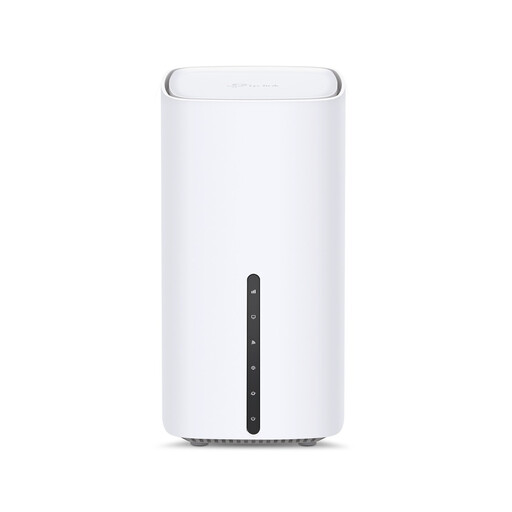
TP-Link Archer NX500 5G AX3000 Wireless Dual Band Gigabit Router
A router option to assess if you are comparing wireless and wired broadband connections; using its 5G or 4G connection requires a compatible SIM and mobile service.
The product name specifies 5G, AX3000, dual-band wireless and Gigabit.
Joybuy
 No image available
TP-Link Deco BE22, 3-Pack, BE3600 Whole Home Mesh Wi-Fi 7 System
A three-pack mesh option to consider when you need Wi-Fi points in more than one room; check whether the kit’s setup and connection options suit your home.
The product name specifies Wi-Fi 7 and BE3600.
Joybuy
 No image available
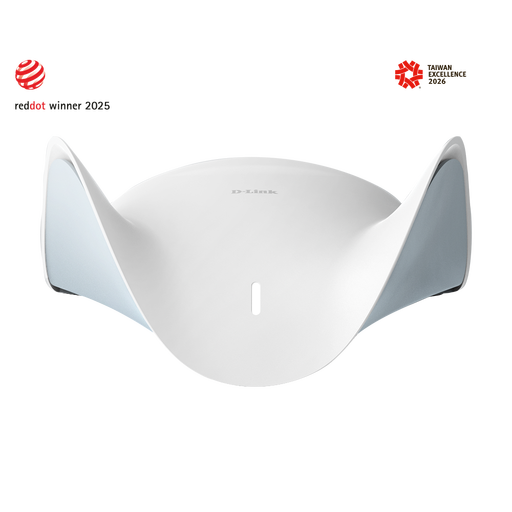
D-Link BE9500 Wi-Fi 7 Smart Mesh Router M95
A Wi-Fi 7 router option to consider if you may later expand coverage; check compatibility with the devices you intend to add.
The product name identifies a BE9500 Wi-Fi 7 smart mesh router.
Joybuy
 No image available
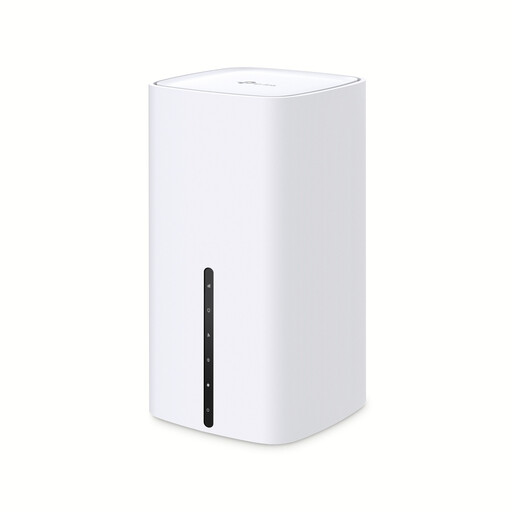
TP-Link Archer NX200 Wireless Dual-Band Gigabit Router
A router option to assess for a home considering mobile or fixed broadband; 5G or 4G access requires a compatible SIM, while the listing also describes connection to a modem for wired broadband.
The product name specifies dual-band wireless and Gigabit.
Joybuy
Frequently asked questions
How can I tell a weak room signal from a broadband problem?
Compare a wired or near-router connection with results in the problem room, and repeat checks at different times. A poor Wi-Fi result alone does not establish a broadband-line fault; check provider service information and report a suspected fault to your provider.
Where should I place a router or mesh nodes?
Where your connection setup allows, place the router centrally, off the floor and away from obstructions. A wireless mesh node also needs a usable link to the main unit; if walls or floors make that difficult, check whether the exact kit supports Ethernet backhaul and whether you can run a cable.
Do I need to replace my full-fibre box or provider router?
Not automatically. Ofcom identifies the full-fibre ONT as the box the router plugs into, so check your provider’s connection arrangement before changing equipment. Some mesh systems connect to an existing router, and an access-point mode may be relevant when that router needs to remain in place.
What ongoing costs or support differences should I check?
Check whether desired software features require a separate subscription: the UK eero 6+ listing says additional security and management tools are sold separately. Ofcom also notes that a provider may be unable to help with a third-party router problem, so ask about support before replacing provider equipment.


