What should you check before choosing?
Start by comparing a wired connection at the router with Wi-Fi in the affected rooms. Ofcom notes that Wi-Fi cannot outperform the broadband service, so this check can help distinguish an incoming-service issue from a problem inside the home.
| Concern |
What to check when buying |
Who this matters to |
| Coverage across rooms |
Test in the affected rooms; check walls, floors, practical node positions and whether the exact mesh model supports Ethernet backhaul. |
If I need usable Wi-Fi where people work, study or stream, I’ll focus on placement and coverage; around 31% of consumers prioritise coverage across rooms. |
| Finding the bottleneck |
Compare repeated wired tests at the router with nearby and problem-room Wi-Fi; check for a service fault or an older router before choosing equipment. Ofcom recommends checking the connection and how it is being used. |
When several activities slow at once, I want to know whether the service, router or Wi-Fi is the problem before changing equipment; around 31% of consumers prioritise diagnosing that bottleneck. |
| A reliable fixed connection |
Check the device’s Ethernet connection, an available router port and whether a cable route is practical. For powerline, check the kit and intended sockets rather than relying on its rated maximum. |
If one desk or device needs a dependable link, I’ll check whether a cable is practical before adding wireless equipment; around 23% of consumers prioritise reliability at a fixed position. |
| ISP setup and features |
Check your existing hub, provider and the proposed operating mode. Confirm which features remain available: TP-Link’s Deco access-point instructions note that some app features are unavailable in that mode. |
If I want new equipment to work with my existing broadband setup without complicated configuration or unwanted feature changes, I’ll check compatibility first; around 15% of consumers prioritise setup and compatibility. |
Joybuy product options
These Joybuy options cover multi-room mesh, a replacement router and powerline extension. Check the broadband connection, layout and ISP setup to decide which route fits your home.
 Image unavailable
NETGEAR Orbi 370 RBE373 WiFi 7 Mesh System, 3-Pack, BE3600
A three-unit mesh option to consider when Wi-Fi is weak across several rooms; placement and the incoming broadband service still affect the result.
The listing describes a dual-band system with one router and two satellites. It specifies 2.5Gbps Ethernet ports on the router and each satellite.
View on Joybuy
 Image unavailable
TP-Link Deco BE22 (3-Pack) BE3600 Wi-Fi 7 Mesh System
A three-unit mesh option for households looking to extend Wi-Fi across rooms; check practical node positions and how the system will connect to the existing hub.
The listing specifies wireless and wired backhaul, with two Ethernet ports per unit.
View on Joybuy
 Image unavailable
TP-Link TL-WPA8631P KIT AV1300 Gigabit Powerline Wi-Fi Extender Kit
A powerline option to investigate when a direct Ethernet run is impractical and you want to try using the home’s electrical wiring to extend connectivity.
The listing specifies dual-band Wi-Fi and three Gigabit Ethernet ports on the extender. The adapters should be plugged directly into wall outlets, not power strips or extension cords.
View on Joybuy
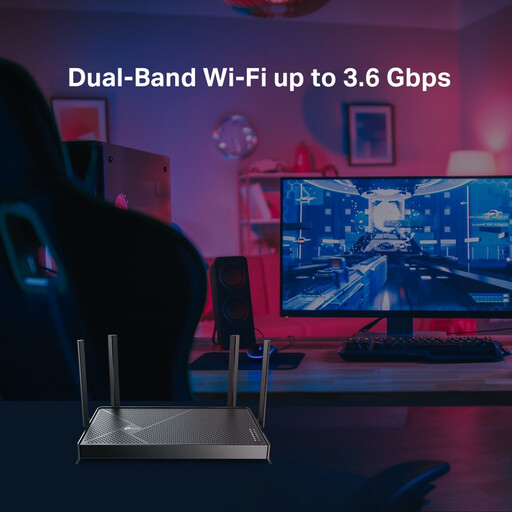 Image unavailable
TP-Link Archer BE230 BE3600 Dual-Band Wi-Fi 7 Router
A replacement-router option to consider if the broadband service is working well and the existing router may be limiting Wi-Fi; check whether one router suits the home’s layout.
The product name identifies a dual-band Wi-Fi 7 router. Check the exact model and intended setup against your ISP’s requirements.
View on Joybuy
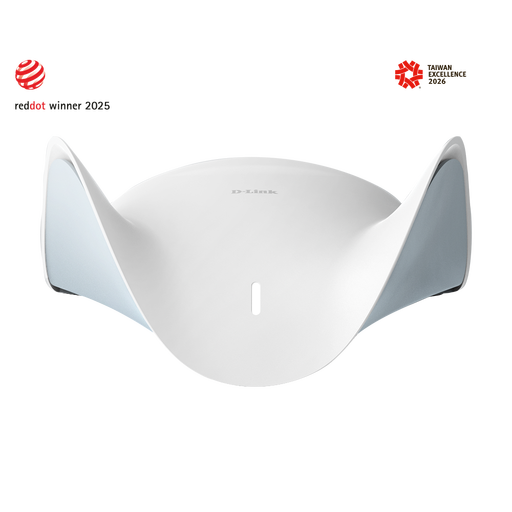 Image unavailable
D-Link BE9500 Wi-Fi 7 Smart Mesh Router M95
A router option for a household considering replacement equipment and possible mesh expansion; the listing says expansion requires additional compatible units.
The listing specifies tri-band Wi-Fi 7, MLO, a 2.5-Gigabit WAN port and three 2.5-Gigabit LAN ports.
View on Joybuy
Home Wi-Fi FAQs
How can I tell whether I need better broadband or better Wi-Fi?
Compare a wired connection to the router with Wi-Fi nearby and in the problem rooms, repeating the checks at different times. If the wired connection is also below expectations, check your broadband agreement and contact your provider; mesh equipment cannot increase the speed supplied to the home.
Can mesh work while I keep my broadband provider’s hub?
It can, but the setup depends on the hub, provider and mesh model. TP-Link documents a Deco access-point arrangement in which the existing router assigns addresses and some Deco app features are unavailable; eero’s UK instructions describe different arrangements by provider. Confirm the intended operating mode before choosing.
Where should I place the router and mesh nodes?
Ofcom advises placing the router centrally and off the floor, away from obstructions and interfering electrical equipment. Place additional nodes where they can maintain a useful connection to the rest of the system, or check whether wired backhaul is supported if Ethernet reaches those positions.
What setup and support should I check before replacing my router?
Check your ISP’s requirements, the intended operating mode and which features will remain available with the new equipment. Ofcom advises asking your provider about its hub, as it may offer less help troubleshooting a separately purchased router.


