Who needs to make this choice?
The useful equipment choice depends on whether simultaneous activity exposes a limit in the broadband service, the reach of the Wi-Fi signal or the connection to a particular device.
Households with several people online at once
If calls, streaming, downloads and gaming coincide, check whether the connection is struggling throughout the home or only on Wi-Fi. Ofcom advises checking for data-heavy activity elsewhere on the network when investigating broadband and Wi-Fi problems.
People with weak rooms or floors
If the signal is poor in several regularly used areas, the home’s layout and the position of the router matter to the choice between mesh nodes, a wired connection and an extender for one area.
Households changing a provider router
A new router or mesh system must work with the connection coming into the property. Check the modem or optical network terminal (ONT), the provider’s connection settings and any services that still need its hub.
What should you check first?
Establish whether the broadband service is working as expected, then map where the weak connections occur. That distinction helps you choose equipment for the problem you can actually address.
| Priority |
What to check |
Your needs |
| Simultaneous use |
Check the connection at the provider hub or through a suitable wired connection before blaming Wi-Fi. Note whether large downloads or streams coincide with problems; Ofcom advises checking other data-heavy activity on the network. |
Calls, streaming and gaming need to remain usable when other people are online. If the broadband service itself is struggling, I should address that before buying Wi-Fi equipment. |
| Room coverage |
Check the signal in the rooms you use, the router’s position and obstacles between it and your devices. Several weak areas point towards a multi-node layout; an extender needs a usable signal where it is installed. |
I want a connection in the rooms where we actually make calls or watch programmes, not just beside the router. One weak room is a different problem from poor coverage across several floors. |
| Wired connections |
Check whether a cable can reach a fixed device or mesh node and whether suitable ports are available. For Ethernet backhaul between mesh devices, TP-Link says both the main and satellite units must support it. |
A console, desktop or TV stays in one place, so I can consider Ethernet rather than relying on its wireless link. If I use mesh, cabling between nodes also has to fit the home. |
| Provider compatibility |
Identify the broadband hand-off and confirm the replacement router’s WAN connection type, any required credentials and services that rely on the provider hub. Check feature support for the exact device version and firmware. |
I want to change the router without losing the connection or a service that depends on the existing hub. The new equipment has to suit the setup at my address. |
Relevant brand references
These brands illustrate different equipment routes; a feature described for one model should not be assumed across a brand’s range.
TP-Link
Its ranges include standalone routers, Deco mesh systems, EasyMesh equipment, extenders and powerline products.
- TP-Link lists wired and wireless combined backhaul and four 2.5 Gbps ports for the Deco BE65.
- For EasyMesh Ethernet backhaul, TP-Link says both the main and satellite devices must support the feature. Check the exact model, hardware version and firmware.
NETGEAR
Nighthawk routers and Orbi multi-node systems provide different ways to cover a home.
- NETGEAR describes a single router as an option for a small home or flat with relatively few connected devices.
- A single router and a multi-node system solve different layout problems; check the individual model rather than treating the brand as one equipment type.
BT
BT’s Wi-Fi Extender 2600 is an example of extending one area while keeping an existing broadband hub.
- BT says the Extender 2600 works with all broadband providers and has a Gigabit Ethernet port and placement lights.
- An extender does not establish whether a problem affecting the whole home comes from the broadband service or the existing hub.
Joybuy options for different setups
These options cover multi-room mesh, a standalone router and a powerline Wi-Fi kit for a location where running a long Ethernet cable is impractical. Match the equipment type to the rooms and devices affected before comparing models.
 No image available
TP-Link Deco BE65 BE9300 Wi-Fi 7 Mesh, 3-Pack
Three mesh units make this an option to assess when coverage is weak in several rooms. TP-Link lists combined wired and wireless backhaul and four 2.5 Gbps ports for the BE65; check the exact hardware version, node placement and broadband connection before relying on those features in your setup.
View on Joybuy
 No image available
TP-Link Deco BE22 BE3600 Wi-Fi 7 Mesh, 3-Pack
This three-unit mesh system is relevant when one router does not reach several regularly used rooms. Plan where each unit would go; if you intend to cable the units together, confirm Ethernet-backhaul support for the exact devices and firmware before installation.
View on Joybuy
 No image available
NETGEAR Orbi 370 RBE373 BE3600 Mesh, 3-Pack
The three-pack mesh format is worth considering for weak coverage in more than one area. Its named configuration includes dual-band Wi-Fi 7 and 2.5 Gbps Ethernet; confirm the connection to your modem or gateway and any provider services before changing the existing setup.
View on Joybuy
 No image available
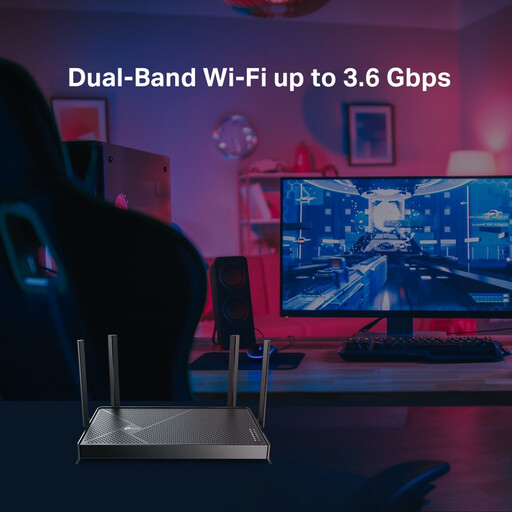
TP-Link Archer BE230 BE3600 Dual-Band Wi-Fi 7 Router
This standalone router fits a replacement route when coverage from one well-placed unit is broadly adequate. It is not a substitute for additional coverage in several weak rooms; confirm its WAN connection requirements and any provider-hub services before replacing your router.
View on Joybuy
 No image available
TP-Link TL-WPA8631P KIT AV1300 Powerline Wi-Fi Extender Kit
This powerline kit offers a way to assess a connection for a fixed device or weak area when a long Ethernet cable is impractical. Results depend on the home’s wiring and intended sockets; check the outlet instructions and exact router compatibility if you plan to use OneMesh.
View on Joybuy
Questions about home Wi-Fi
Should I check my broadband before buying new Wi-Fi equipment?
Yes. Check the service available at your address and, where practical, test the connection at the provider hub before buying hardware. Ofcom explains that Wi-Fi cannot outperform the broadband service delivered to the home, so a service problem will not be fixed solely by a router, mesh system or extender.
When does mesh make more sense than an extender?
Consider mesh when weak coverage affects several rooms or floors and you can place nodes to connect those areas. An extender is a narrower option for one weak area: it must sit somewhere that still receives a usable signal from the router.
Can I connect any mesh nodes with Ethernet?
No. For TP-Link EasyMesh Ethernet backhaul, TP-Link says both the main and satellite devices must support the feature. Check the documentation for the exact models, hardware versions and firmware before buying nodes or arranging cabling.
Can I replace my provider’s router with my own?
Sometimes, but confirm the physical broadband connection, the new router’s WAN requirements, any ISP settings or credentials, and services that may need the provider hub. Keep the existing equipment available while you check how the replacement would connect.


