What to prioritise when choosing
For remote work or study in a shared home, compare the problem you need to solve—room coverage, simultaneous use, one fixed device, removable setup or security support—before choosing new Wi-Fi equipment.
Wi-Fi router
Consider when: The existing router performs poorly even in nearby rooms, after checking provider equipment and connection compatibility.
Trade-off: One router may not overcome obstructed rooms, and Ofcom notes that third-party equipment can bring setup and support questions.
Mesh Wi-Fi
Consider when: Several rooms have weak signal but the broadband service itself is adequate.
Trade-off: Nodes need suitable positions and power sockets; they cannot increase incoming broadband capacity, and too many nodes may make performance worse.
Wi-Fi extender
Consider when: One weak-signal area has a suitable socket where the existing Wi-Fi is still usable.
Trade-off: The result depends on the connection back to the existing network; do not assume it will solve whole-home congestion.
Ethernet
Consider when: A call or study computer stays in one place and a suitable cable can reach it.
Trade-off: A cable serves the connected device, not wireless coverage for the rest of the home; use a removable route unless property alterations are permitted.
Security accessories
Consider when: You have a specific security need not met by the existing network equipment.
Trade-off: An accessory does not replace software updates or secure setup, and it will not fix weak Wi-Fi coverage.
| Concern |
What to check when buying |
Who this matters to |
| Coverage in the work or study room |
Compare Wi-Fi near the router and in the affected room; map possible node or extender positions and check for a suitable socket. |
If my calls or lessons falter in a distant room, I want coverage where I work, not just a higher advertised speed. Around 28% of consumers prioritise room coverage. |
| Several people online at once |
Compare nearby and affected-room performance during busy periods; check for provider faults or data-heavy activity. |
When household activity overlaps with work, I need to know whether Wi-Fi or the incoming service is the bottleneck. Around 22% of consumers put simultaneous use first. |
| One fixed call or study device |
Check the device's Ethernet connection or required adapter, an available router port and a suitable cable route. |
If my work device stays at one desk, a dependable wired connection may matter more to me than extending Wi-Fi throughout the home. Around 22% of consumers prioritise a wired connection for one device. |
| Removable setup and hub compatibility |
Check how the proposed equipment connects to the existing hub, its operating mode and power needs; seek permission before property alterations. |
If I need to keep the existing equipment and avoid permanent changes, I want a setup that works with the hub and can be removed. Around 17% of consumers prioritise a removable, compatible setup. |
| Security support and feature terms |
Check the exact model and hardware version's stated security-update period, available updates and terms for desired features. |
If I am choosing network equipment for the long term, I want to understand its support information and which features are included. Around 11% of consumers prioritise security support and feature terms. |
Relevant brands to consider
These examples concern particular product lines and features; check the exact model, pack and hardware version rather than treating a brand name as a guarantee of suitability or support.
TP-Link
Deco mesh systems and RE-series extenders offer different approaches to extending in-home Wi-Fi.
- TP-Link describes optional Ethernet backhaul for Deco X20 and access-point mode for the RE705X.
- The UK Deco X20 page labels V4 “End of Life”; check the hardware version and support information for the exact product.
ASUS
ZenWiFi XD5 is a mesh option to compare when considering node placement and existing Ethernet connections.
- ASUS says XD5 supports Ethernet backhaul where wall Ethernet ports are available.
- ASUS states that Wi-Fi 6 benefits require compatible devices and that 160 MHz availability varies by region.
Mercusys
Halo H80X is a Wi-Fi 6 mesh example for households comparing multi-unit coverage.
- Mercusys lists three gigabit ports per Halo H80X unit.
- Mercusys says Halo H- and S-series units cannot work together; check the exact unit's hardware version and support information.
NETGEAR
Orbi 770 is a tri-band Wi-Fi 7 mesh line to compare when considering multi-node links and wired ports.
- NETGEAR describes Enhanced Backhaul and 2.5 Gig Ethernet on Orbi 770 units.
- Those features alone do not establish that a particular broadband plan, device or home layout will benefit; check the exact pack and required features.
eero
eero 6+ is an app-managed mesh example for comparing setup and network-management options.
- Amazon says eero 6+ receives automatic updates.
- Check compatibility and the terms for the specific pack and features you want.
Joybuy product choices
These Joybuy options cover mesh Wi-Fi, a Wi-Fi router and a range extender for improving in-home connectivity. Check your existing service, equipment compatibility and the layout of the rooms you need to connect.
 No image available
NETGEAR Orbi 370 RBE373 WiFi 7 Mesh System, 3-Pack, Dual-Band BE3600, 2.5Gbps Ethernet, White
Consider this three-unit mesh system if several rooms need Wi-Fi coverage and a wired connection may suit a fixed device.
The described setup requires an existing modem or gateway.
WiFi 7; 3-pack; dual-band BE3600; 2.5Gbps Ethernet.
Joybuy
 No image available
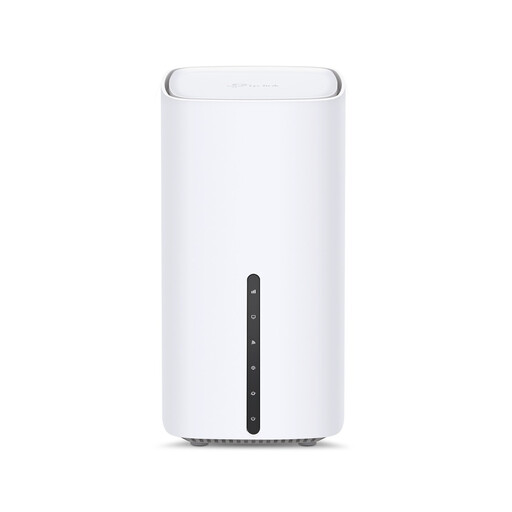
TP-Link Archer NX500 5G AX3000 Wireless Dual Band Gigabit Router
Consider this router if you are comparing a router-based setup with mesh or an extender for your home connection.
The listed name specifies 5G, AX3000, dual-band wireless and Gigabit connectivity. Using its 5G connection requires a SIM card; the described alternative is operation with a cable, fibre or DSL modem.
Joybuy
 No image available
TP-Link RE220BE BE3600 Wi-Fi 7 Range Extender
Consider this extender for a weak-signal room where a suitable socket is still within range of the existing router.
The described setup requires placement within range of the existing router. If Ethernet reaches the area, check whether access-point mode suits your setup.
BE3600; Wi-Fi 7 range extender.
Joybuy
 No image available
TP-Link Deco BE22 (3-Pack) BE3600 Whole Home Mesh Wi-Fi 7 System
Consider this three-pack if weak Wi-Fi affects several areas and a mesh setup fits your home.
3-pack; BE3600; whole-home mesh Wi-Fi 7 system.
Joybuy
 No image available
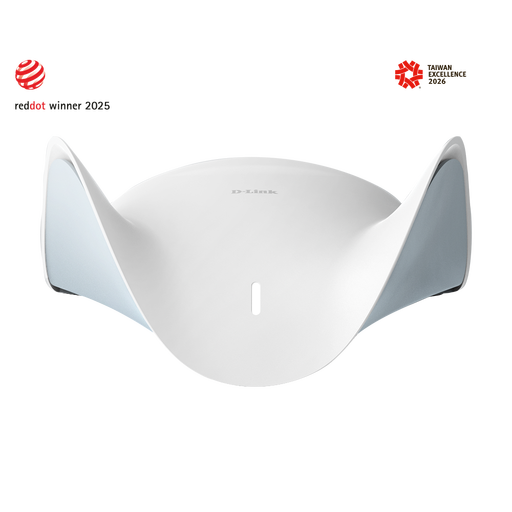
D-Link BE9500 Wi-Fi 7 Smart Mesh Router M95
Consider this router if you want to assess a router-based setup with the option to expand into mesh.
The described mesh expansion uses additional AQUILA PRO AI routers or extenders.
BE9500; Wi-Fi 7 smart mesh router; model M95.
Joybuy
Home Wi-Fi questions answered
How can I tell whether buying Wi-Fi equipment will help?
Compare the affected room with a position near the router, and check for a provider fault or unusually heavy use at the time. If the incoming broadband service is the limiting factor, Wi-Fi equipment cannot make it faster, as Ofcom explains.
Can I set up mesh or an extender in a rented home without drilling?
Freestanding mesh units and a plug-in extender are options to assess without drilling, but they still need suitable sockets and a connection back to the existing network. For a proposed cable run or other property alteration, check your tenancy arrangements and obtain any permission needed.
What maintenance should I plan for a new router or mesh kit?
Check the exact model and hardware version's security-support information and available updates, then follow the manufacturer's setup guidance. The National Cyber Security Centre advises avoiding devices that are unsupported or nearing the end of support; a published minimum support period is not a promise of indefinite updates.
What security-support information should I check for a consumer router or mesh product?
For products within scope, UK consumer-connectable-product security rules took effect on 29 April 2024 and include a requirement for manufacturers to state a minimum security-update period. Scope and exceptions matter: UK government guidance identifies a conditional exception for relevant products supplied in Northern Ireland, so check the rules that apply to the product and place of supply.
Who should I contact if the underlying broadband service fails?
Report the fault to your broadband provider and describe when interruptions occur and what checks you have tried. Ofcom says the provider is responsible for fixing service faults even when another company owns the network.


