People working on a laptop for long sessions
If you use a laptop screen for sustained work, consider whether separate inputs and a raised screen or an external display better address the needs identified in your workstation assessment.


Start with your workstation assessment and the screen and input positions you can achieve; for prolonged laptop use, separate keyboard and mouse positioning can allow the laptop screen to be raised, while a separate monitor offers another display option. Choose a portable or desk-based screen to suit your space, then check your laptop’s video and charging requirements before adding a hub. In Great Britain, the Health and Safety Executive (HSE) says workers must not be charged for equipment identified as necessary by an applicable assessment; Northern Ireland has separate Health and Safety Executive for Northern Ireland (HSENI) guidance, so discuss assessed requirements with your employer rather than assuming they are personal purchases.
If you use a laptop screen for sustained work, consider whether separate inputs and a raised screen or an external display better address the needs identified in your workstation assessment.
If your home work surface needs to be cleared or shared, compare the space used by a desk monitor, a portable display and a laptop riser, including room for a keyboard and mouse.
If you use a display and other work peripherals, check your laptop’s actual ports, video support and charging requirements before choosing a hub or meeting accessory.
Begin with your workstation assessment and the screen and input arrangement it calls for; then check desk space and laptop connections before choosing accessories.
| Concern | What to check when buying | Who this matters to |
|---|---|---|
| Screen and input position | Use your individual workstation assessment; check whether the screen and separate keyboard and mouse can be positioned as needed. | If I work at a laptop for long stretches, I want the screen and typing position to work together. Consumers who put screen and input position first account for about 36%. |
| Desk space and portability | Measure the available surface and allow room for input devices; check display size, stand footprint and whether the setup needs to travel. | If I have a small work surface or move between locations, I need an arrangement that fits or can be cleared away. Consumers prioritising desk space and portability account for about 29%. |
| Ports and connections | Identify the laptop’s supported video output, the display’s input, the peripherals to connect and the charging requirement; check whether a charger is included. | If I need to connect a display and several peripherals, I want the laptop and accessories to support the connections I plan to use. Consumers putting ports and peripheral connections first account for about 21%. |
| Meeting video and audio | Check whether the laptop’s built-in camera and audio meet your needs, then confirm the accessory’s connection, position and work-device policy. | If my current meeting setup does not meet my video or audio needs, I want an accessory that addresses that specific gap. Consumers prioritising meeting video and audio account for about 14%. |
An individual workstation assessment, not a generic home-office shopping list, determines what additional display-screen equipment is needed. In Great Britain, HSE says workers must not be charged for equipment required by an applicable assessment; HSENI provides separate guidance for Northern Ireland.
Complete or request the applicable assessment and discuss its findings with your employer before buying equipment identified as necessary. Keep optional personal upgrades separate from assessed requirements.
HSE’s guidance for prolonged laptop use describes separating the keyboard and mouse so the laptop screen can be raised.
Plan the screen and input positions together, and make sure your work surface has room for the separate keyboard and mouse.
Separate input devices also need space on the desk.
Dell describes the P2425H monitor’s downstream USB-C port as data-only, while listing HDMI and DisplayPort as video inputs. Anker specifies up to 85 W pass-through charging for its 555 hub and says a wall charger is not included; these are model-specific details.
Check the exact laptop, display, hub and charger requirements before choosing a cable or connection arrangement.
A different video connection or a separate compatible charger may be needed for the setup.
A portable display and a desk monitor can differ in screen size, stand adjustment and the space they occupy, so portability alone does not determine whether the arrangement fits your work surface.
Measure the available space and consider the intended screen position before choosing a display or stand.
The P2425H illustrates a desk-monitor option for a more permanent home workstation.
The ThinkVision M14t Gen 2 illustrates a portable-display option when a work area needs to be moved or cleared.
The SmartFit Easy Riser Go K50420EU illustrates a foldable riser option for people keeping the laptop’s own screen.
The MX Keys Mini illustrates a compact separate-keyboard option for a constrained work surface.
The 555 USB-C Hub A8383 illustrates port expansion when a laptop’s convenient connections do not cover the identified setup.
These products relate to positioning a laptop screen, adding separate input or display options, and connecting peripherals in a home-work setup.
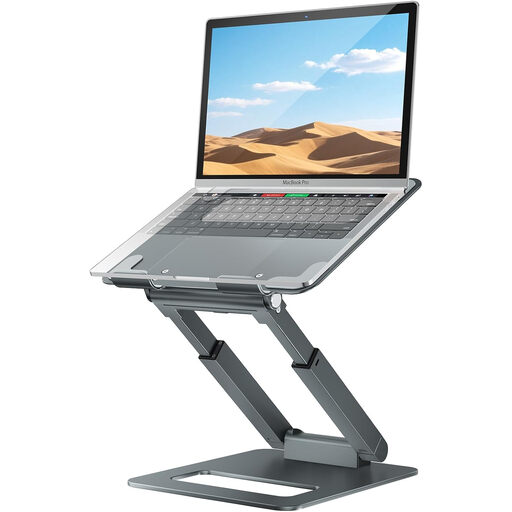 No image available
Consider a riser if you want to reposition the laptop screen while keeping the laptop display in use.
The product title specifies a telescopic pull-out design and height adjustment.
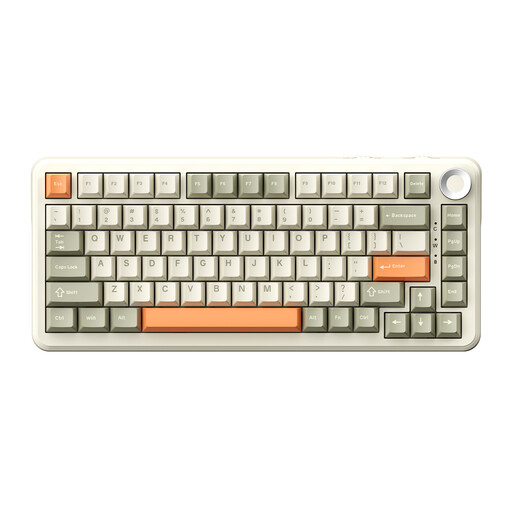 No image available
Consider a separate keyboard if you need to position your hands independently of the laptop screen; check the layout against your work tasks.
The product title specifies a 75% layout, wired, Bluetooth and 2.4G connection modes, and a US layout.
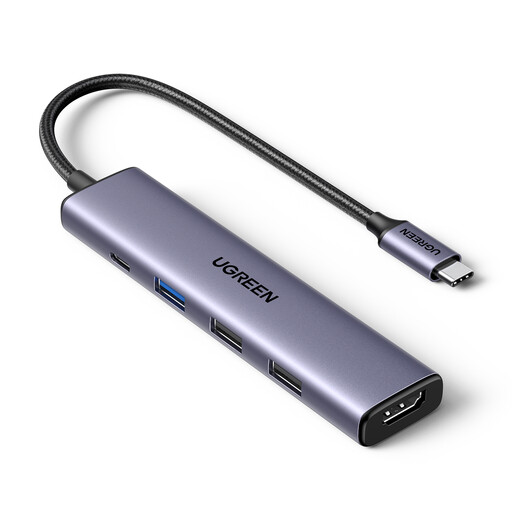 No image available
Consider a hub after identifying the display and peripherals you need to connect, and check your laptop’s supported video and charging arrangements.
The product title specifies 100W PD, 4K HDMI and three USB-A data ports.
 No image available
Consider a separate display if your workstation needs a screen positioned independently of the laptop; check the laptop’s supported video output and the monitor’s exact inputs.
The product title specifies a 24-inch monitor.
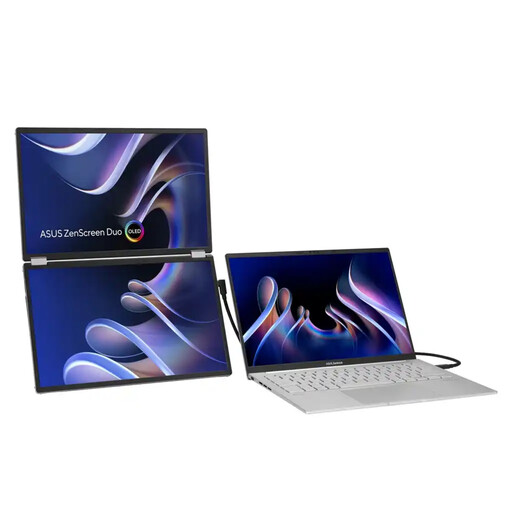 No image available
Consider a portable display if your setup needs to be moved or packed away; check the available surface and your laptop’s video support before choosing a connection.
The product title specifies dual 14-inch 16:10 1920 × 1200 OLED panels, USB Type-C, mini-HDMI and a kickstand.
If an applicable workstation assessment identifies equipment needed to address a display-screen risk, discuss the finding with your employer before buying it yourself. HSE guidance for Great Britain says workers must not be charged for equipment required by the assessment; HSENI provides separate guidance for Northern Ireland. An optional personal preference is not automatically an assessed requirement.
No. The equipment needed depends on the individual workstation assessment and the screen and input positions you can achieve. HSE guidance for prolonged laptop use describes separate keyboard and mouse positioning with a raised laptop screen; a separate display is another possible arrangement.
No; check the exact monitor input and your laptop’s supported video output. For example, Dell lists the P2425H’s USB-C port as a data-only downstream connection and identifies HDMI and DisplayPort as video inputs.
Only if the laptop, hub and power supply support the required charging arrangement. Anker specifies up to 85 W pass-through for its 555 A8383 hub and says that a wall charger is not included, so compare the model’s specification with your laptop’s requirements.
Northern Ireland has separate Display Screen Equipment Regulations and HSENI guidance. HSENI says the rules can apply to permanent or long-term home workers and people who routinely split their time between home and the workplace; check the guidance that applies to your circumstances.