What to check before buying
For home and hybrid work, identify the need that would drive your first accessory purchase; a more elaborate desk setup need not solve the problem you encounter most often.
| Concern |
What to check |
Who this matters to |
| Space for documents and windows |
Check the laptop’s documented display output, the monitor’s input and support for the intended number of screens. |
When I compare documents or keep several work applications open, I want more usable screen space without assuming my laptop can run every monitor arrangement. Around 31% of consumers would put display space first. |
| Repeated desk connections |
Match the dock to the exact laptop’s port and display capabilities, charging requirement and employer-approved setup. |
Connecting a screen and peripherals every workday makes a simpler connection my priority, provided it works with my laptop. For around 25% of consumers, desk connectivity comes first. |
| Participation in calls |
Check the camera or audio device’s connection, operating-system and meeting-platform compatibility, and workplace approval. |
If meetings or interviews fill much of my day, I need a camera or audio setup suited to those calls before adding another screen. Call equipment is the first priority for around 25% of consumers. |
| Screen position at the desk |
Assess the existing setup; for a monitor arm, check display size and weight, mounting support and desk fit. |
When screen height or limited desk depth is the main difficulty, I want to adjust the workstation rather than buy a larger accessory bundle. Around 19% of consumers would address screen position first. |
Joybuy products for different tasks
These products cover separate home-working tasks: connecting a fixed desk, adding screen space, setting up for calls and using separate input devices. Choose by the task you need to address, then check compatibility with your laptop and workplace arrangements.
 No image available
Targus USB-C Universal Dual HDMI 4K Docking Station with 100W Power Delivery Pass-Thru
Consider this dock if repeatedly connecting a desk display and peripherals is your main task. Its name specifies dual HDMI 4K connections and 100W power-delivery pass-through; check that your laptop supports the intended display arrangement and charging setup, and confirm what power equipment comes in the package.
View on Joybuy
 No image available
ASUS PROART PA278CV IPS WQHD Monitor
Consider an external monitor when comparing documents or working across several windows is the priority. This PA278CV is identified as an IPS WQHD model; check your laptop’s video output and the connection you intend to use, including charging requirements if you plan a USB-C setup.
View on Joybuy
 No image available
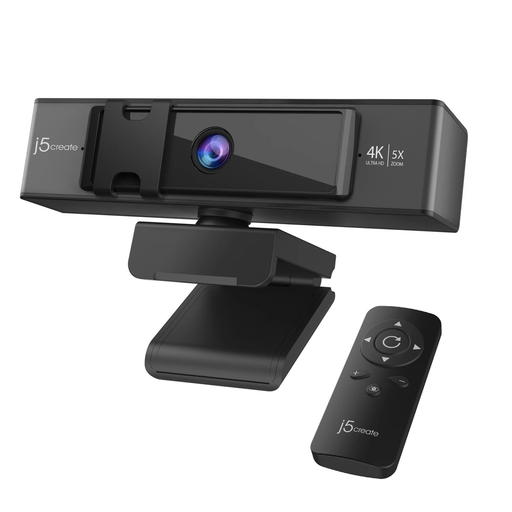
j5create JVCU435 USB 4K Ultra HD Webcam with 5x Digital Zoom and Remote Control
Consider a separate webcam if camera framing is a priority during frequent video meetings. The JVCU435 name specifies 4K video, 5x digital zoom and a remote control; check the connection and whether your employer permits an external camera on the work laptop.
View on Joybuy
 No image available
HP 680 CFT Dual-Mode Keyboard and Mouse Combo
A separate keyboard and mouse may suit sustained work at a fixed desk. This is the HP 680 CFT dual-mode set; confirm the keyboard layout you need and check workplace rules before connecting a wireless device to a managed laptop.
View on Joybuy
 No image available
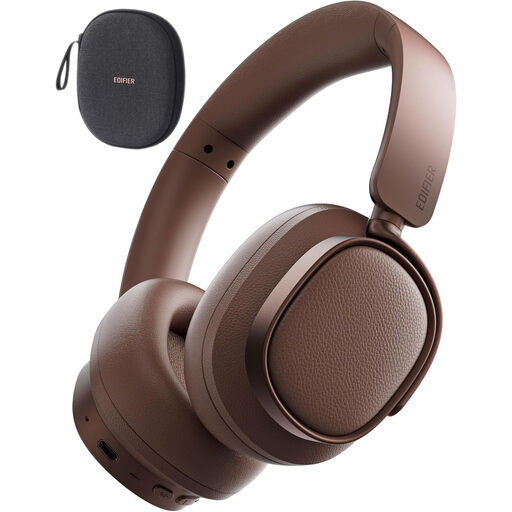
Edifier ES850NB Noise-Cancelling Over-Ear Bluetooth Headphones
For call-heavy work, consider these headphones if over-ear Bluetooth audio suits your desk setup. The ES850NB name identifies an active noise-cancelling model; check meeting-platform compatibility and employer device rules. If you need a wired connection, confirm the required cable and package contents.
View on Joybuy
Frequently asked questions
Will any USB-C laptop port run an external monitor through a dock?
No. Dell Technologies states that not every USB-C port supports video output. Check the exact laptop’s documentation for its display-capable ports, then confirm the intended monitor arrangement against the dock and cable specifications.
What should I check before buying a dock for an employer-issued laptop?
Check workplace approval and IT support before choosing a dock. Then match the exact laptop model, display-capable port, charging requirement and any required software to the dock; Acas advises discussing what home-working equipment is needed and how it will be supported.
Do I automatically need a monitor arm or laptop stand to work from home?
No. The Health and Safety Executive notes that some home workers can achieve a comfortable working position without extra furniture or equipment. Assess your current screen and input-device positions first; if you choose an arm, verify its fit with the monitor and desk.
Should I buy a work accessory myself and claim it back later?
Agree who will provide or pay for the equipment before buying rather than assuming a personal purchase will be reimbursed. Acas advises employers and home-working staff to discuss equipment needs, costs and support; check your employer’s applicable arrangements.
What should I do with an old keyboard, webcam or dock?
Use an appropriate reuse or electrical-recycling route rather than putting it in general rubbish. Slough Borough Council advises separating electrical items for reuse or recycling; check your own local authority’s arrangements or ask the retailer about take-back.


